Setting your Designs Location and Scale Within the AM.CO.ZA InkRIP Software (Part 2)

inkrip designs location setting
When it comes to having your design an exact size or placed on an exact location in the overall layout of your project.
Then knowing how to set the Scale and Location using the Layout Feature will be essential.
This video is part of a Mini-Series.
The next video covers MSM.
The previous video covered Layout Feature.
Video Transcript
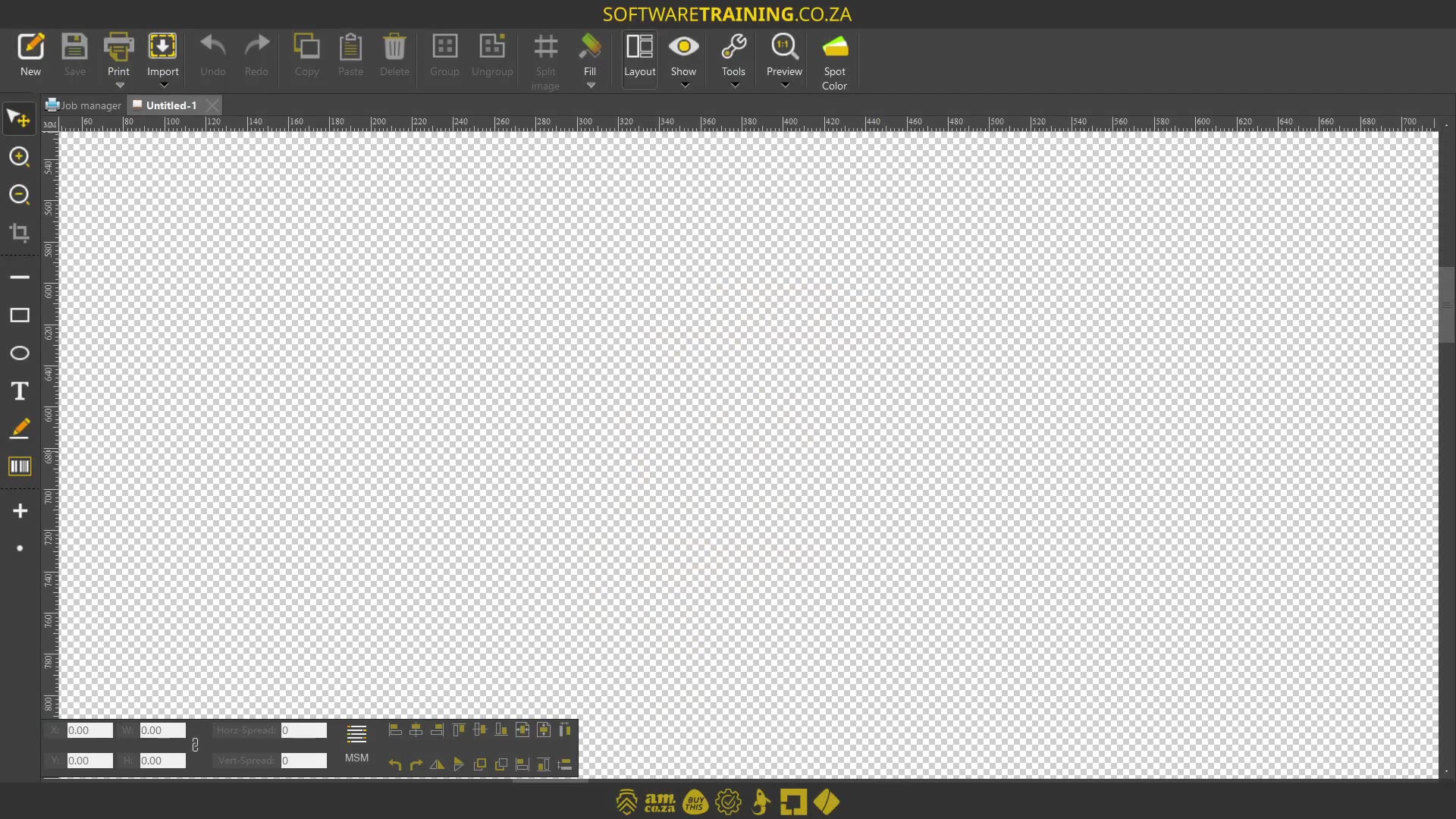
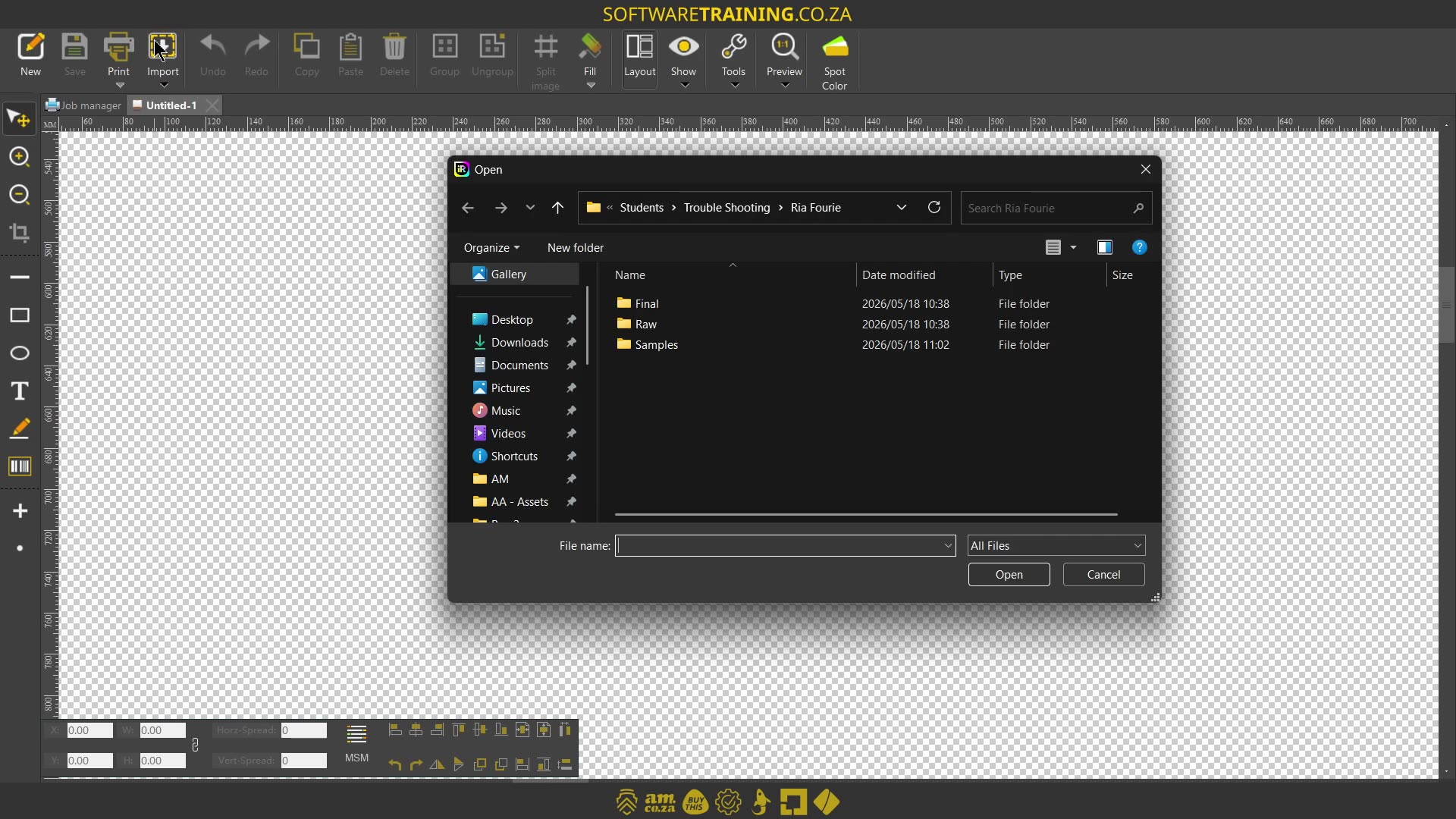
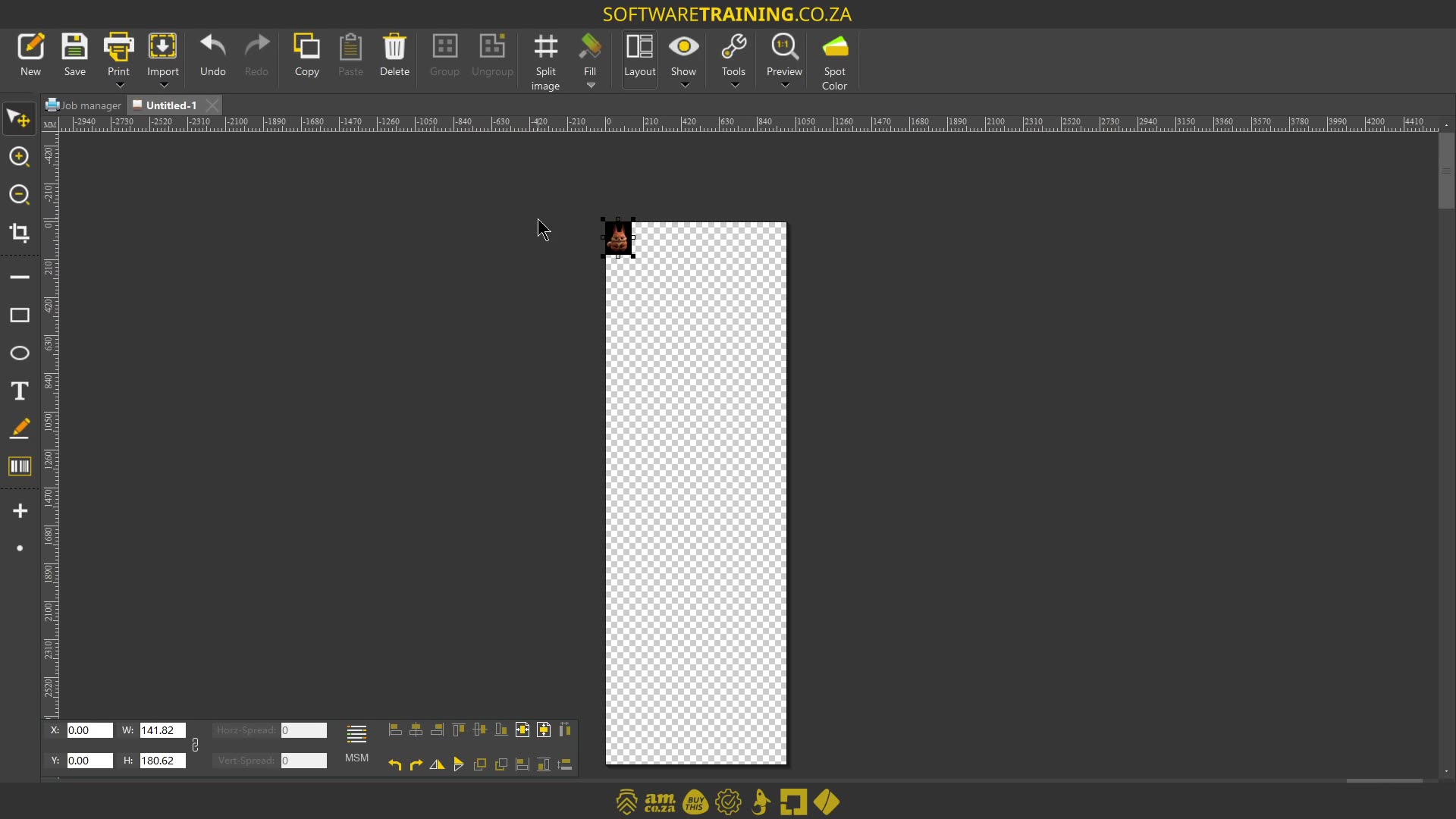
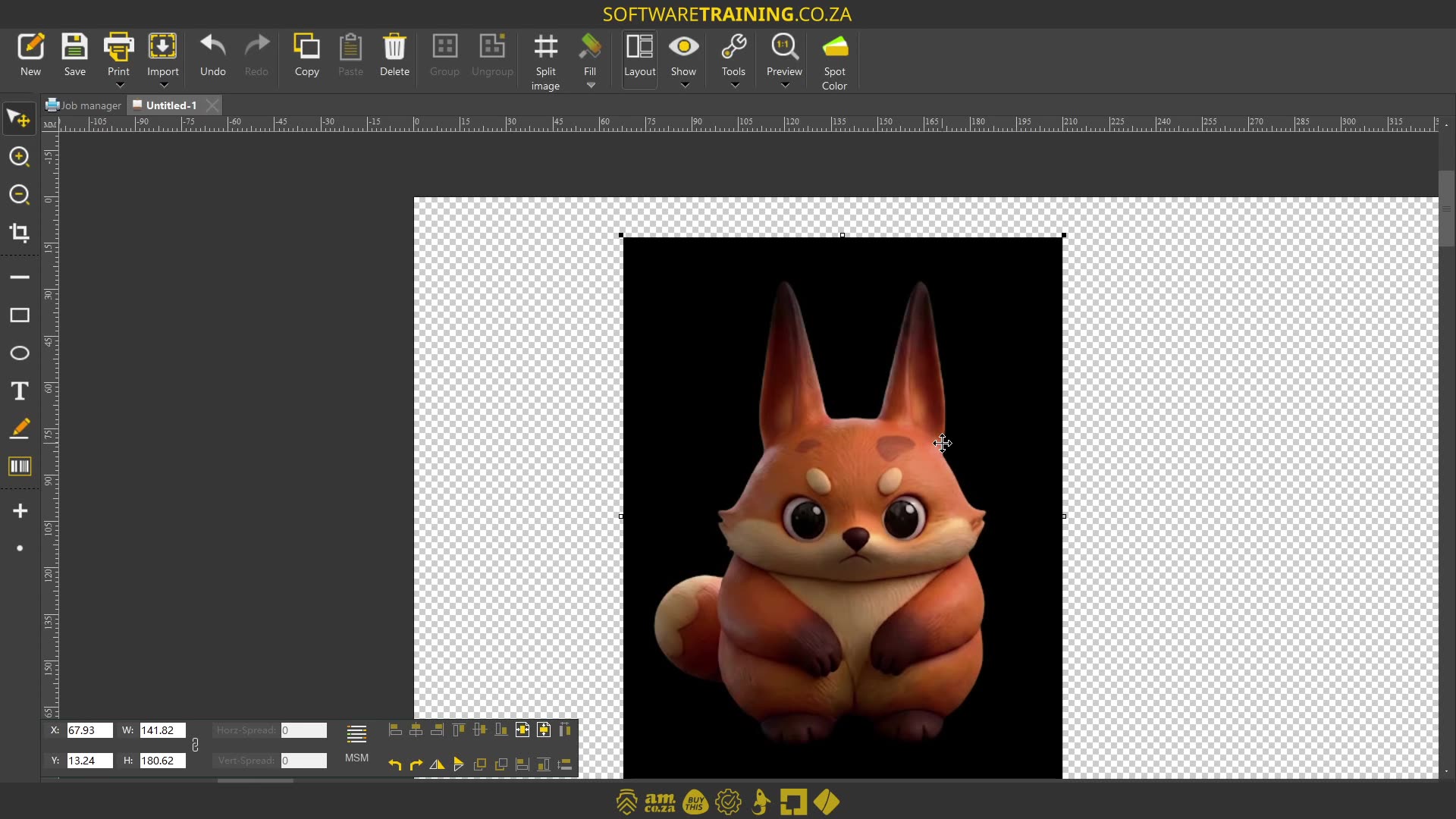
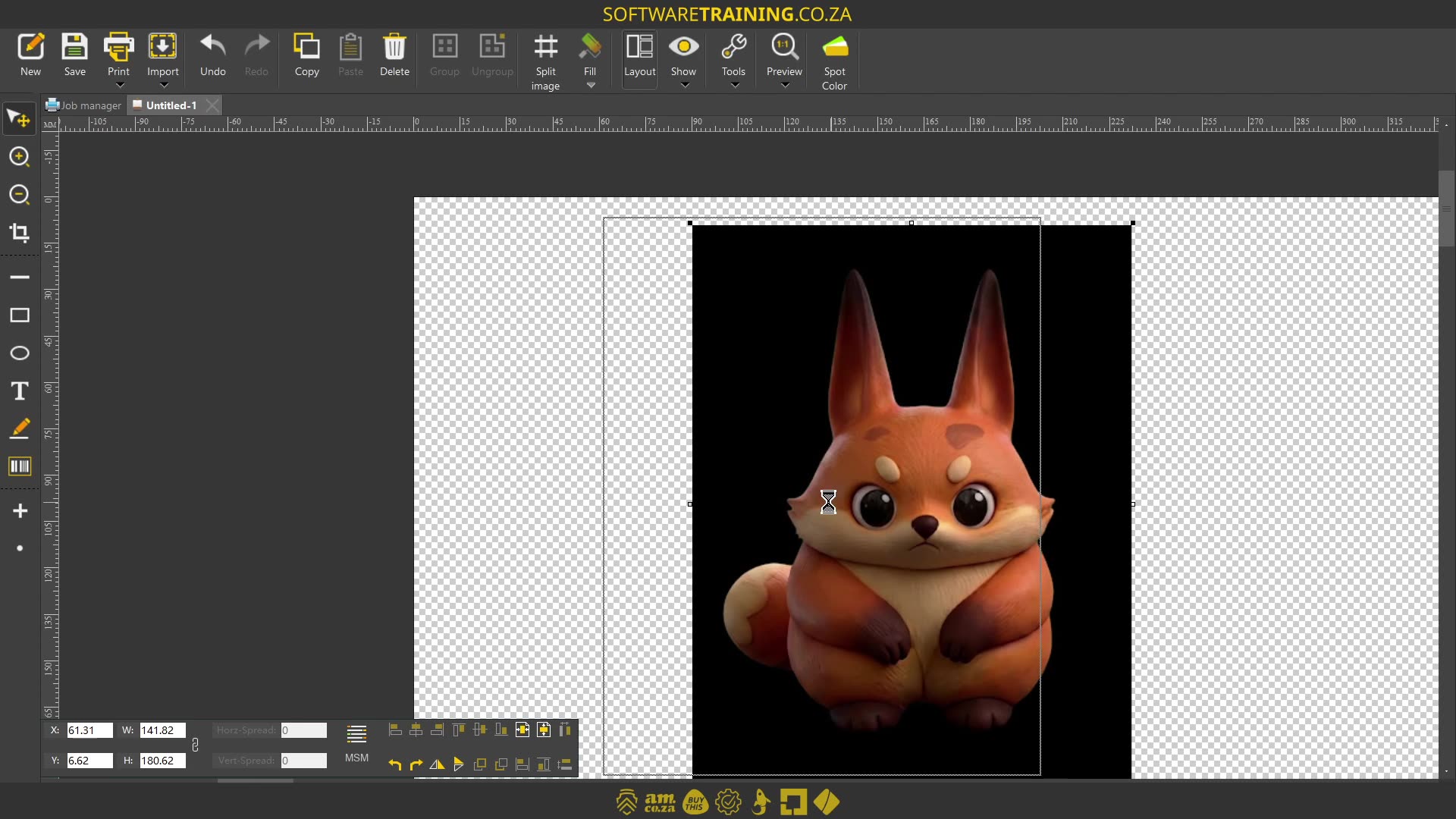
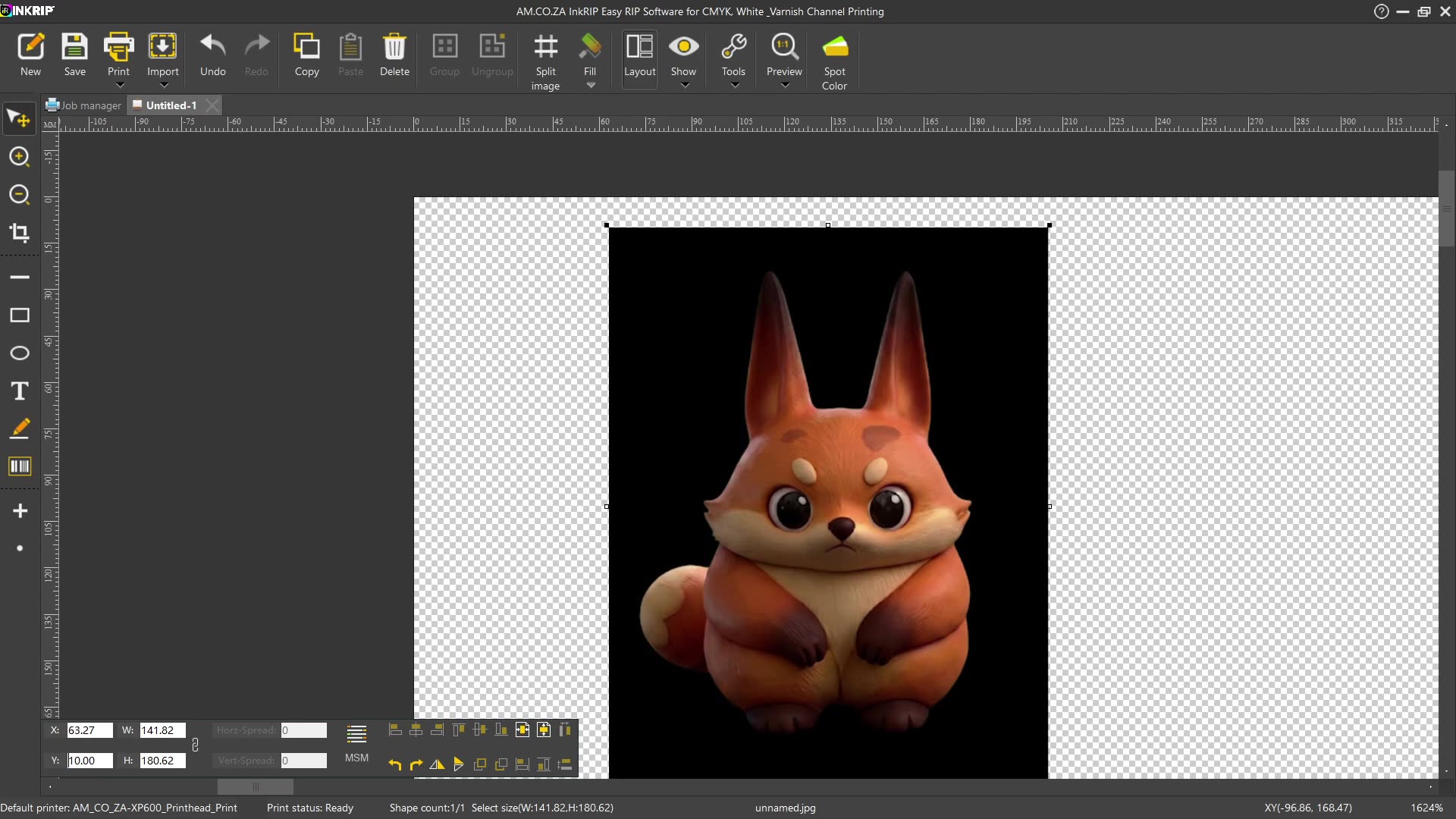
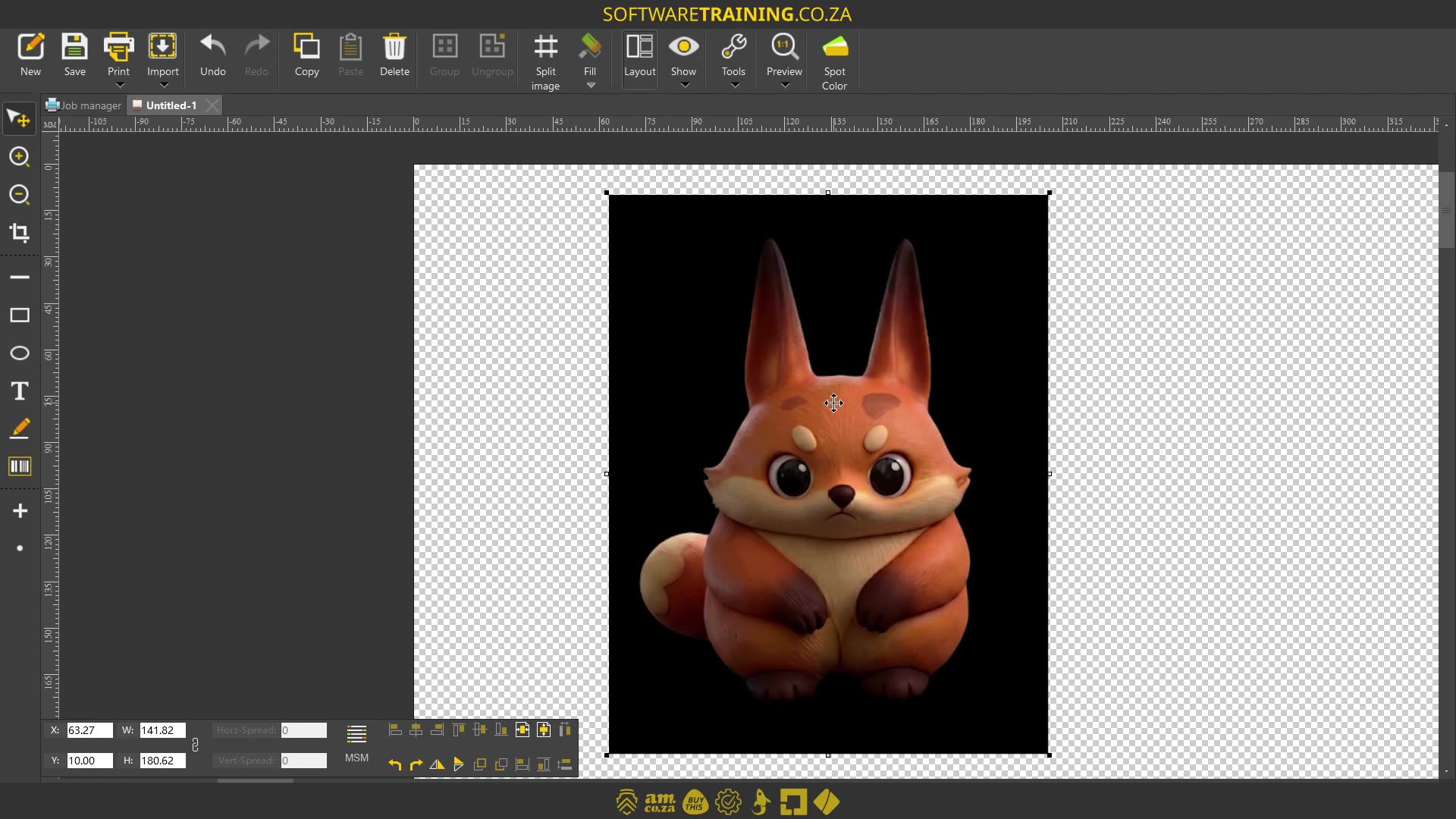
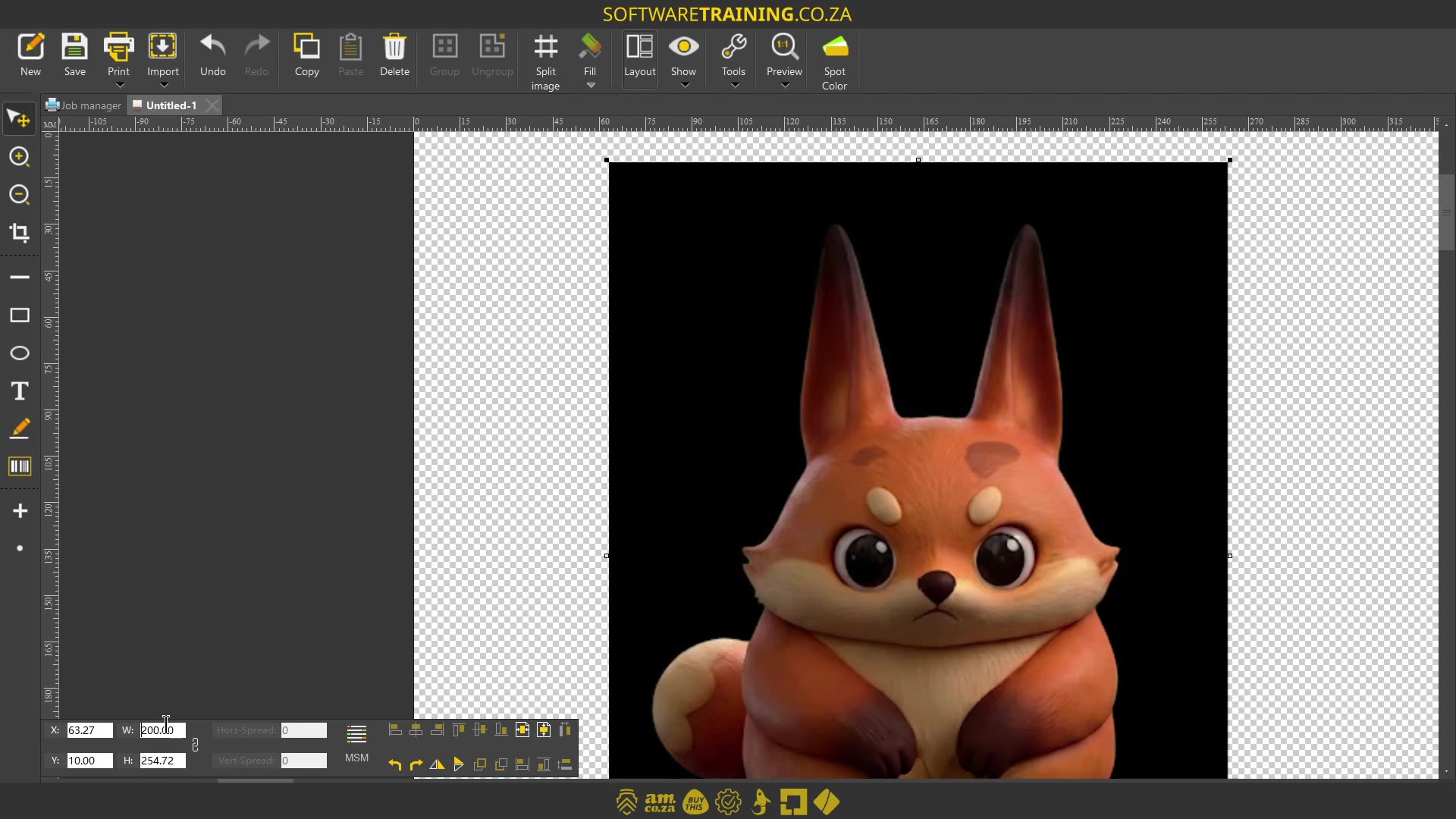
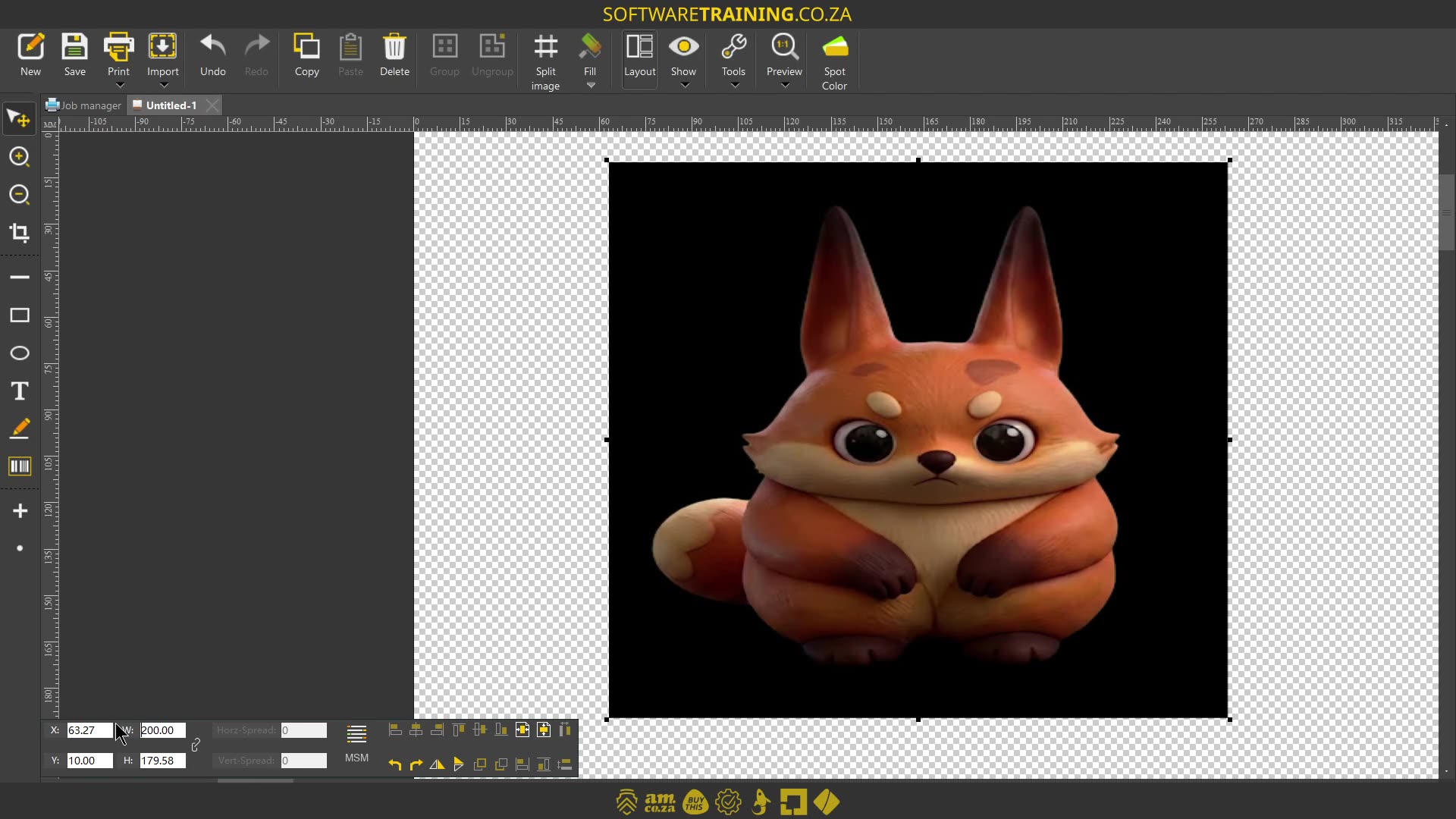
Howdy guys. In today's video, we're gonna be looking at how to transform your designs with the location and scale feature. But before that, let's have a quick intro first. So today's video can be found on softwaretraining.co.za. We make short and easy to watch problem-solving videos, and we also have daily updates. Now, if we need to, or should I say if we head into crypt here. Now, first thing we wanna do is load the image so we can actually transform it. So I'm just gonna go here to the import button on top, click that, and then we're gonna navigate to some form of image. What I'm gonna do is just select this little box, I'm gonna import it, keep it original size, and then, let me zoom out here so we can find it. There we go. So now, something that's important with the layout feature is um how can I say? You can only adjust things if something is selected. So let's say we've got multiple images. The one that's selected will become adjustable. So then, if I had, or should I say, if we had to look at the bottom here, you can see we've got in this first uh column, we've got a few different options. So one, we have got X, Y, and then we have W and H. So X, what that comes down to, it is the X location of this item. And then Y will be the Y location. So basically, up and down, or X will B sideways, and Y will be up and down. Now, as we adjust this, you can see the values change there. It gives us a new uh location. But it's also important to understand. uh, where's the origin point of this location? So now, if I've moved it now, what is the X and what is the Y? Is it the middle of the image? Is it a corner, and so forth. So, in the bottom right here, you can see, if you move your mouse, where the location is of your X and Y. So then, OK, my uh overlays on. I'll put that off quick. So I'll put that off. So then, you can see over here, as I move here, you can see the X and Y and it adjusts as I move this. So now, what you can do is simply take your mouse and we see here, OK, X is 63.27. So about 63. And then if I go here to the top left corner, you can see here on the bottom now, it's gonna go to around 63. So that's how you know. So, OK, it is origin or the origin point is this top left corner, which means for the Y as well. So if you wanna put this image at the exact place, and then you'll adjust it over here. You can maybe, let's say we go exactly, say 60. And let's make this 10. Jacinta, and now this point has moved to exactly 60 and 10. So, I'm just gonna put my overlay back on. Now, the next thing we can do is set the actual scale. Now, obviously, we can just click and drag and move these edit uh these uh node points, but with the layout feature, we can find adjust things. So, let's say we wanna adjust our print slightly different or round it off, then we can do it here. It's just something to keep in mind is the setting over here, and this will basically lock the aspect ratio. So in other words, if this one is on, if I adjust the top one, it will automatically adjust the bottom one accordingly or according to the relevant size. So this will be our width and our height. So that's what that stands for. So let's try it with it on. I'm gonna go, let's make this. I'm gonna go 200. And you can see the image kept its size, but the bottom one adjusted. So let's make this back to 141. Now, let's say I select this one off and then I select, uh, change the top 1 to 200, you'll see I'll only do the width or only the height. So, if you have to find adjust, you can do it individually, but in general, the common practise is you keep your aspect ratio locked. But yeah, otherwise, that is it on setting the location and height of a design. In the meanwhile though, if we head here to softwaretraining.co.za. za, you guys will notice we've got a variety of different softwares we do cover, and you can also isolate your search here on the top right. If you do not, however, find the training videos you're looking for, just simply go here, request a training video, fill in the mini form, and then we'll do our best to try and make that for you. But otherwise, thanks guys for watching and cheers.




 dalton-smith-e42tzLa1aK4-unsplash