Using the Flip and Rotate Layout Feature Within the AM.CO.ZA InkRIP Software (Part 5)


inkrip flip rotate layout
When it comes to printing using InkRIP, there are multiple types of prints and applications for different results.
That being said, some of these applications require a flipped or rotated image, as an example DTF shirt prints or vinyls on the inside of a window.
This video is part of a Mini-Series.
The next video covers Order.
The previous video covered Alignment.
Video Transcript
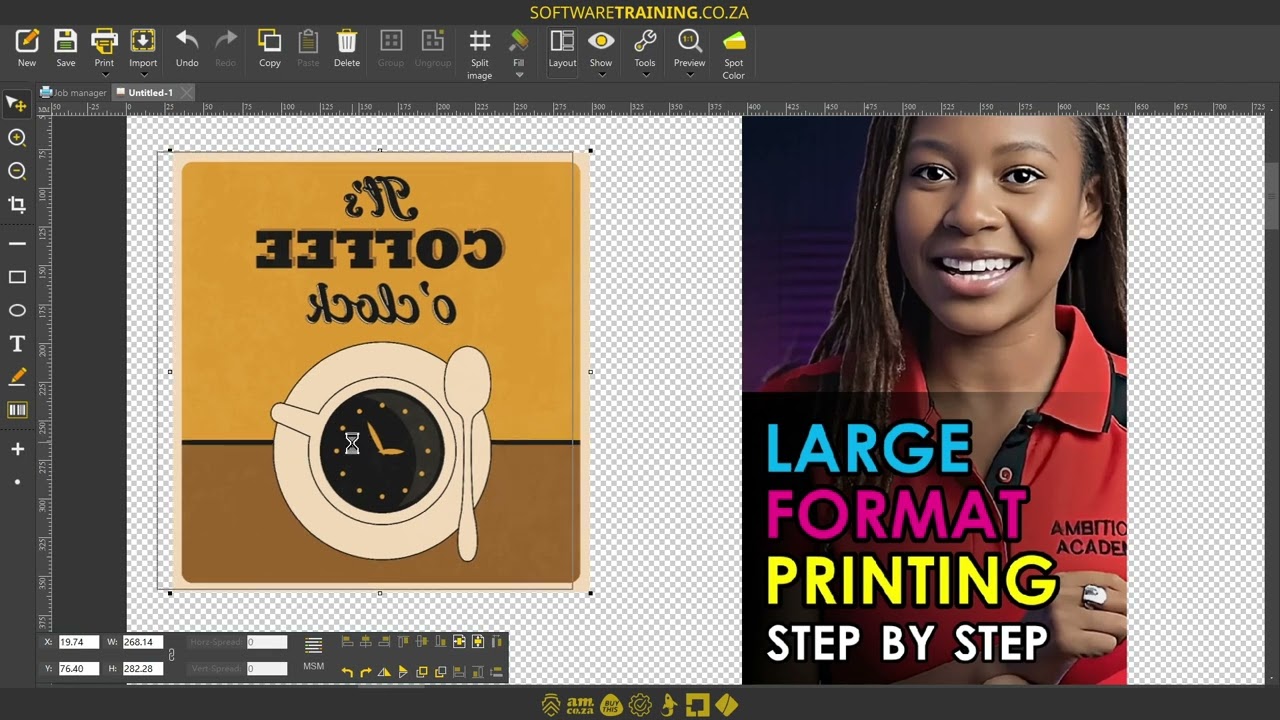
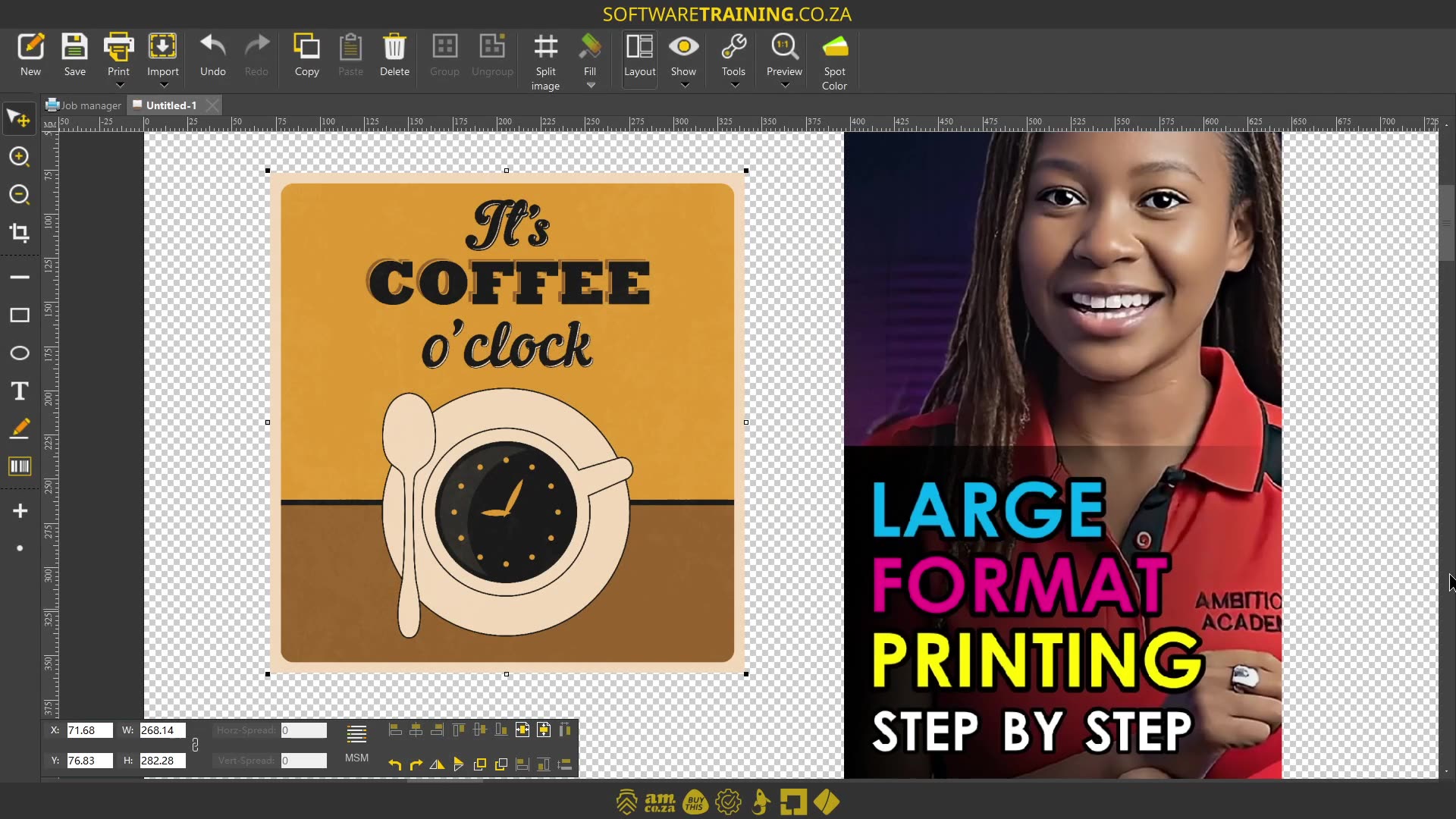
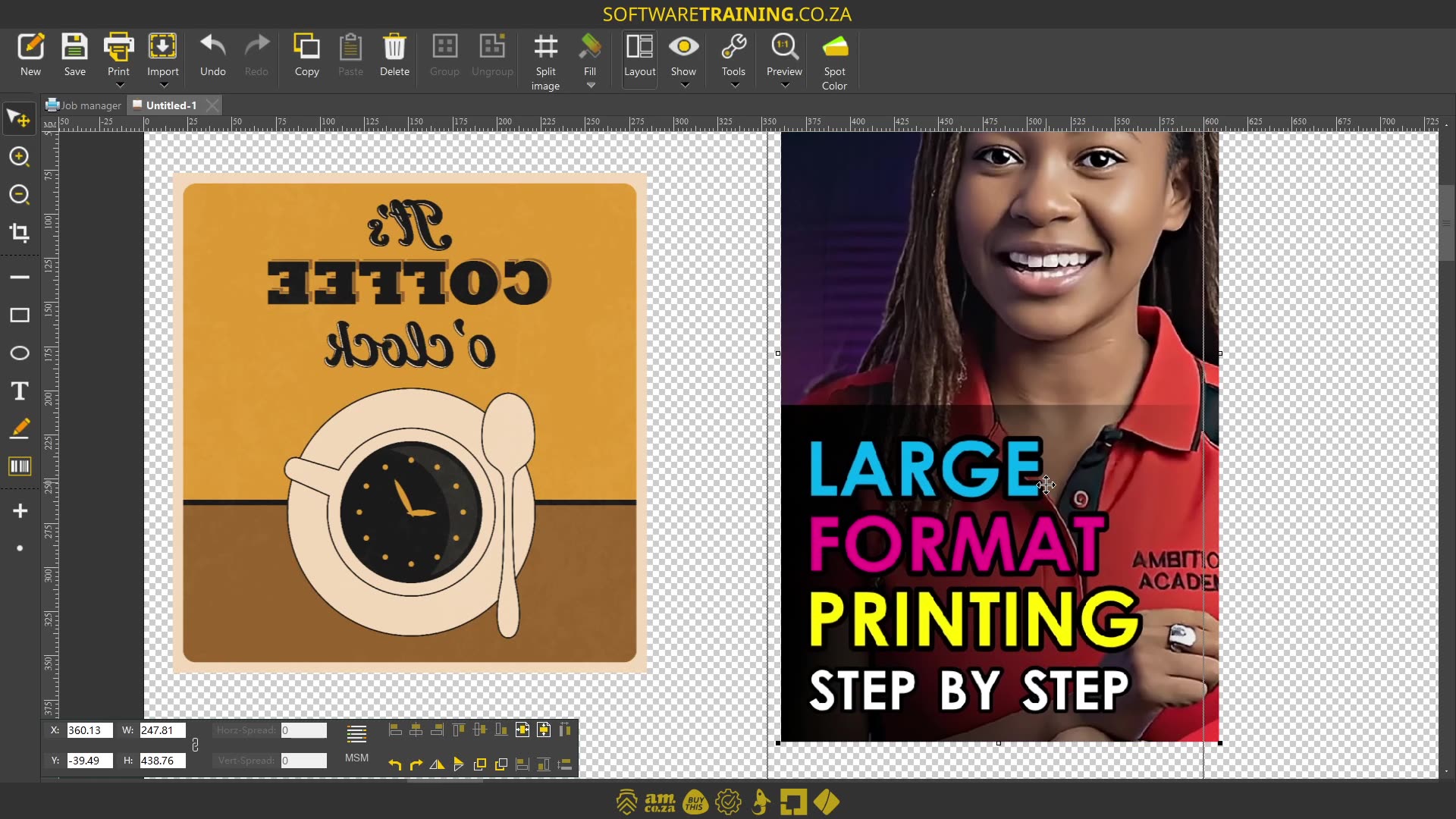
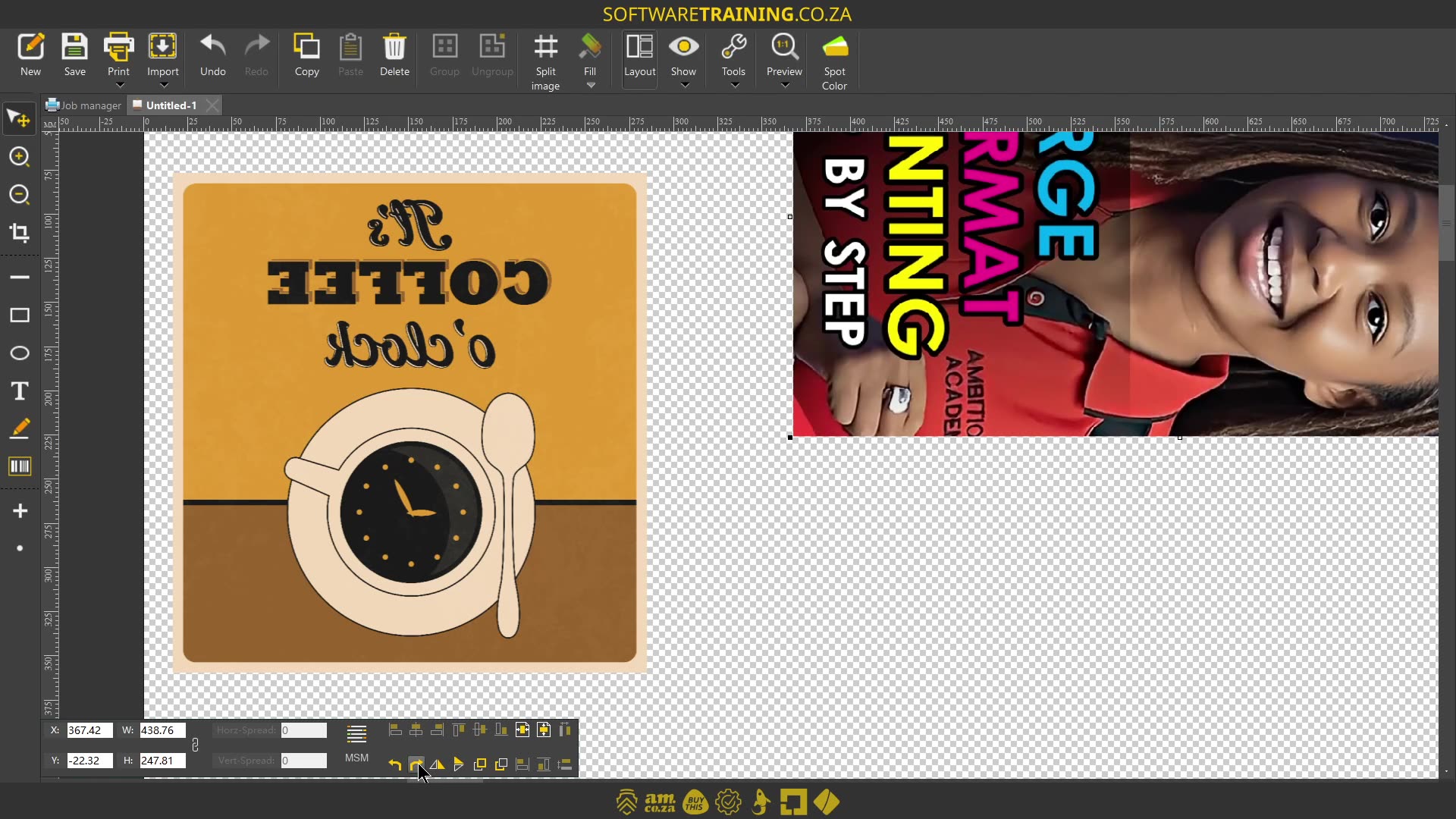
Howdy, guys. In today's video, we're gonna be looking at the rotate and flip features within the encrypt software. But before that, let's have a quick intro first. So, today's video can be found on softwaretraining.co.za. We make short and easy to watch problem solver videos, and we also have daily updates. Now, if we head into the programme here. So like I mentioned in the intro, we're gonna be looking at the rotate and flip features. Now, there's multiple reasons why you might want to use this, but the two most common ones we're gonna be covering. So let's start with the actual flip features. So, let's say this design, as you can see, we've got text reading here. And let's say we wanna either put it on the inside of a window or we wanna put this on a shirt. So with those two cases, normally what will happen is the design will get flipped. For instance, with DTF it gets printed and reversed, and with um inside of the windows, many times also, um the design gets flipped. Then with our design selected, in the bottom here on our layout feature, you can see we've got these two flipping options. So we've got the flip horizontal. And flip vertical. Uh, let me just swam over there. There we go. So now I'm gonna do flip horizontal and then you can see the text rights or reads backwards. Now, if we print it and we put it on like a DTF, it should be reading right. So that is one scenario where we might wanna use the flip, and then for rotation, let's say for example sake. That this chequered area is our material size or our canvas size, and we wanna fit this design in with it without cutting off parts of the design. Otherwise, we're gonna have to add a joint and so forth. Then what we can simply do is with our design selected, we go to rotate uh rotation and we either rotate your right or left, and if you click this multiple times, it'll rotate it in that direction. In this case, we'll rotate it a bit and then I'll relay this out on the actual design or the canvas, and then you can see now, we can fit both these designs on the same material size without wasting too much or without, how can I say, um, Yeah, uh, without having to, to rejoin this design. But yeah, otherwise, that is it on rotation and flipping. If we had to head here to softwaretraining.co.za. za, you guys will notice we've got a variety of different softwares we do cover, and you can also isolate your search on the top right. If you do not, however, find the training videos you're looking for, just simply go here, request training video, fill in the mini form, and then we'll do our best to try and make that for you. But otherwise, thanks guys for watching and cheers.


 valerie-elash-XUT7V_md7sc-unsplash-index