How to Align Multiple Designs Elements Within the AM.CO.ZA InkRIP Software (Part 4)


inkrip align design elements
If you are working with strict layouts that need accurate alignment, then the Layout Alignment feature will be of great help.
With the Alignment feature it will be easy to quickly get perfect alignments between multiple designs.
This video is part of a Mini-Series.
The next video covers Rotate / Flip.
The previous video covered MSM.
Video Transcript
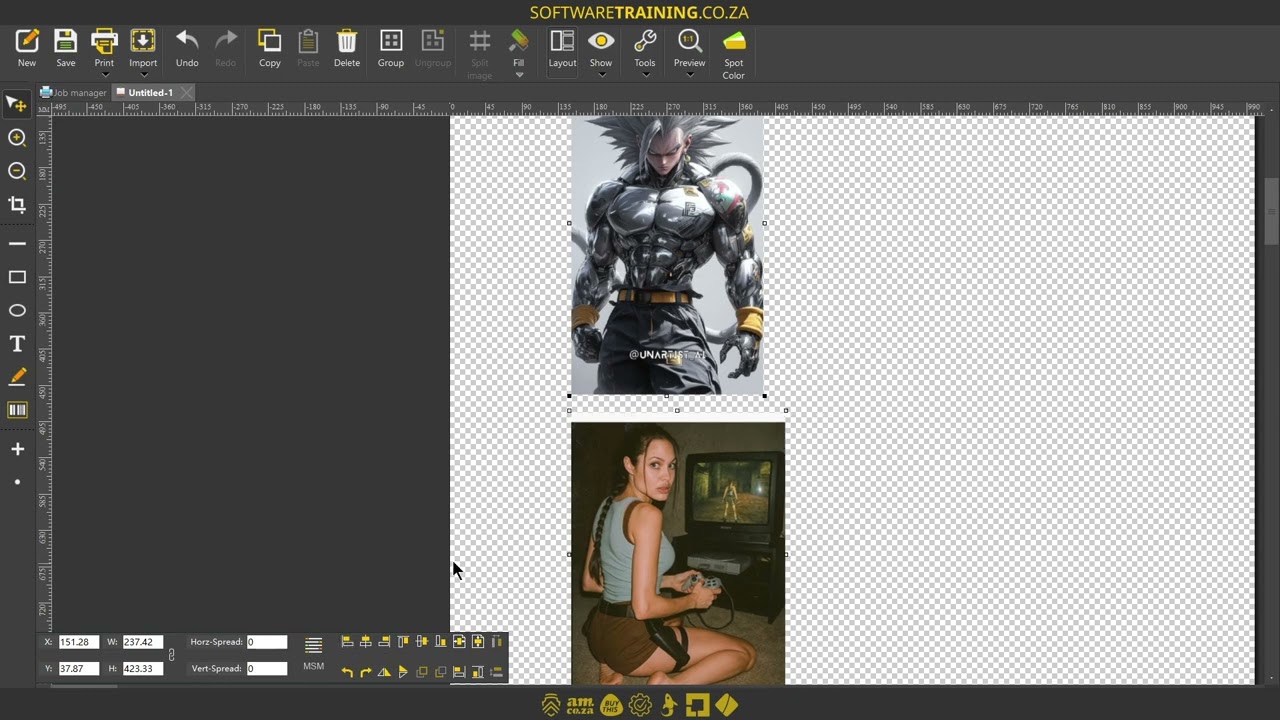
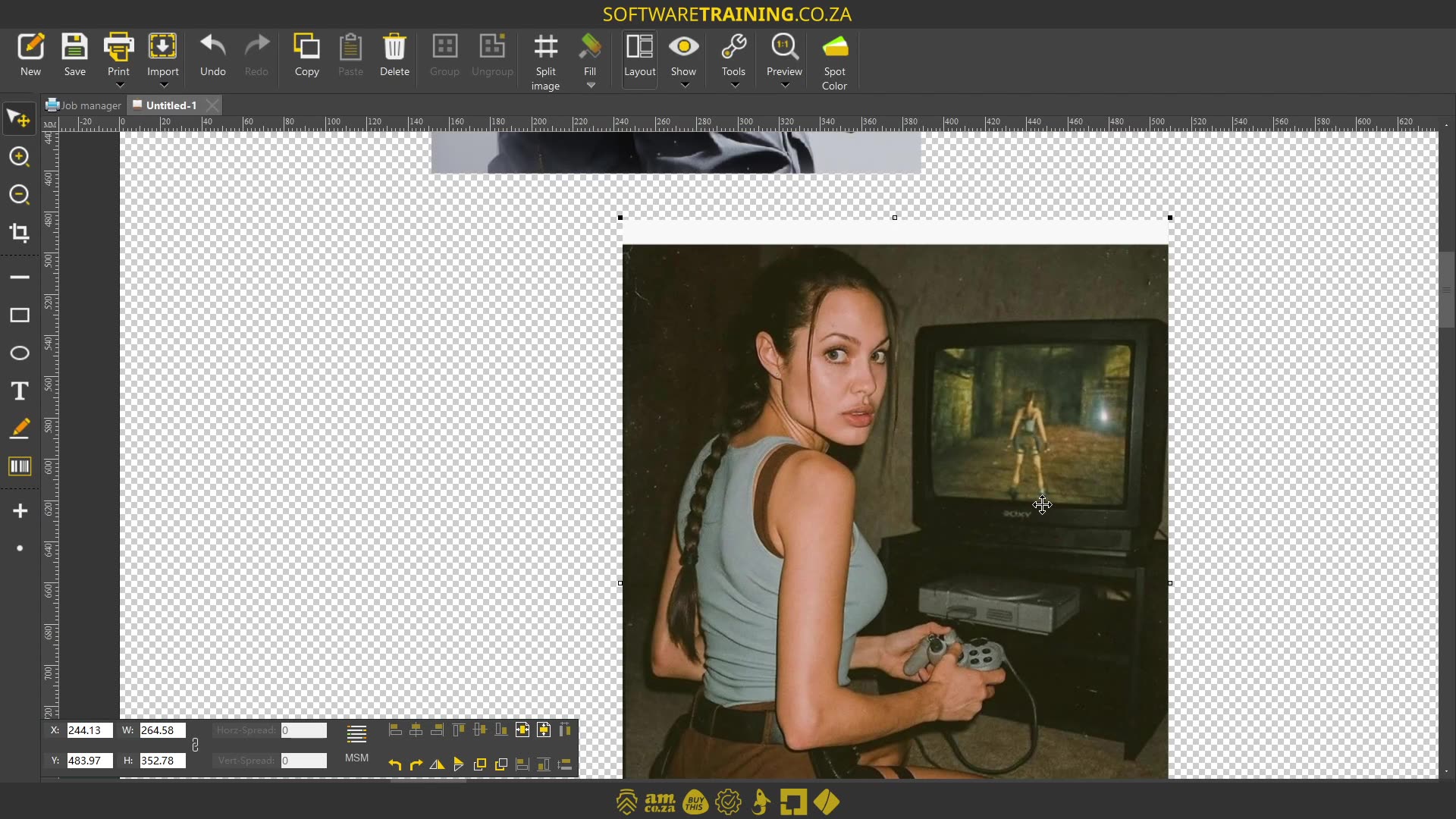
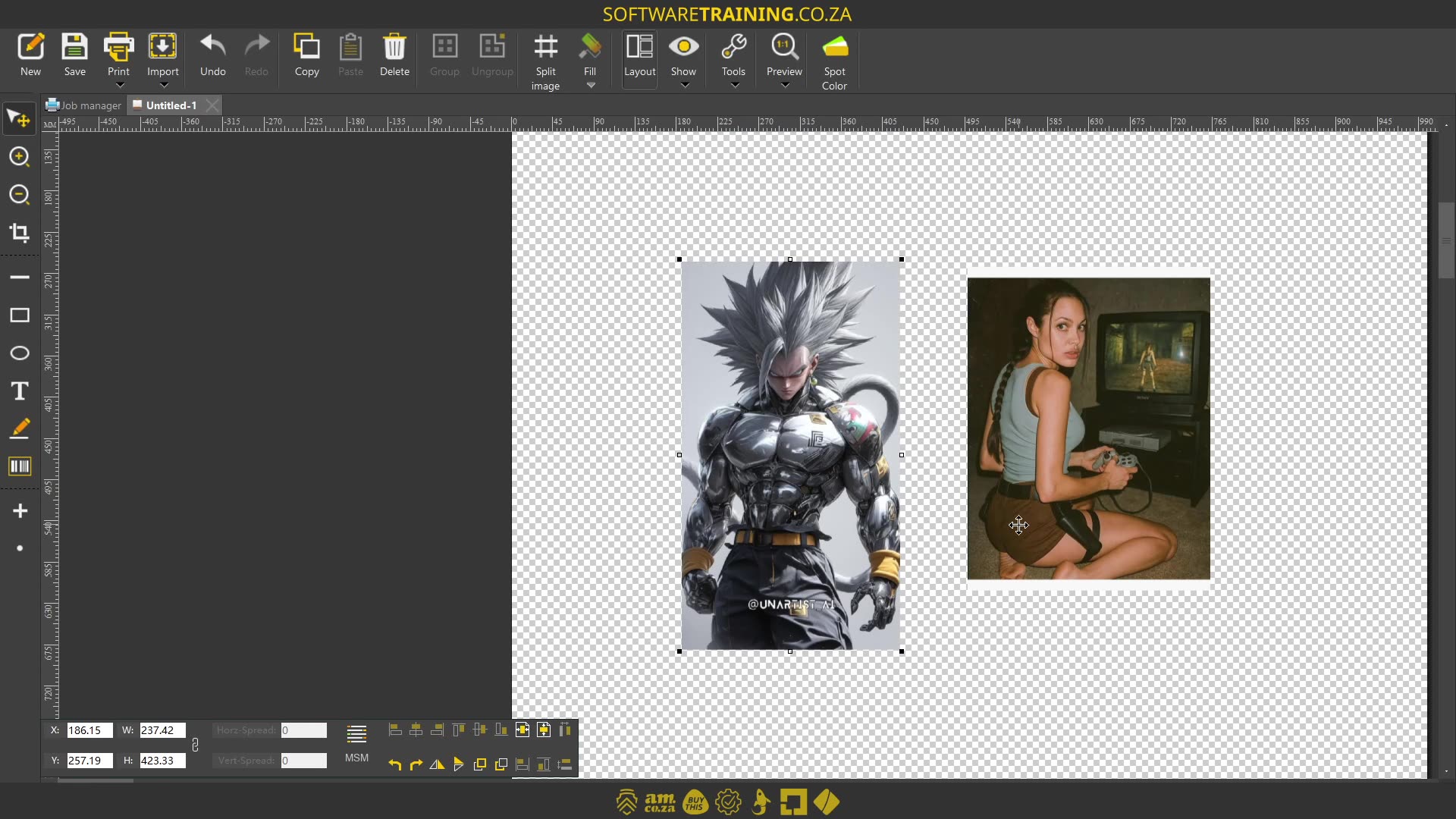
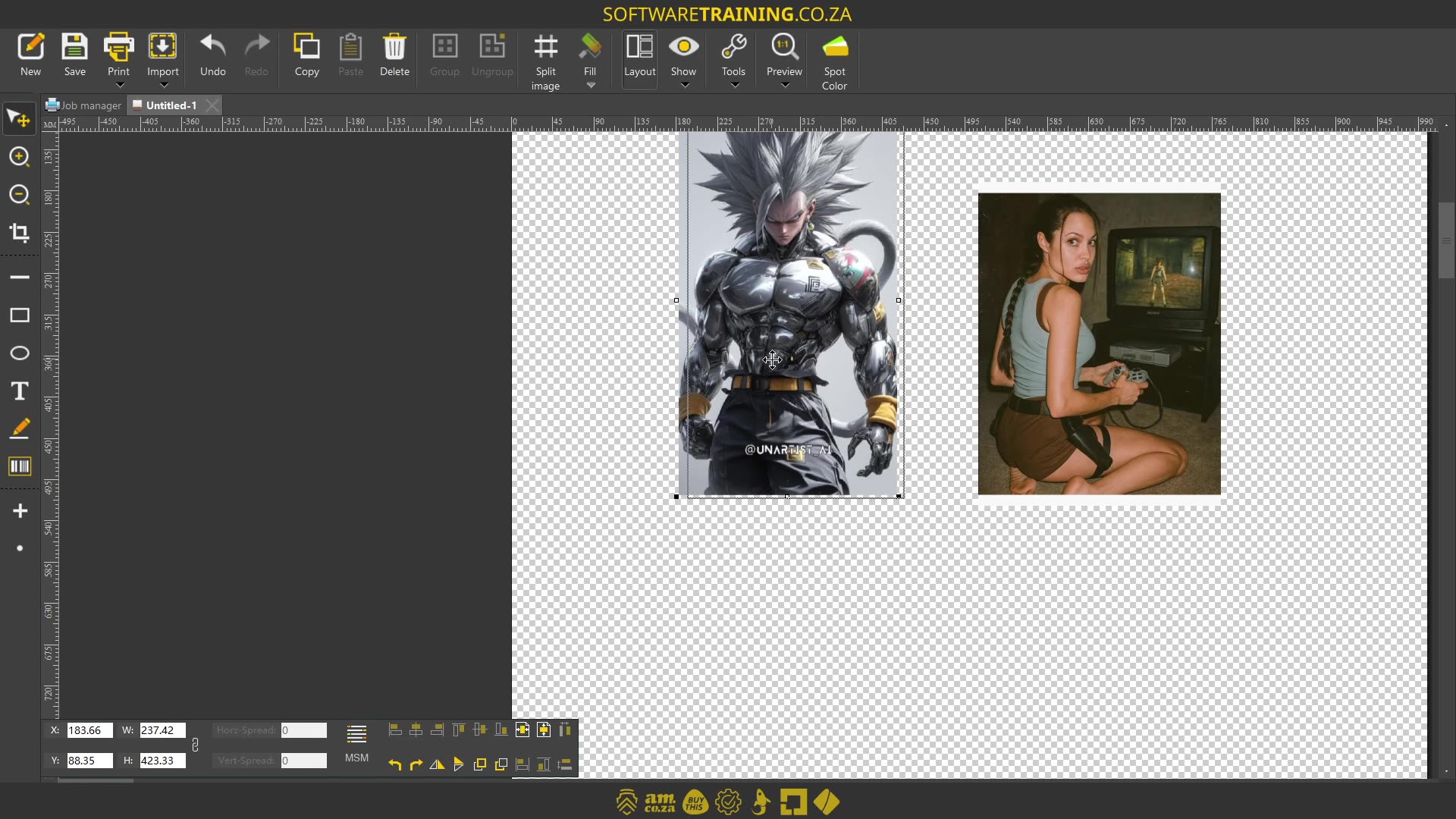
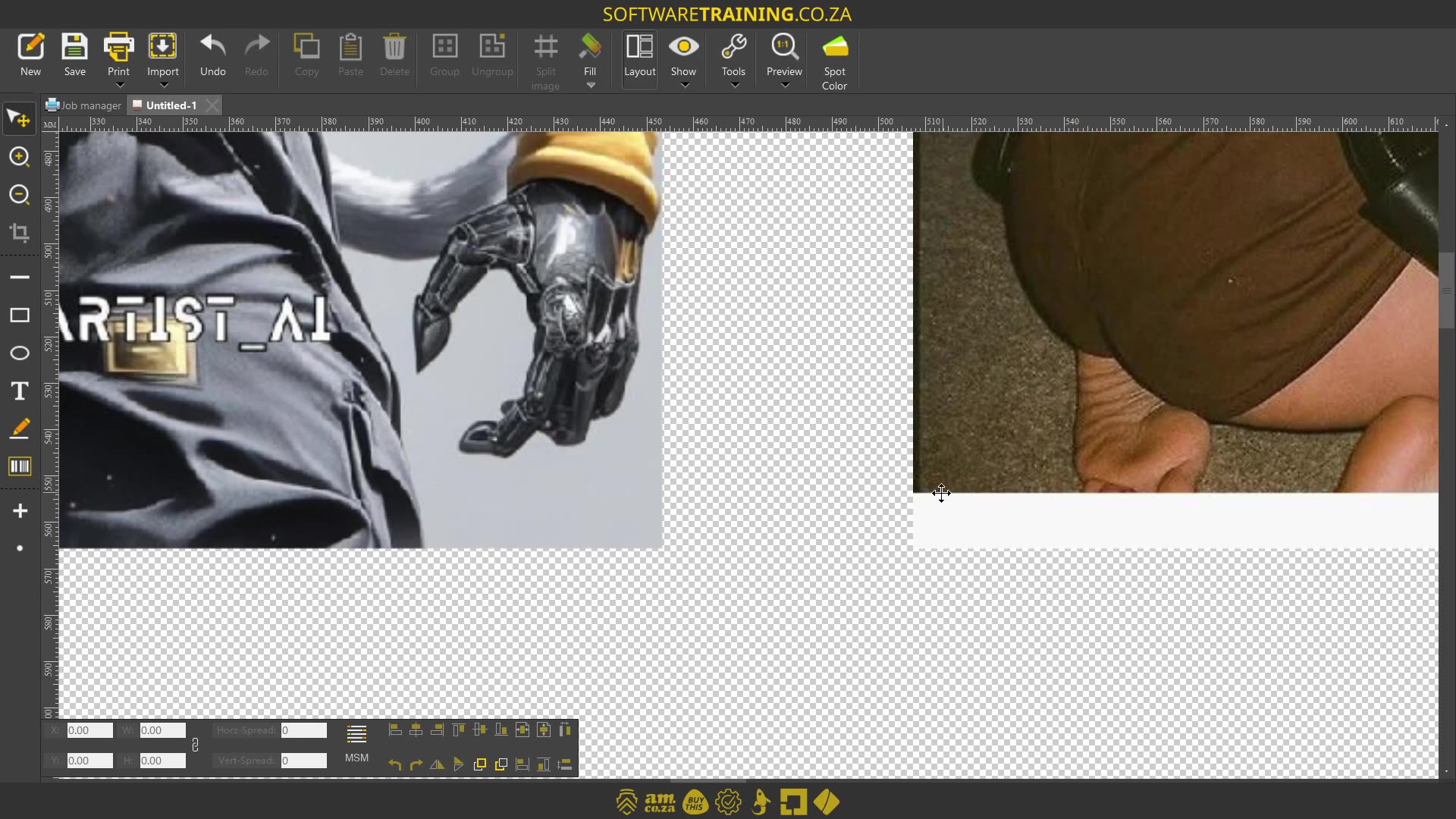
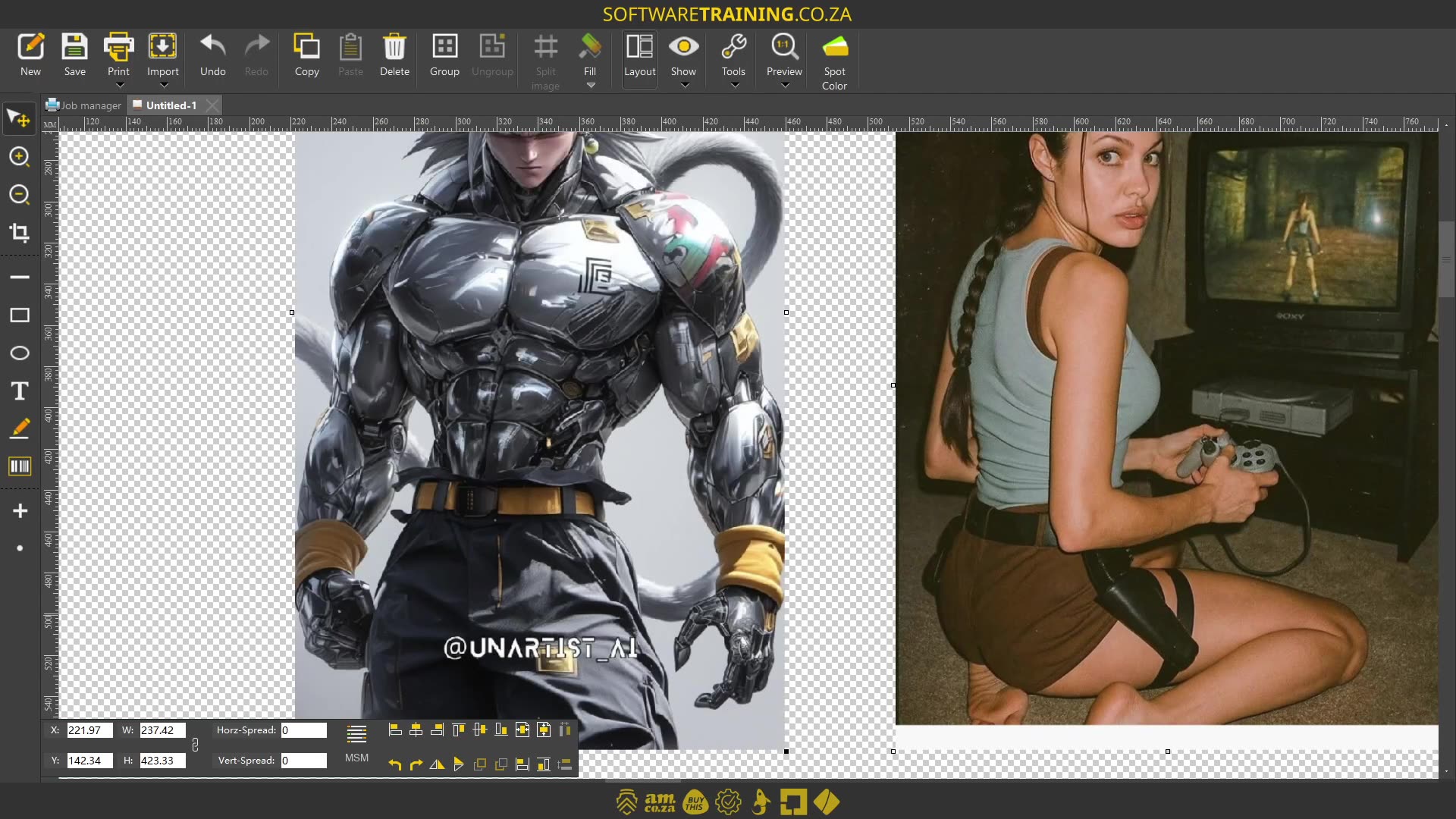
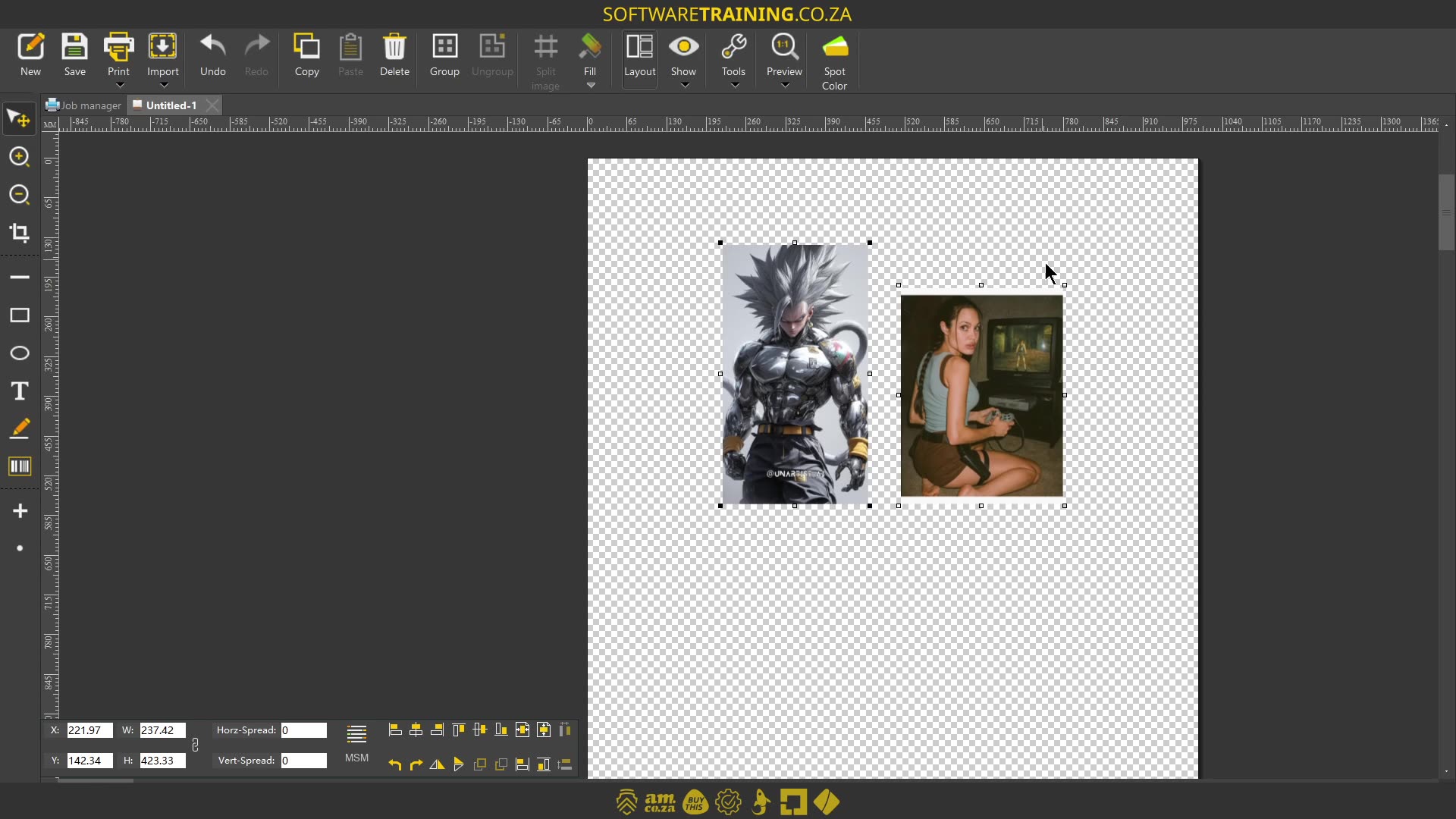
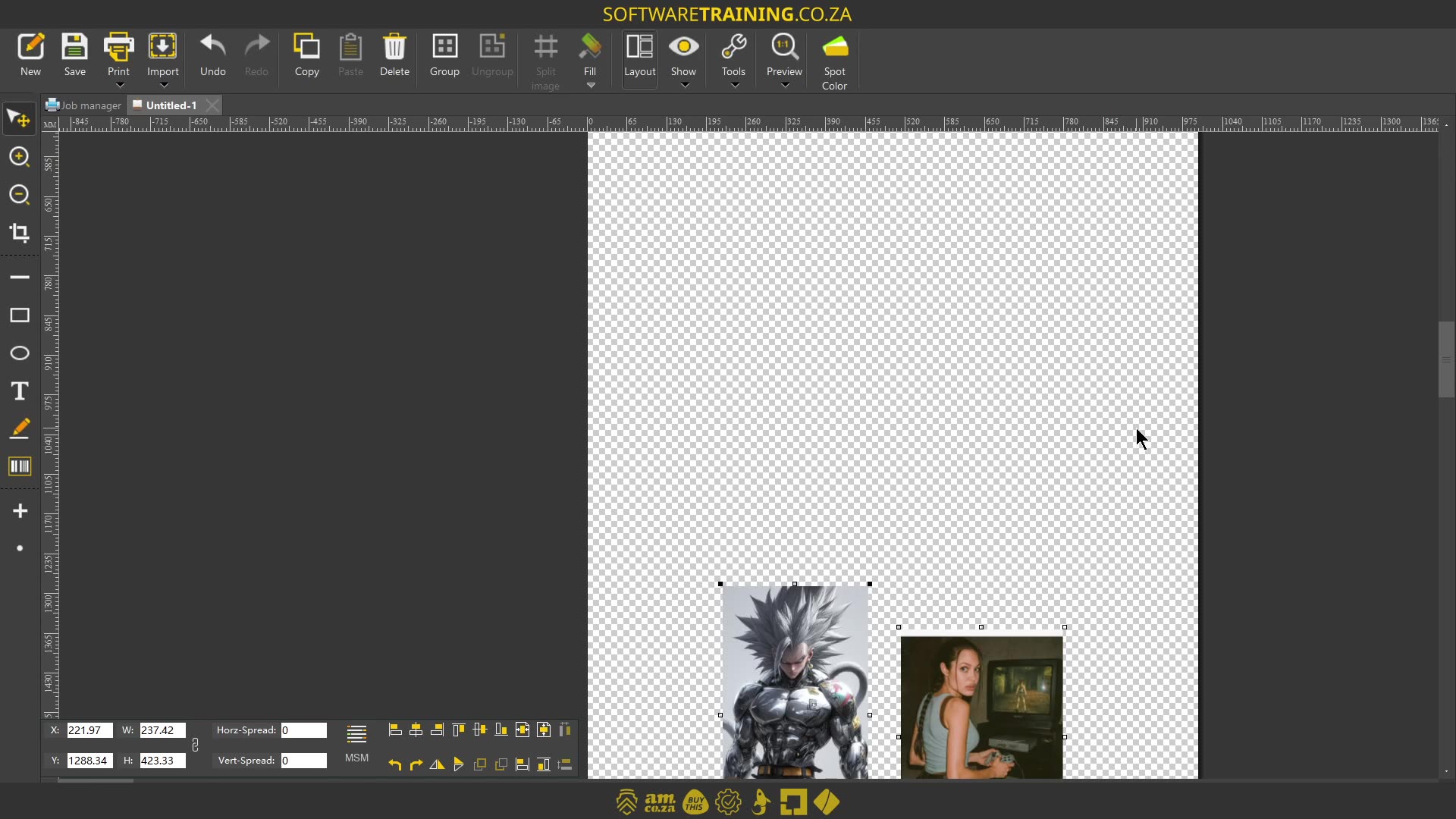
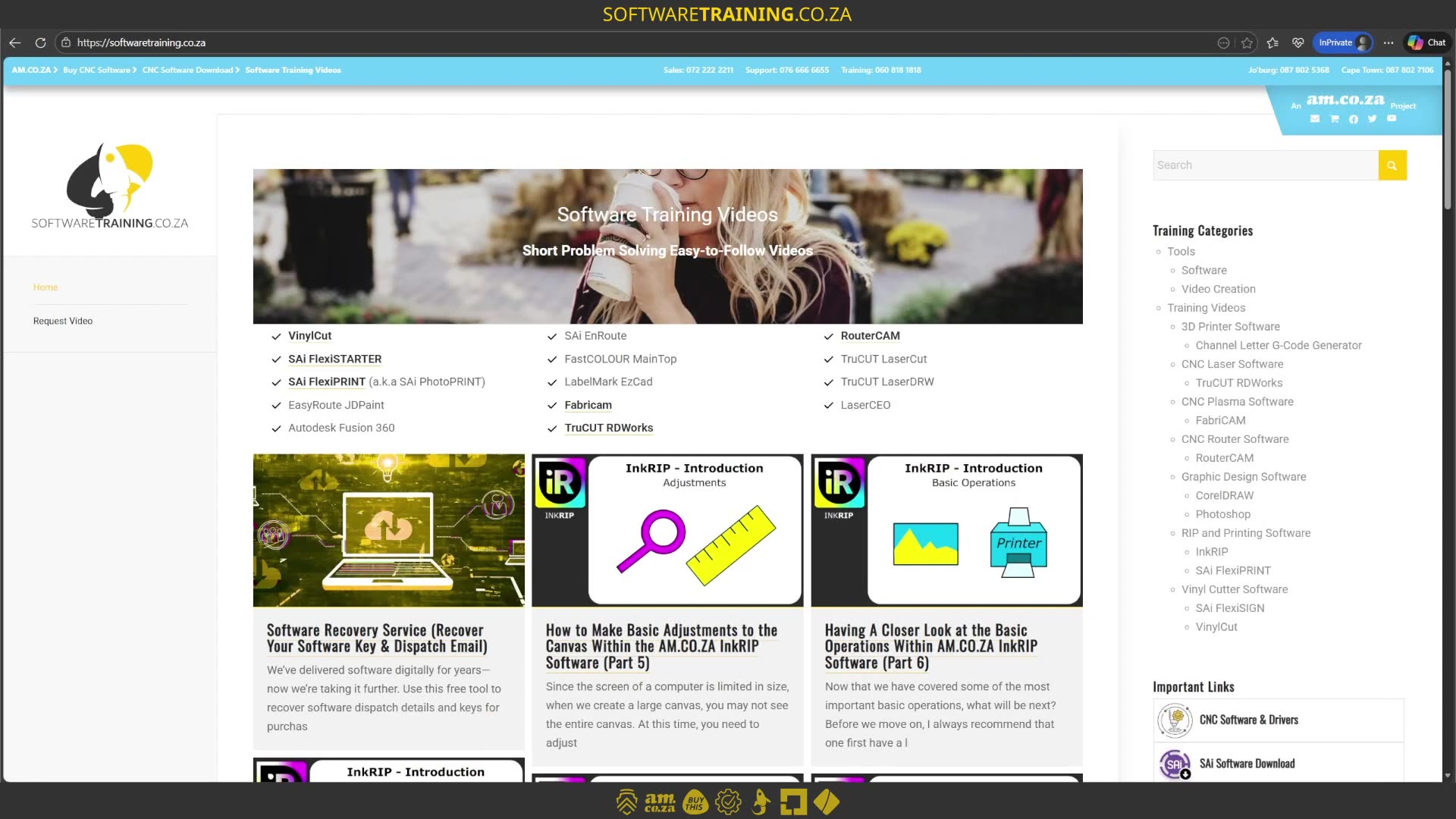
Howdy, guys. In today's video, we're gonna be looking at the alignment option found under the layout feature. But before that, let's have a quick intro first. So, today's video can be found on softwaretraining.co.za. We make short and easy to watch problem solving videos, and we also have daily updates. Now, if we head back into the programme here. OK, let me try that. Uh, yeah, so, like I mentioned, we're gonna be looking at the alignment feature. And currently, you can see if I select the image here on a layout feature, it is not available, alignment options. So what it comes down to is this only works with multiple images selected, and yeah, I know cool images. But in any case. So for instance, let's say I select two different images. Now, suddenly, these options are available. But it is important to note that this can also work with multiple images that it doesn't just have to be two. And another important thing is this is relevant or relative to the actual selection rather than the uh canvas. So it's not gonna align it according to the canvas, but based on what's selected, it's gonna get a media or uh in-between point or depending on the option you've selected. So now, let's just look at the first view. So here, we have a line to the left. Now, this is if your images are stacked from top to bottom, bottom to top, that concept. So it's not so much um Yeah, so let's just have a look at it. I'm gonna select the first one line to the left, and you can see, it is aligned the bottom image to the image that's the furthest to the left. So if you're doing like automated cutting or something on that line and you need edges to be perfectly aligned, this is a great tool for that. Now, we have a line to centre, so it's gonna be the centre line, and then we have a line to right. Now, another option is, let's say we have these images next to each other. And then, if we select both of them, we have align to top. Let me just see if this tool tip can come up. OK, it doesn't seem to come up right now. OK, so, if I click this, then it will align this image to the one that's the closest to the top. So, I'm gonna do that. Now let's undo this or let's move this image higher. Select them both, do the same option, and then you see now, it's taking the right image higher. Now, same, we have centre and then we have um aligned to the bottom as well. Now, this one looks like it's not aligned, but it's actually a little white border, so that's why it looks like it's not aligned. But yeah, so otherwise, that is it with the alignment tool, a very handy feature to have and um Uh, yeah, there's one more I forgot to mention, and that will be the one that actually works according to the canvas. So if I zoom out here, you can see we've got these two. We've got horizontally centre and vertically centre. So if you wanna get your design more horizontally on the canvas, so let's say it is over here. I click that and it'll take to the centre. Same with the actual um vertical. So if I select that, it's currently it's out of view. Now, it is perfectly aligned. To the centre of the campus. But yeah, otherwise, like I mentioned, that is it on the actual alignment tools. In the meanwhile, if we head to softwaretraining.co.za. Over here, you can just type in your URL. You guys notice, we've got a variety of different softwares we do cover, and you can also isolate your search on the top right. If you do not, however, find the training videos you're looking for, you can simply go here, request a training video, fill in the mini form, and we'll do our best to try and make that for you. But otherwise, thanks guys for watching and cheers.
 diego-sanchez-k_-W0PpfU9A-unsplash

 adrian-ra-foh2uofREu4-unsplash
 microsoft-365-o2hPCfwPPkw-unsplash-index