The Job Managers Detailed Information Within the AM.CO.ZA InkRIP Software (Part 2)

inkrip job managers detailes
After we looked at the Basic Controls of the Job Manager, we need to look at what information means what.
That is where the detailed information panels come in very useful, this will help you better understand the operations at hand.
This video is part of a Mini-Series.
The next video covers Control Software.
The previous video covered Basic Operations.
Video Transcript
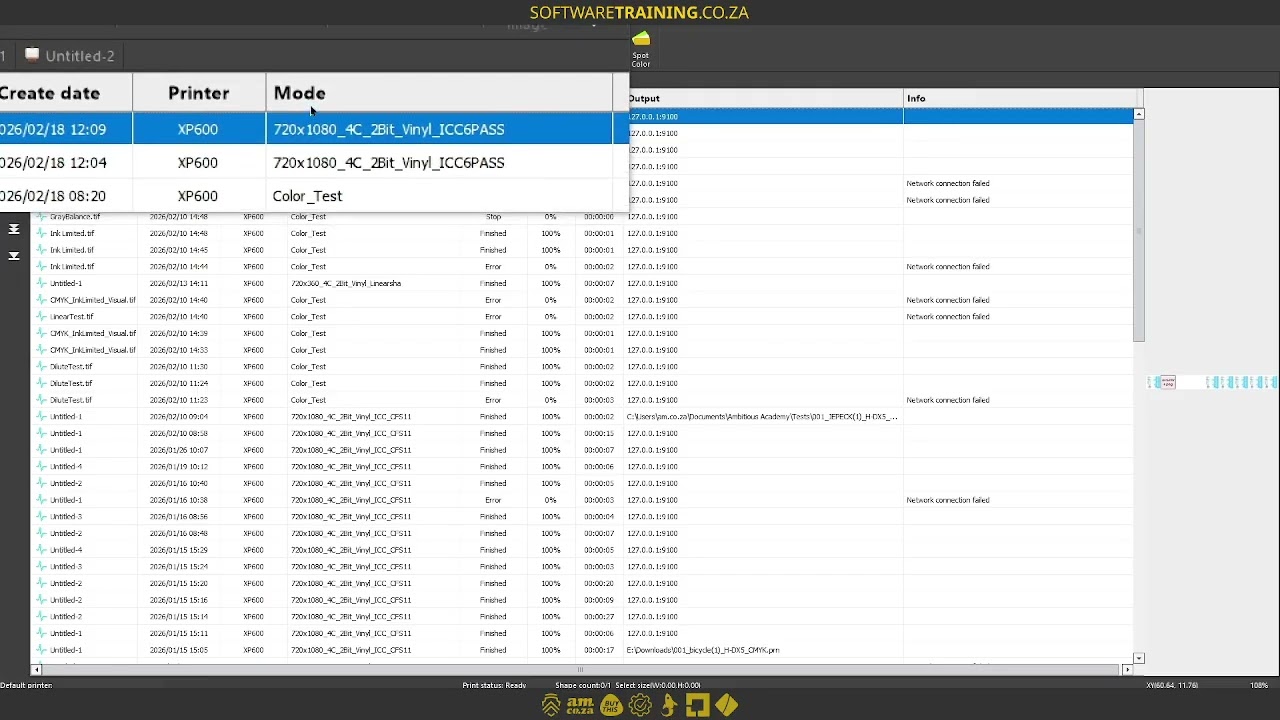
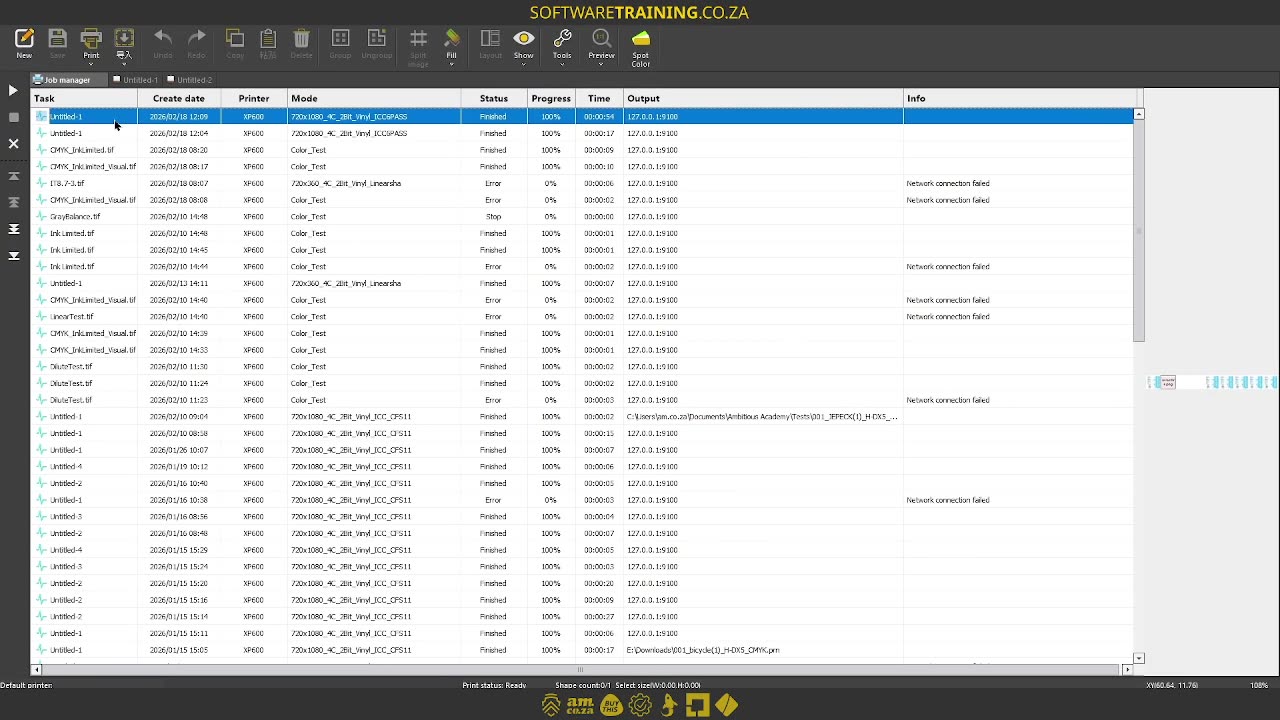
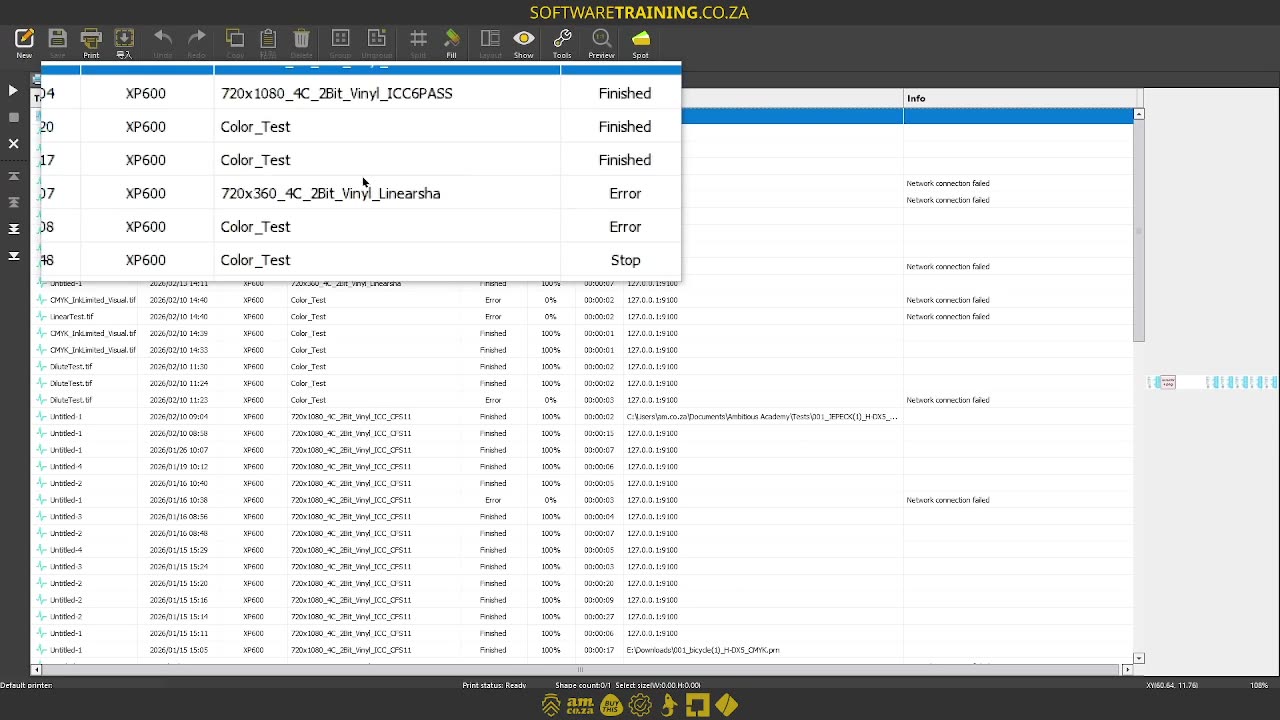
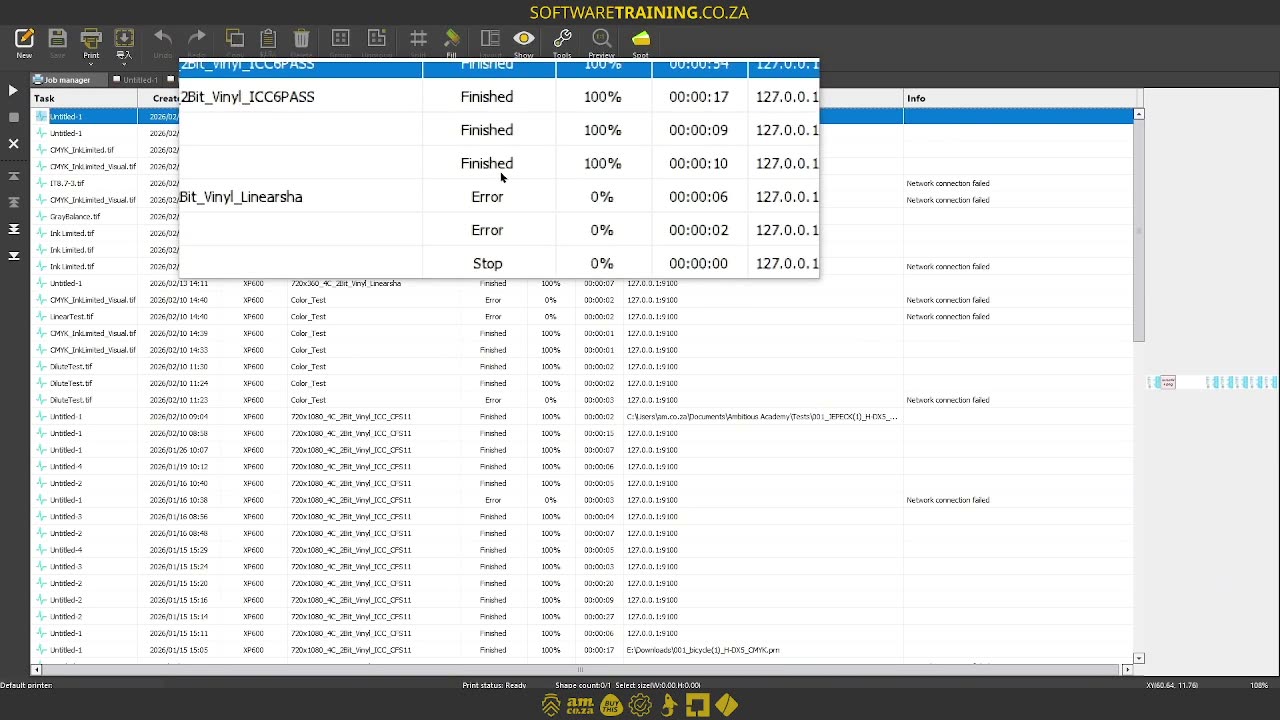
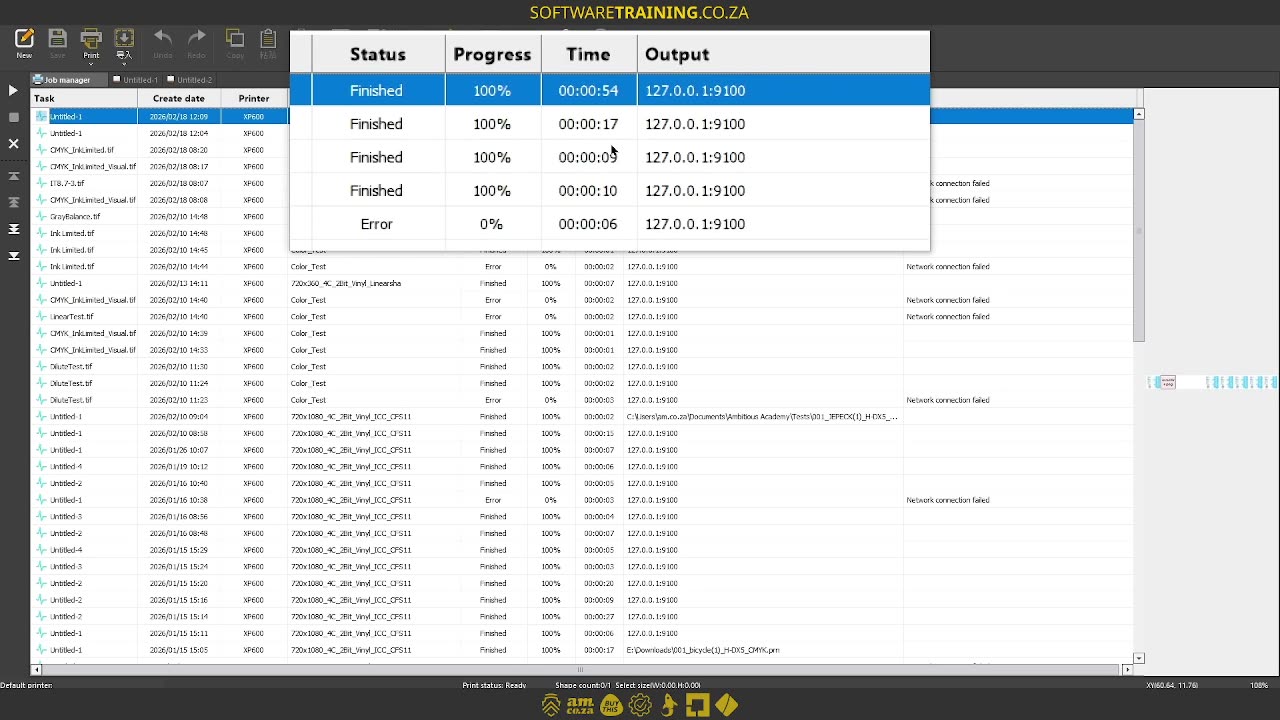
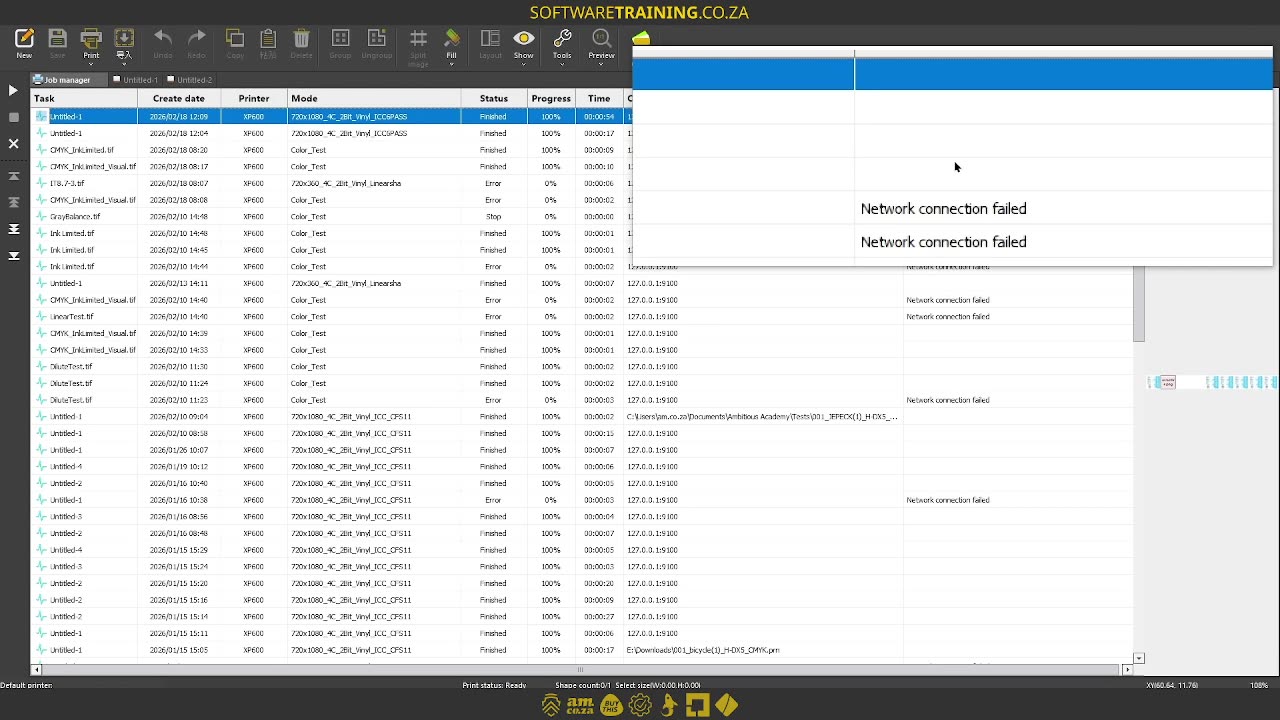
Howdy guys. In today's video, we're gonna be looking at some detailed information under the job manager. But before that, let's have a quick intro first. So, today's video can be found on softwaretraining.co.za. We make short and easy to watch problem-solving videos, and we also have daily updates. Now, if we're to the actual tutorial here. Now, in the previous video, we looked at some basic operations. Now, we're gonna be looking at some more detailed information. So, when it comes to the actual uh job manager, if we have a file selected, you can see on top here, we have a few different options. So, first off, we have the task, and this will pretty much be the file name, so that makes it easier to manage. Next to that, we have creation date. So, if you ever have to date back, you have an idea of what's what. Then, um, to the right of that, we have the printer. So, in some workflows, you might have multiple printers set up. So then you can monitor here what you actually set it to and what um or should I say which printer you printed it through. Then, to the right of that, we have mode. It's also a form of colour profile or ICC profile. So here you can see, let's say you're busy setting up one or different clients use different uh ICC profiles, then you can set it here, or not set it here, so I rather say, you can see what has been set here. Then you see we have some colour test there as well. Then, to the right of that, we have the actual status or the job status. And this will be where we can see if it's finished, got an error, or so forth. Then, to the right of that, we have the progress. Well this is pretty much just, while it's printing, you can see how far it is all, all dripping. You can also see how far the progress is of that. And um keep an update on that. And now, if a form of management and how can I say, um, costs are very important to you, then you can see how long the job took you and then if you're doing multiples, you can kind of predict how long it's gonna take you to finish that. Then to the right, we have output, so this will once again output depending on the IP or actual other information. Then to the right of that, we have info, now this is mostly used for if you maybe get an error or something like that, then you kind of log and see what happened. It is quite important. Now, just another note here on the actual output. You can see if you're printing to a file like a PDF or not a PDF should I say, rather like a print file, and you're gonna manually upload it to a flash drive or maybe to the control software, then this is what it will look like. It'll show you the actual path, which is convenient cause then later, you can find the file in case you're not sure where it was. But yeah, that is it on the detailed information on the uh job manager. Like I said, this is a great way if you're troubleshooting things or you wanna have a status update, then you can kind of just go look here. But yeah, in the meanwhile, if we head to softwaretraining.co.za. za, you guys will notice we've got a variety of different softwares we do cover, and you can also isolate your search on the top right. If you do not, however, find the training videos you're looking for, just simply go here, request a training video, fill in the mini form, and then we'll do our best to try and make that for you. But otherwise, thanks guys for watching and cheers.



 pexels-tuấn-kiệt-jr-1468379-Index