Adjusting Driver and Printer Properties Within the AM.CO.ZA InkRIP Software (Part 4)


inkrip printer driver properties
When it comes to Printer Drivers and modifying them, using the Printer Properties will be the best place to start.
From these properties, we have a number of different variables that will change the output of that given driver.
This video is part of a Mini-Series.
The next video covers Resolutions.
The previous video covered Copy / Delete.
Video Transcript
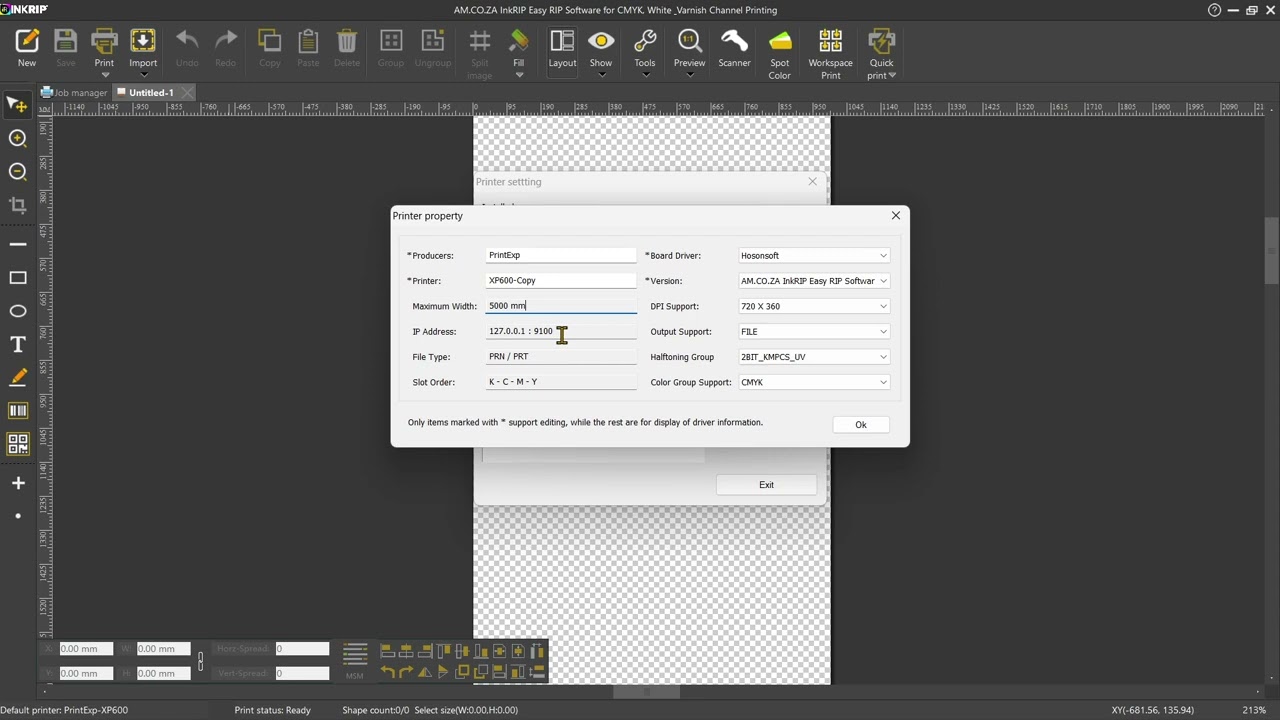
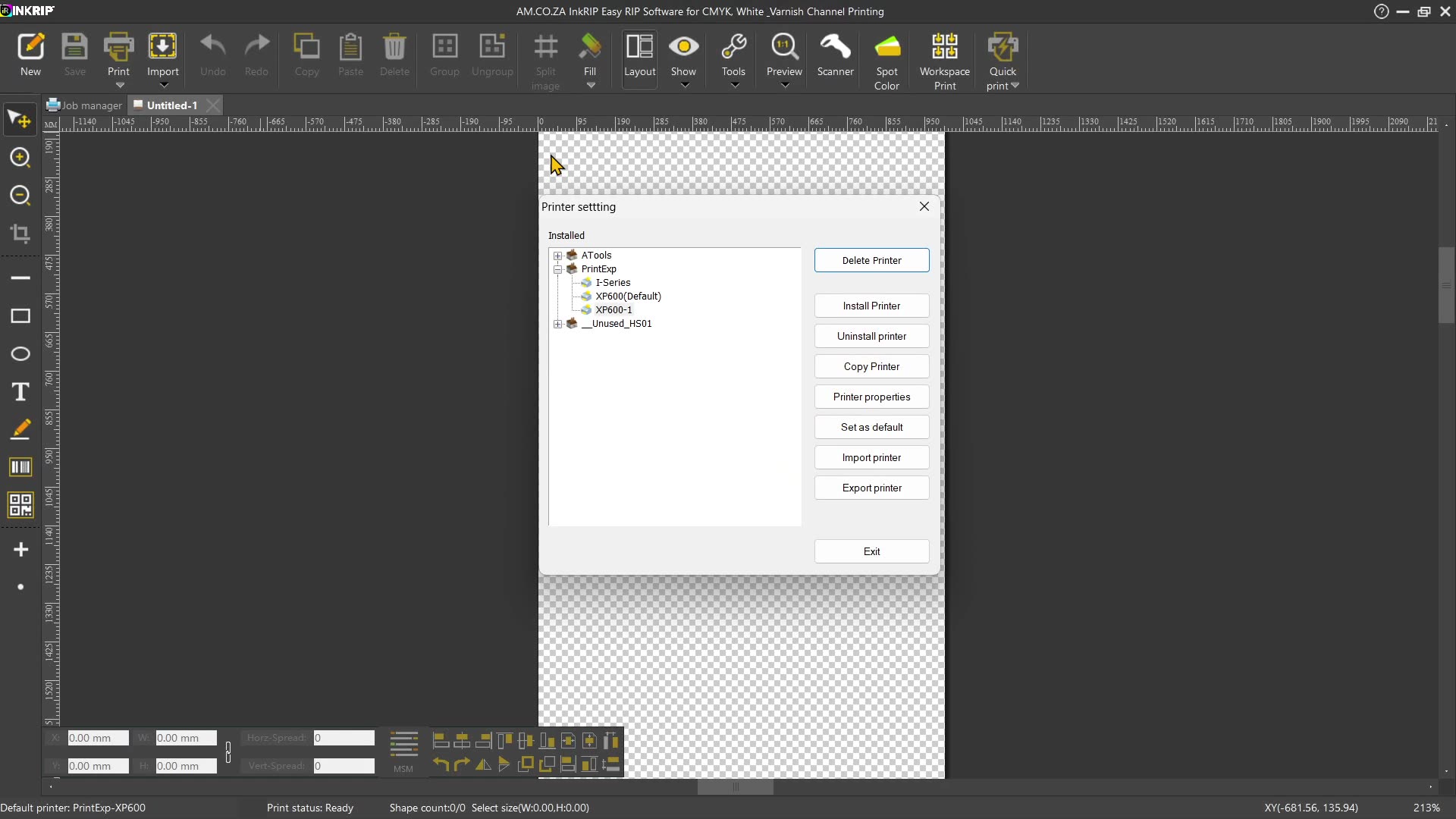
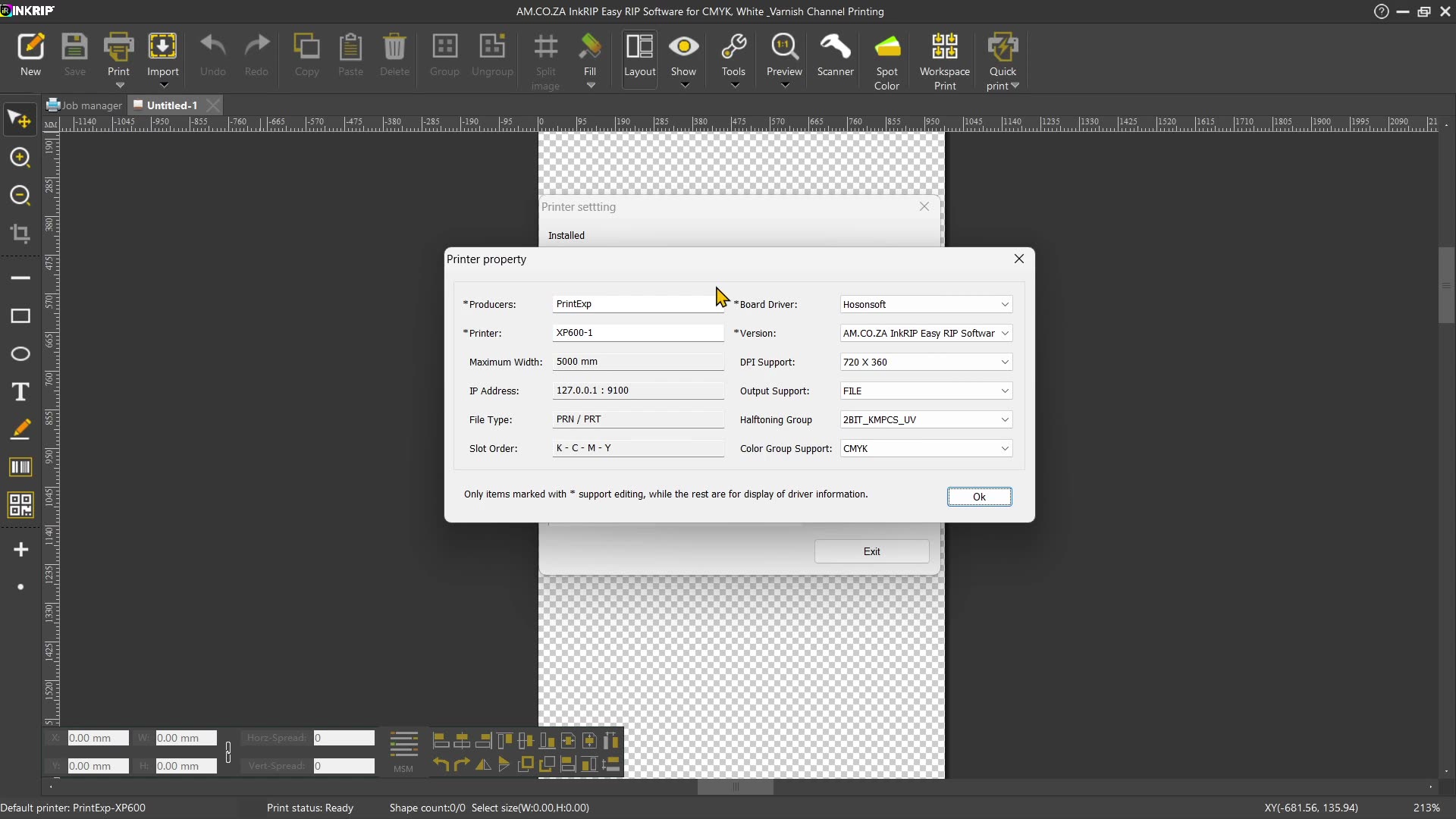
Howdy, guys. In today's video, we're gonna be looking at some generic or basic driver properties found within encrypt. But before that, let's have a quick intro first. So, today's video can be found on softwaretraining.co.za. za where we make short and easy to watch problem solving videos. Otherwise, we're into the programme here. Now, in the previous video, we looked at copying a driver. So, let's say we have this default, but we wanna make some changes to it, but not mess with our original. Then we can simply make a copy of it by clicking copy. Then, once You wanna edit these or edit this driver, then what you can do is you simply go here to print the properties, or you can simply double click the name. I'm just gonna go print the properties to open that up. Now, from here, we have a few different, uh, how can I say, settings, where most of these is kind of you can just toggle between them. You can't actually set them, but a few of them, you can set. So now, what it comes down to is if you've made a copy, you would probably wanna rename it. So it's one of the most important ones. So you're under printer. We can just make this a name and I'm just gonna call this copy. Just so we know, this is the duplicated one. Of the um XP 600. You know, you obviously have stuff like producer. Over here, you can see the maximum width, but as you can see, we can't actually change this. These settings, you have to change on the more advanced um Uh, features and that when you actually create the driver. And here, we've got the IP address. This is the base one. Then we have the uh print type. We also have the slot order and um the actual group support which we're gonna cover later. This is one of those nice ones you can actually change. Then we've got the um board driver, so we can select that. And then we also have the version if you want to play around with that. But in general, these ones I like to leave as is. So, with the generic ones, you'll tend to set your name over here, and then the more advanced things you'll set under either the print settings or the actual um colour manager, which we're also gonna cover. So, that brings us to the next one, which is the DPI support. This is basic resolution. And then, um, this will be relevant to your printed. Then we also have the output support, which is file and TCPI IP. So, obviously, file, it will print it to a file, and then you can copy to a flash drive or manually load it into your control software. And then we have TCP IP which this will basically print it straight to your printer or send it straight to your printer without um you first saving it as a file. So depending on your production line, um these ones can be handy. And then we have some half-toning, and then, like I mentioned, we've got the colour group, which we're gonna be covering. But yeah, before we get to the resolution and the actual colour, if we head here to softwaretraining.co.za. You guys will notice we've got a variety of different softwares we do cover and you can also isolate your search on the top right. If you do not, however, find the training videos you're looking for, just simply go here, request a training video, fill in the mini form, and then we'll do our best to try and make that for you. But otherwise, thanks guys for watching and cheers.




 pexels-elena-elovackay-3994040-Index