Hot to Import and Export Printer Drivers Within the AM.CO.ZA InkRIP Software (Part 8)


inkrip driver import export
After we have made and customised our new custom Printer Driver, we might want to save them for future use.
We might also want to use the new custom drivers on another system that does not have the correct drivers loaded yet.
This video is part of a Mini-Series.
The previous video covered CMYK – Slot Order.
Video Transcript
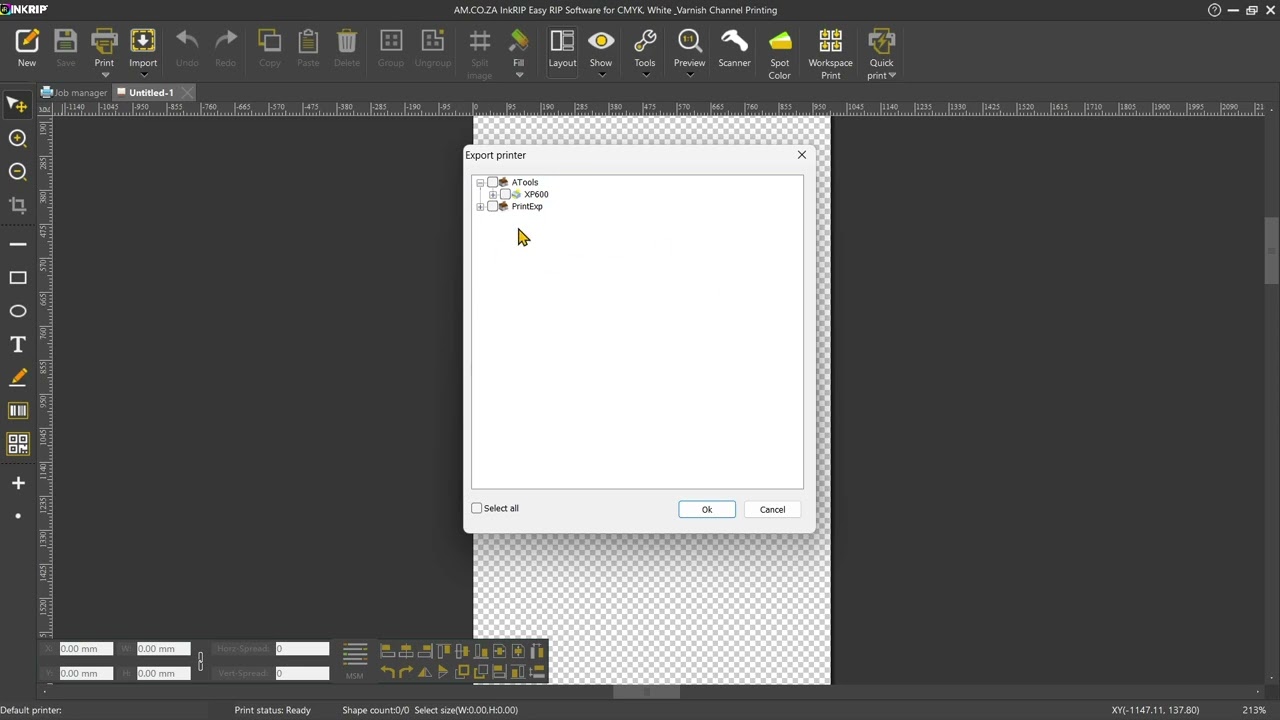
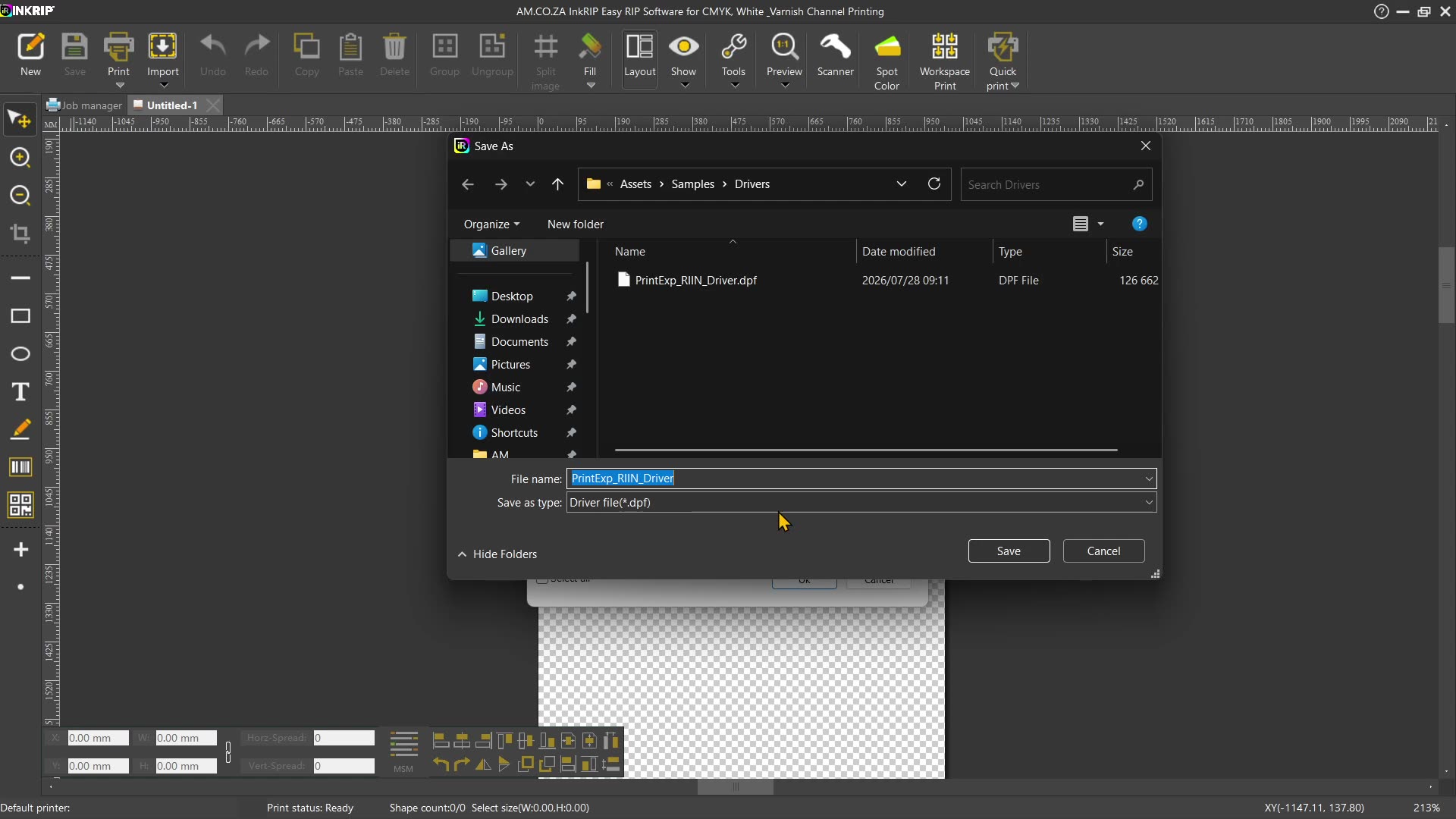
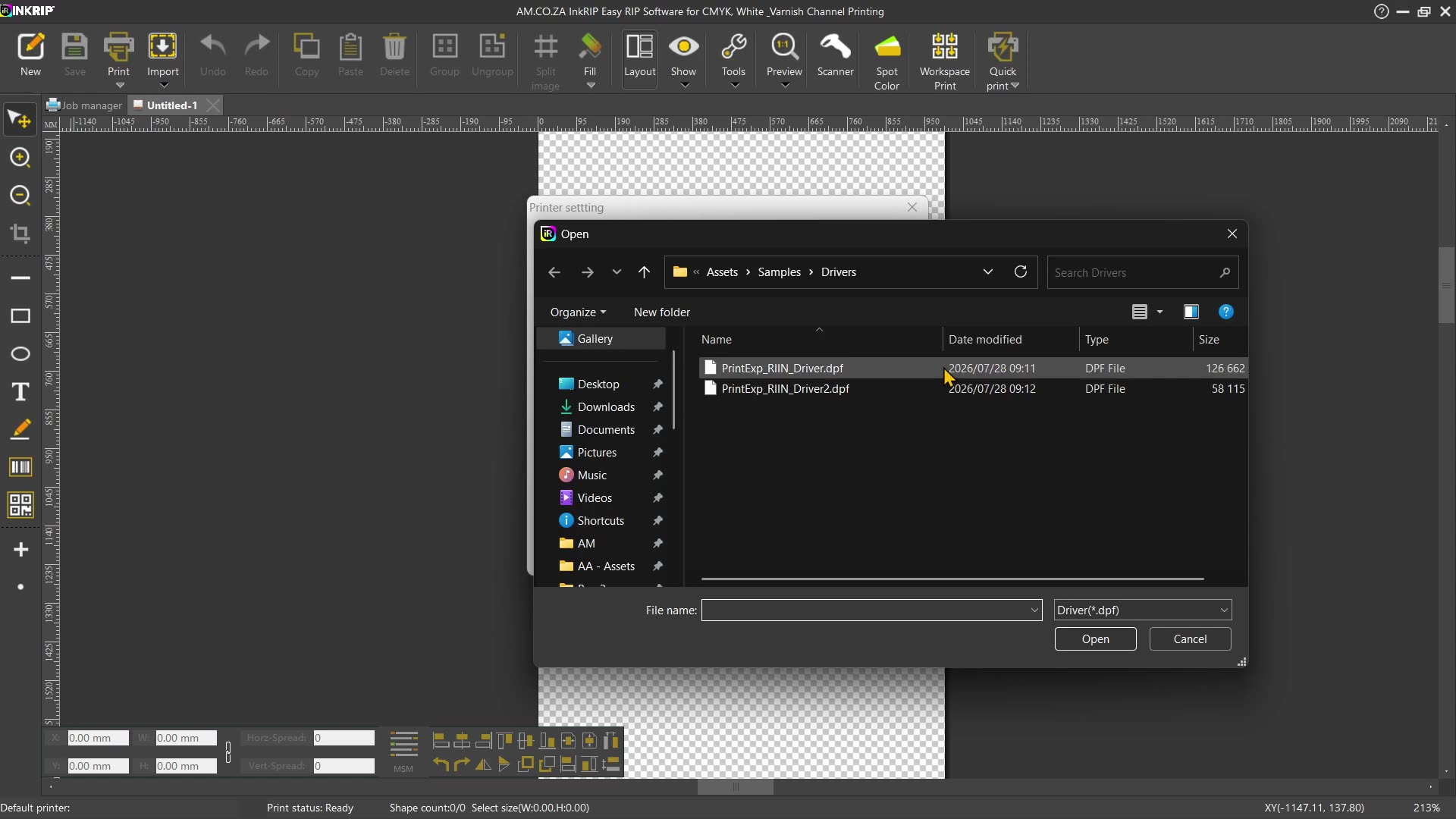
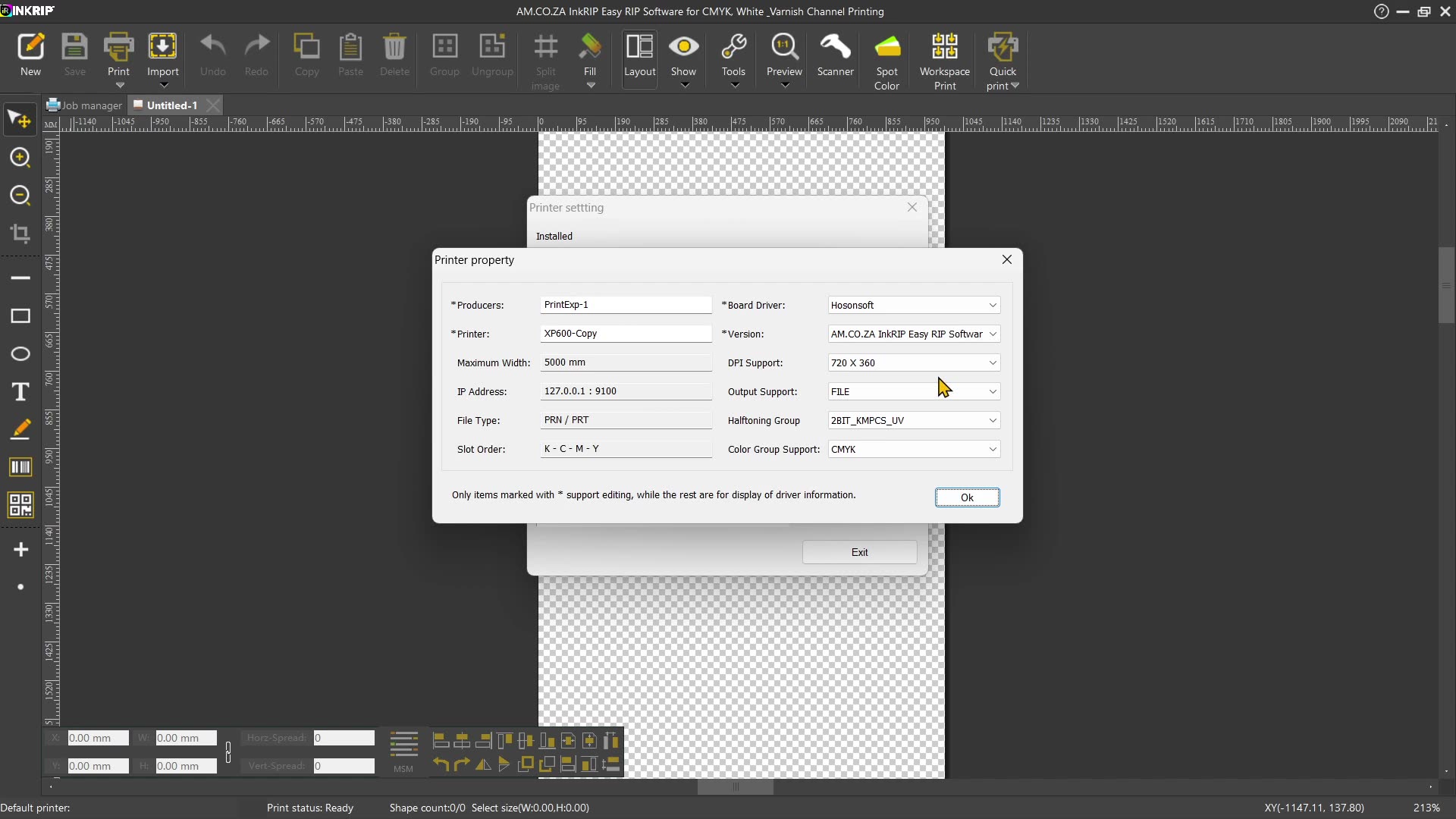
Alrighty, guys. In today's video, we're gonna be looking at importing and exporting drivers within Incrop. But before that, let's have a quick intro first. So, today's video can be found on softwaretraining.co.za. za where we make short and easy to watch problem-solving videos. Now, we're into the actual programme here. Now, let's say you've made changes to your drivers and then you wanna either back them up or you wanna maybe copy them to some online cloud so in the future, you can pull them down again and use them on your actual device. Now, I, in general, would use this for backups, but the other one is also very popular, so um you can do both of those. So what you wanna do is you wanna go to your actual printer settings. And then with your actual, or the, the driver you wanna back up, you select that and then you can see here at the bottom, we've got the two options. So we've got export printer and import printer. So now, in order to export it, we'll select that file, click export printer, and then we wanna or navigate and find the one we want to export. So I'm gonna expand your print EXP. Now, these are basically two control type softwares. We have ATools, alignment tools, and print EXP. Most common, you're probably gonna be using the print EXP, but then I'll be looking under that one, and then over here, I will go select our newly created. The driver. You can obviously expand and then look at the colour profiles. So if you've made ICC profiles, you can select the ones you want and deselect the ones you don't want. So, I would recommend that, and then you can simply say, OK. Navigate to where you wanna save it to, and I'm just gonna make this number 2, then click save. Now, this will add those uh drivers. So I'm just gonna, let's take this one. We set it as default and let's delete, or I'm gonna uninstall that one. So now, in order to get it back, what we wanna do is we want to go to install printer, uh sorry, import printer, navigate to that driver and say open. Then it will give us a, a message whether it was successful or not. I say, OK. And then now, over here, we've got that driver where if we had to open it, then all our settings and all of that should be the same as what we've set it. But yeah, otherwise, that is it on import and export. Like I said, this is very handy if you're trying to make backups or you maybe wanna copy it to another computer sometime. Boys, in the meanwhile, if we head here to softwaretraining.co.za. za, you guys will uh notice we've got a variety of different softwares we do cover and you can also isolate your search on the top right. If you do not, however, find the training videos you're looking for, just simply go here, request the training video, fill in the mini form, and then we'll do our best to try and make that for you. But otherwise, thanks guys for watching and cheers.




 brooke-cagle-DPe0I9o2BX8-unsplash-index