Printer Driver Available Printing Resolutions Within the AM.CO.ZA InkRIP Software (Part 5)


inkrip printer driver resolutions
When it comes to printing and printheads, one has different resolutions that you are able to use.
Something to keep in mind is that these resolutions are limited to what the printhead is physically capable of producing.
This video is part of a Mini-Series.
The next video covers Modify Resolutions.
The previous video covered Printer Properties.
Video Transcript
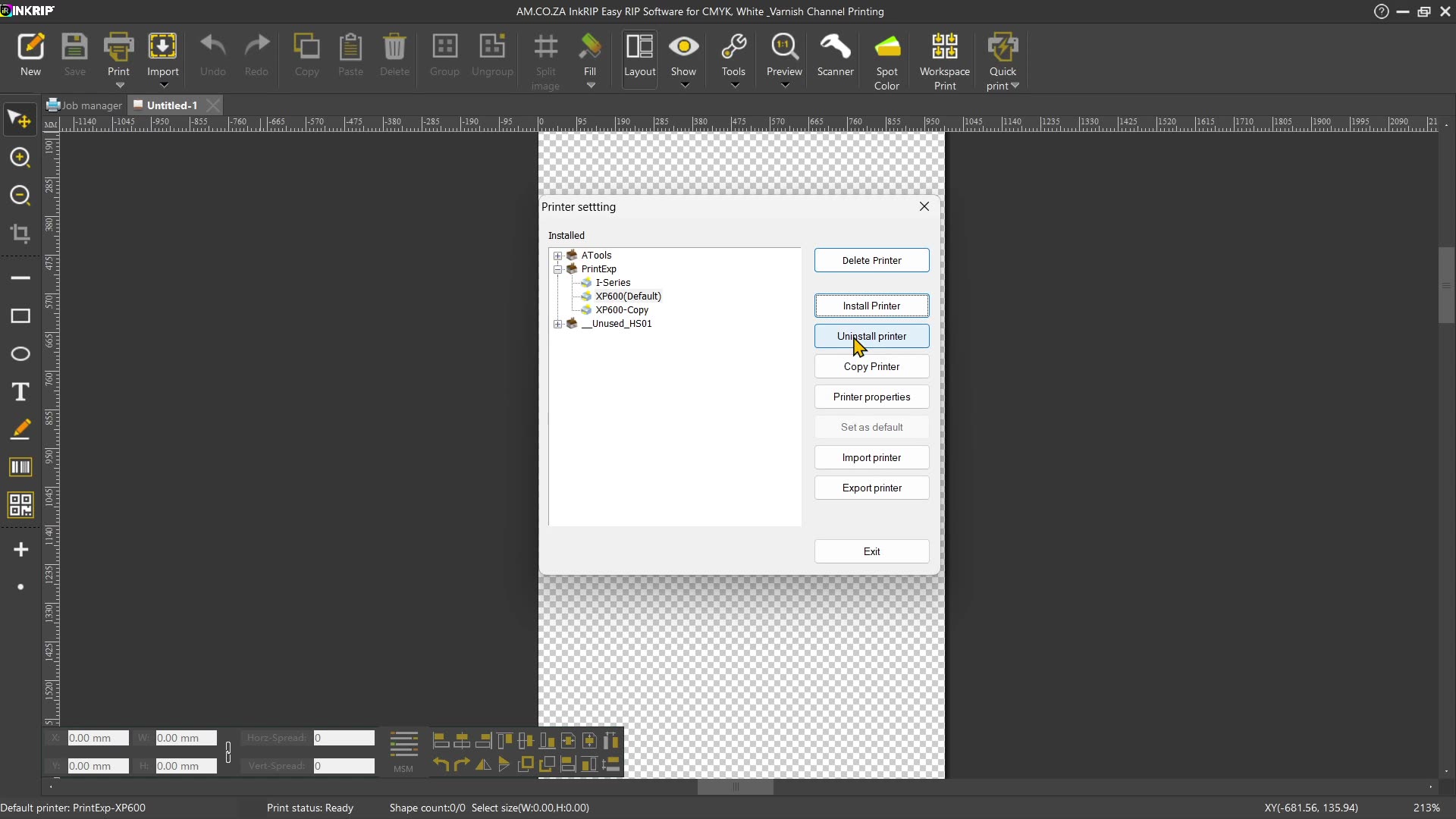
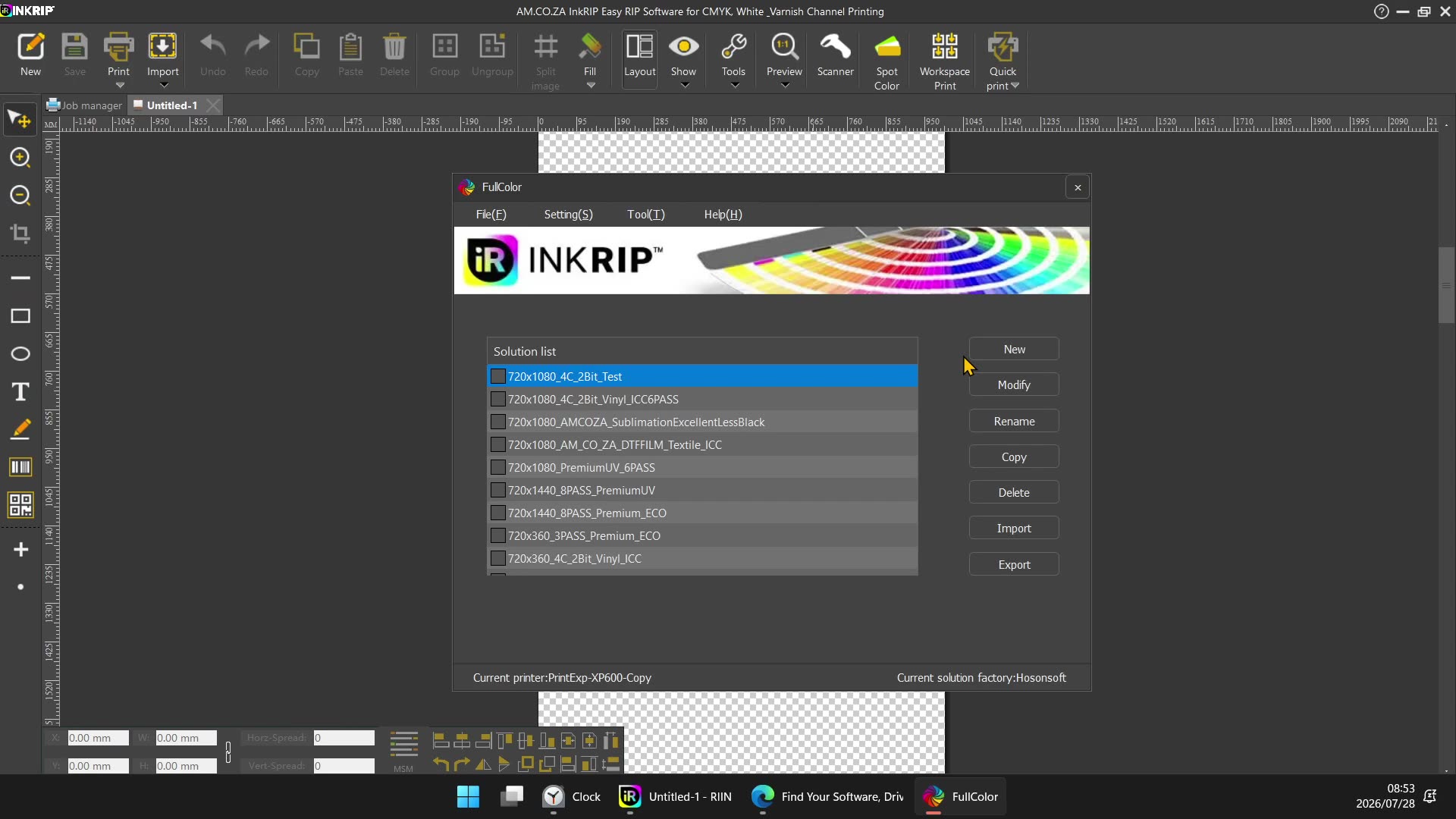
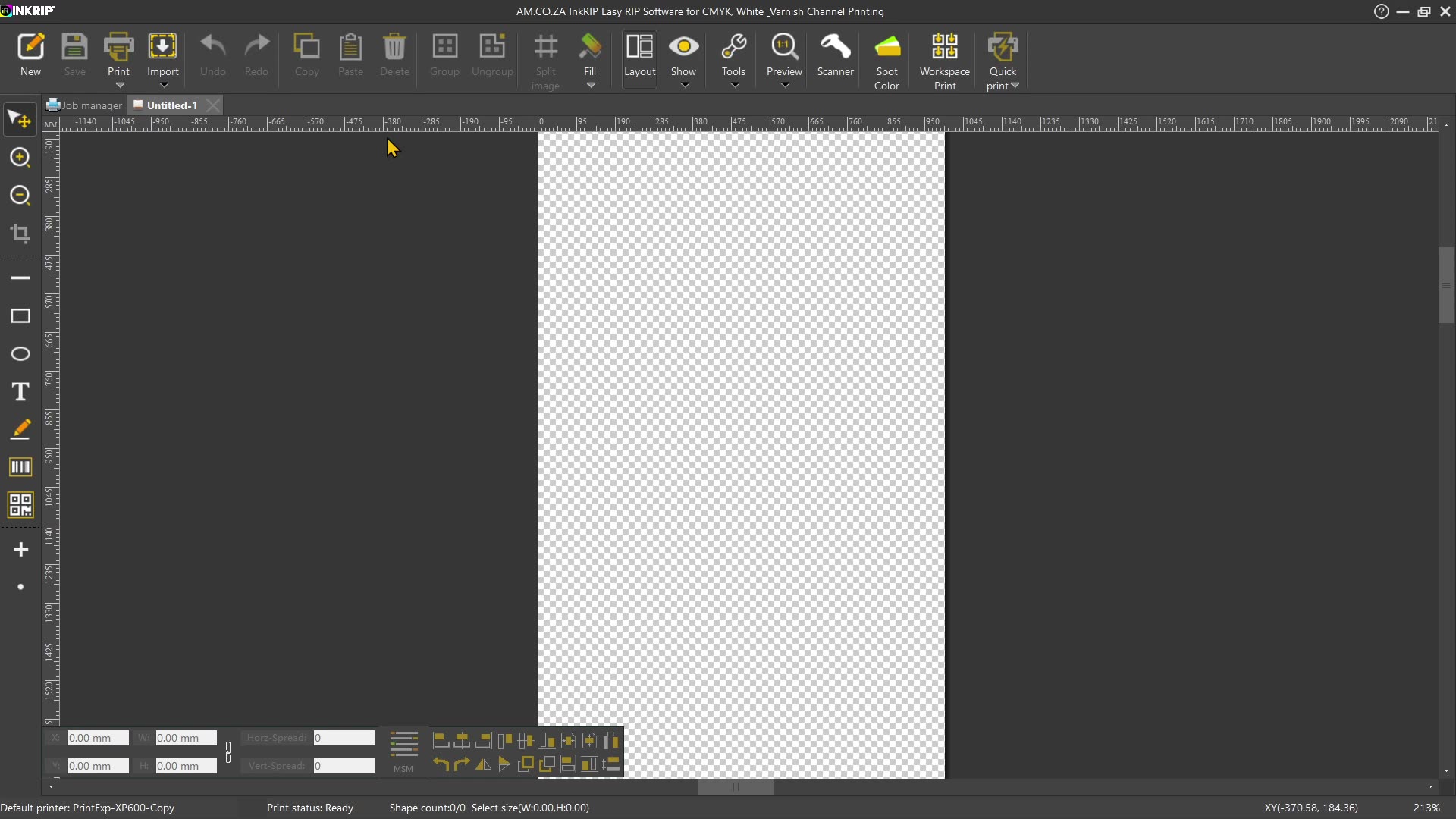
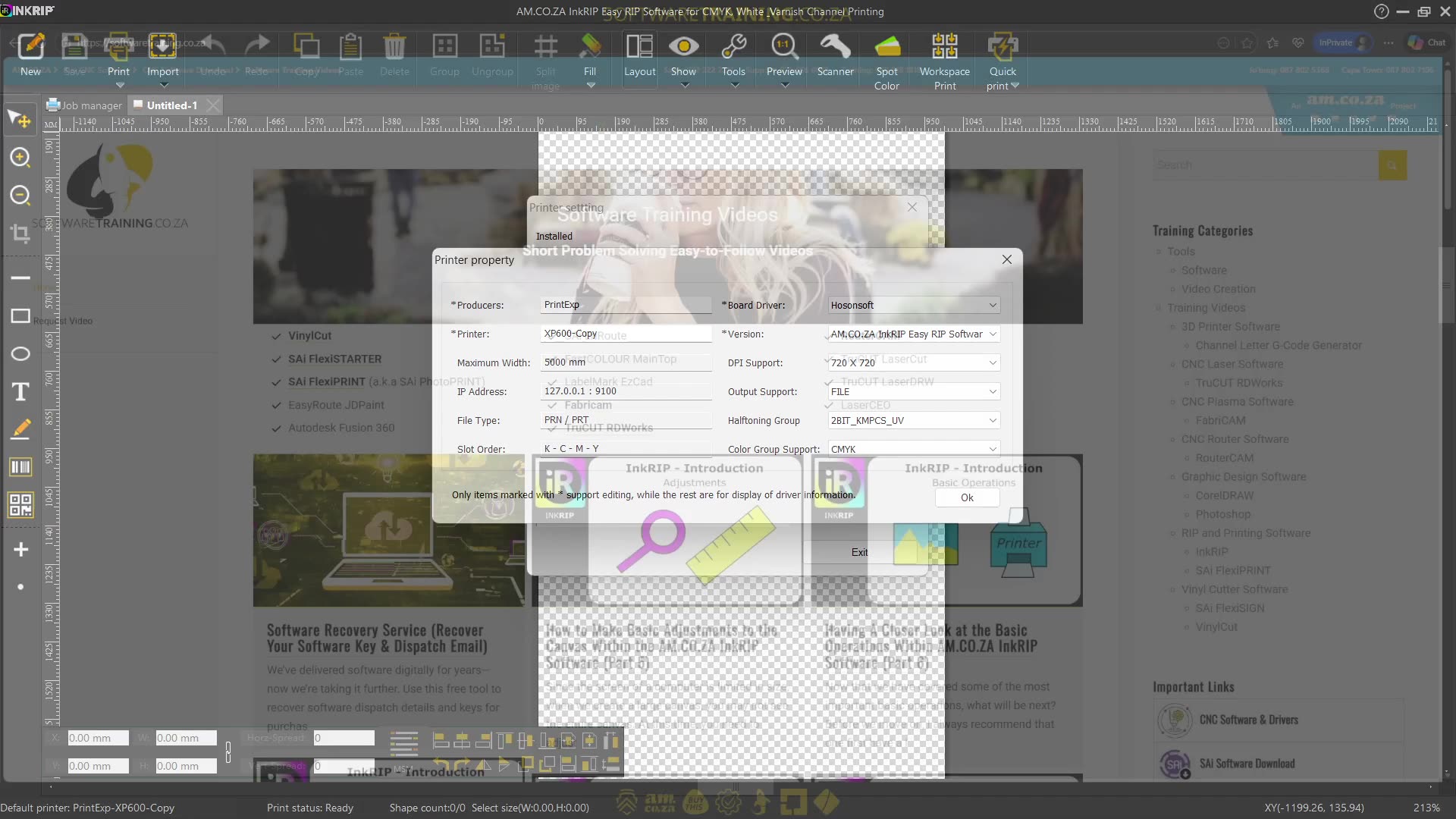
Alrighty guys, in today's video, we're gonna be looking at actual resolutions for our drivers. But before that, let's have a quick intro first. So today's video can be found on softwaretraining.co.za. We make short and easy to watch problem-solving videos, and we also have daily updates. Now, we're into the programme here. So in the previous video, we looked at making a duplicate or a copy of our driver and then how to adjust some basic settings like the name and so forth. Now, in today's video, we're gonna be looking at this DPI support or also known as resolution. Now, this will be directly relevant or related to your actual print head that's installed. So as you guys can see, we've got the XP 600, which means our resolution in the X and Y is limited to the hardware. So now, it's very important that the driver must correspond with um the actual print head. Otherwise, it's gonna give you output errors when you're finally trying to print if your resolution is set wrong. So the first one in general tends to be the speed and the second one is your dots on the Y direction. So, um, You also have a thing called passes, which we're not gonna go into too much cause this is just about the drivers, but what it comes down to is if it goes left and right, it's called a one pass. Well, actually, sorry, a two-pass. If it only goes one way, it's a one pass if it prints one way, but most modern printers with these type of heads print two-ways. So it'll be 1, print one way, print on its way back, and that'll be a 2-pass, and then a 4-pas, 6 bars, 8 bars, and so forth. And that is where these resolutions come in. So the base uh of this print head can print, um what is it? Like, I think it was 180, yeah, yeah, according to the math. So 180 dots on the Y direction, as you can see here, so two paths will be, it goes one way, 180, comes back, and it just with a slight offset puts another 180, which makes it 360. So that is how you kind of up the resolution. With your passes. And obviously, the finer you go, the higher the resolution, so the more passes, but also the slower the print. Even though your print head moves fast, it's gonna print. Instead of printing a line, a line, a line, it's maybe gonna print a line and then in between that line and then the line, as you can see, so it can almost take twice as long just upping the resolution. I'm double. But yeah, so in order to actually set these things, it's gonna be important that our actual printer, is our copy, is just set to default. If it's not set to default, this won't work. It's gonna wanna set the one that's default. So let's go copy, set default, and then I'm just gonna exit here. And then what we'll do is we wanna go to our colour manager. So I'm gonna open the colour manager. Let's drag it to the right screen. And then now, if we're on top here on the settings and we go driver settings, we can adjust some things relevant to the actual printhead. So as we can see here, we have those settings. So let's take this uh 720 by 360. Let's say delete. And we say, OK. Driver has updated, then we go back to our actual driver settings. Take this default, open the properties. Now, under this resolution, you can see our driver no longer has that resolution. Which means when we're finally outputting this file and sending it to our, uh, how can I say, our actual printer, it's not gonna support that driver or that type of resolution, which means you won't be able to print it. So now, it is very important that these resolutions must correspond with the ones that's on your actual print head or your control software. And uh so what you can do often is you open your control software, you look what's supported, and you add them here. And that comes to our next part where we'll be looking at how to actually add and modify resolutions. But before that, if we head here to softwaretraining.co.za. za you guys will uh notice that we've got a variety of different softwares we do cover, and you can also isolate your search on the top right. If you do not, however, find your training videos you're looking for, just simply go here, request a training video, fill in the mini form, and then we'll do our best to try and make that for you. But otherwise, thanks guys for watching and cheers.


 pexels-kseniya-kopna-10343492-index
 pexels-elena-elovackay-3994040-Index