Cyan – Magenta – Yellow and Black Slot Order Within the AM.CO.ZA InkRIP Software (Part 7)


inkrip ink slot order
When we look at a printer machine, it has ink cartridges that hold the different inks.
These inks have a set order in which they are arranged in, so having a driver that reflects that order is of utmost importance.
This video is part of a Mini-Series.
The next video covers Import / Export.
The previous video covered Modify Resolutions.
Video Transcript
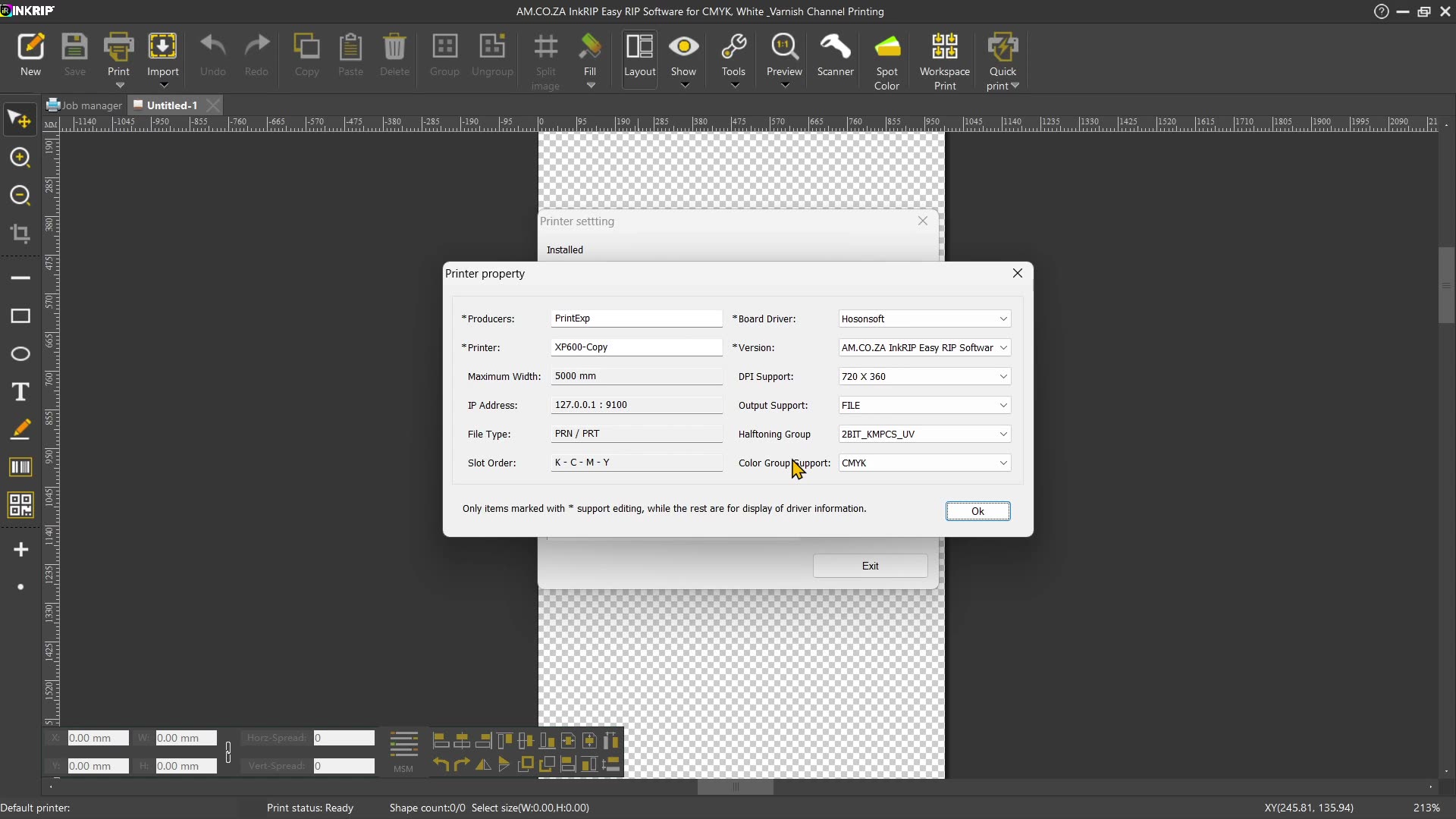
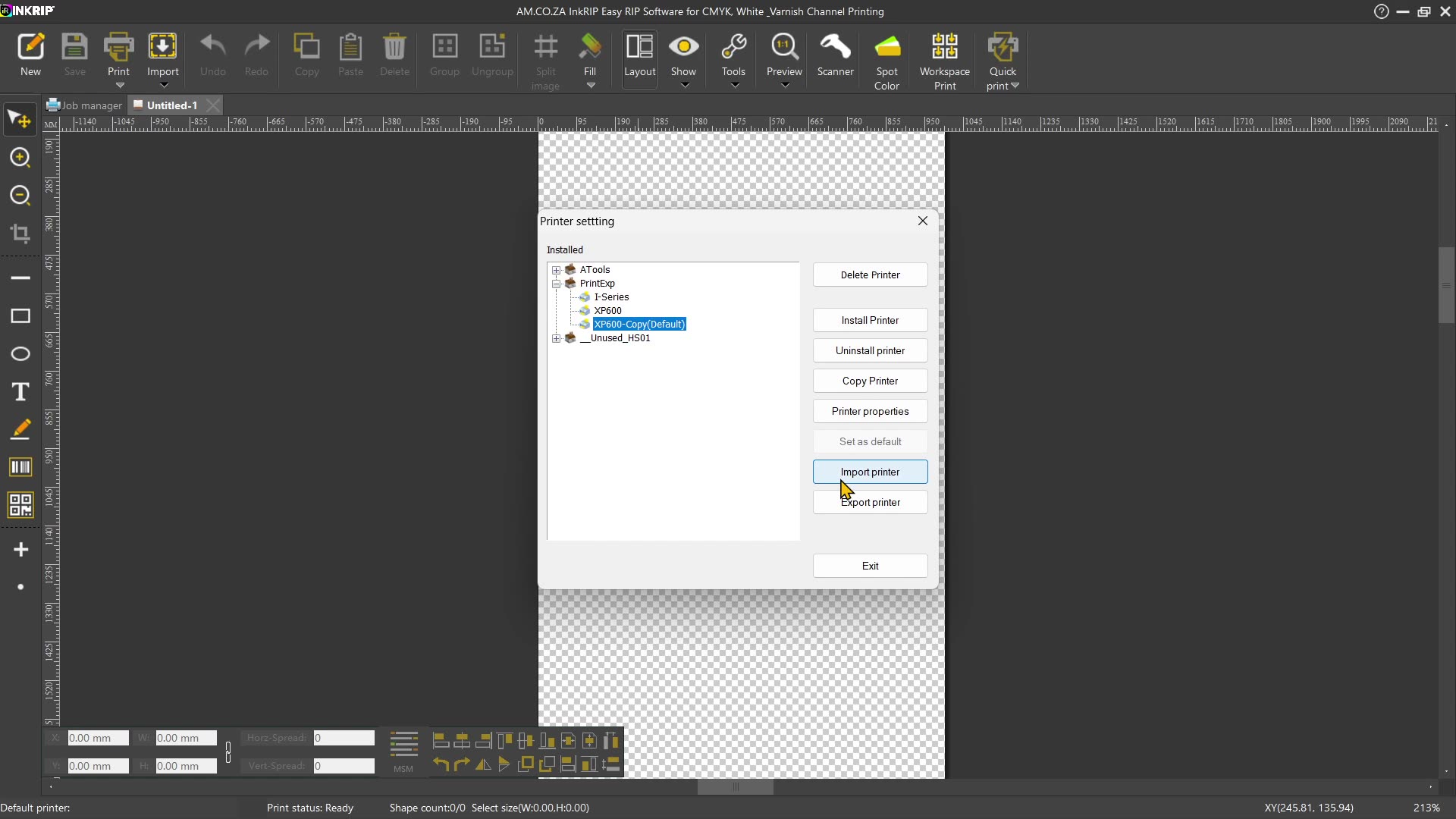
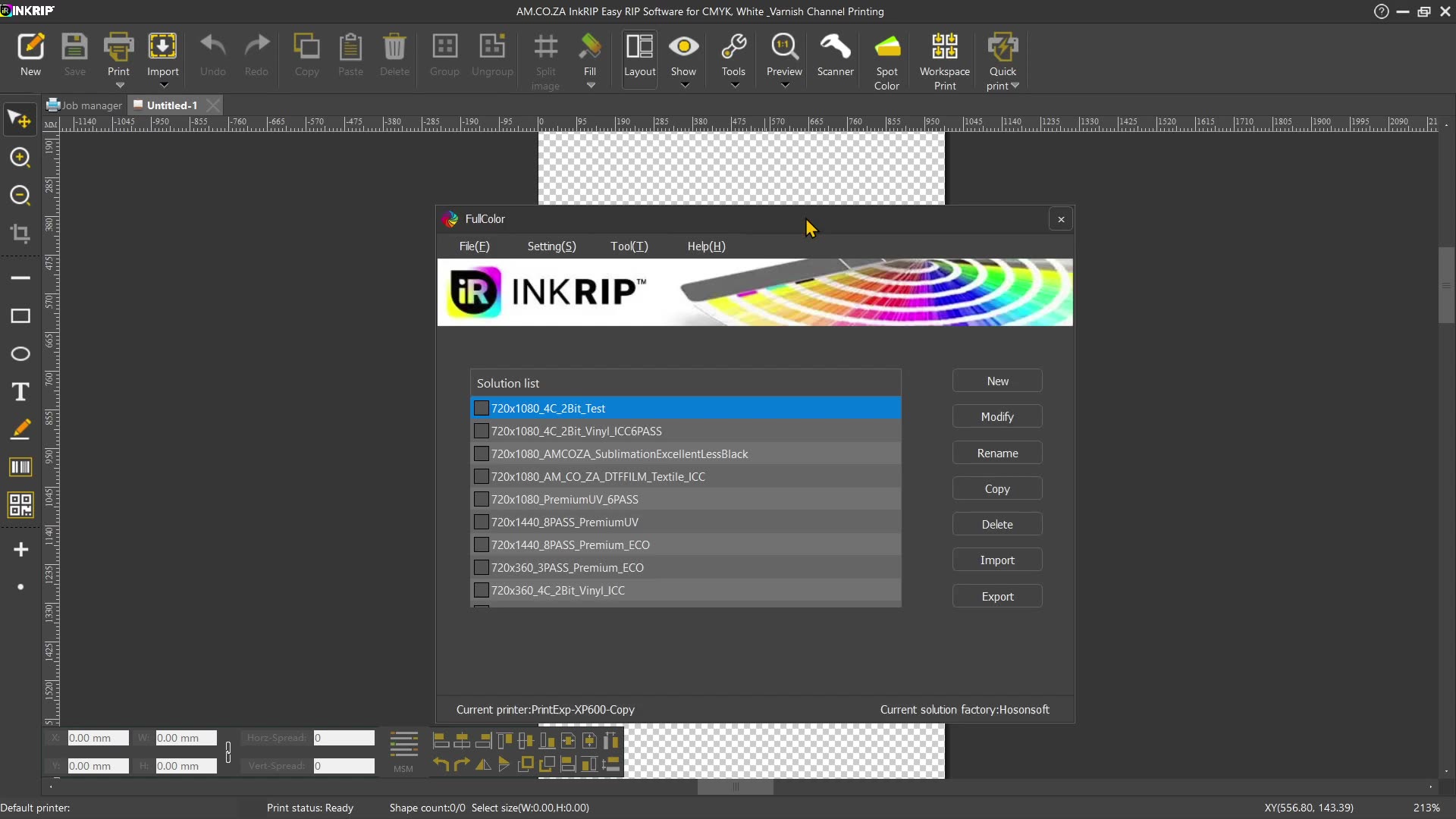
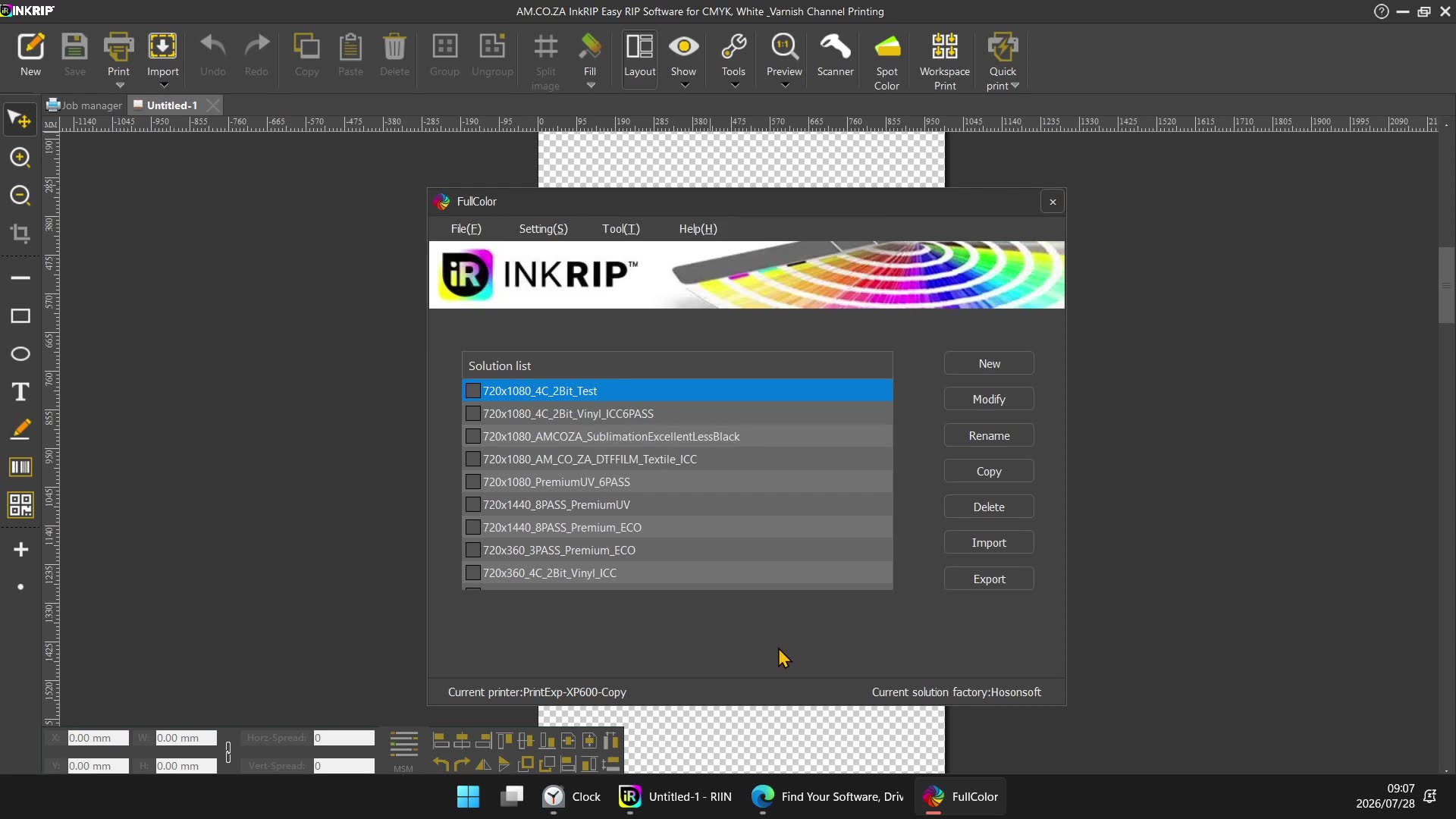
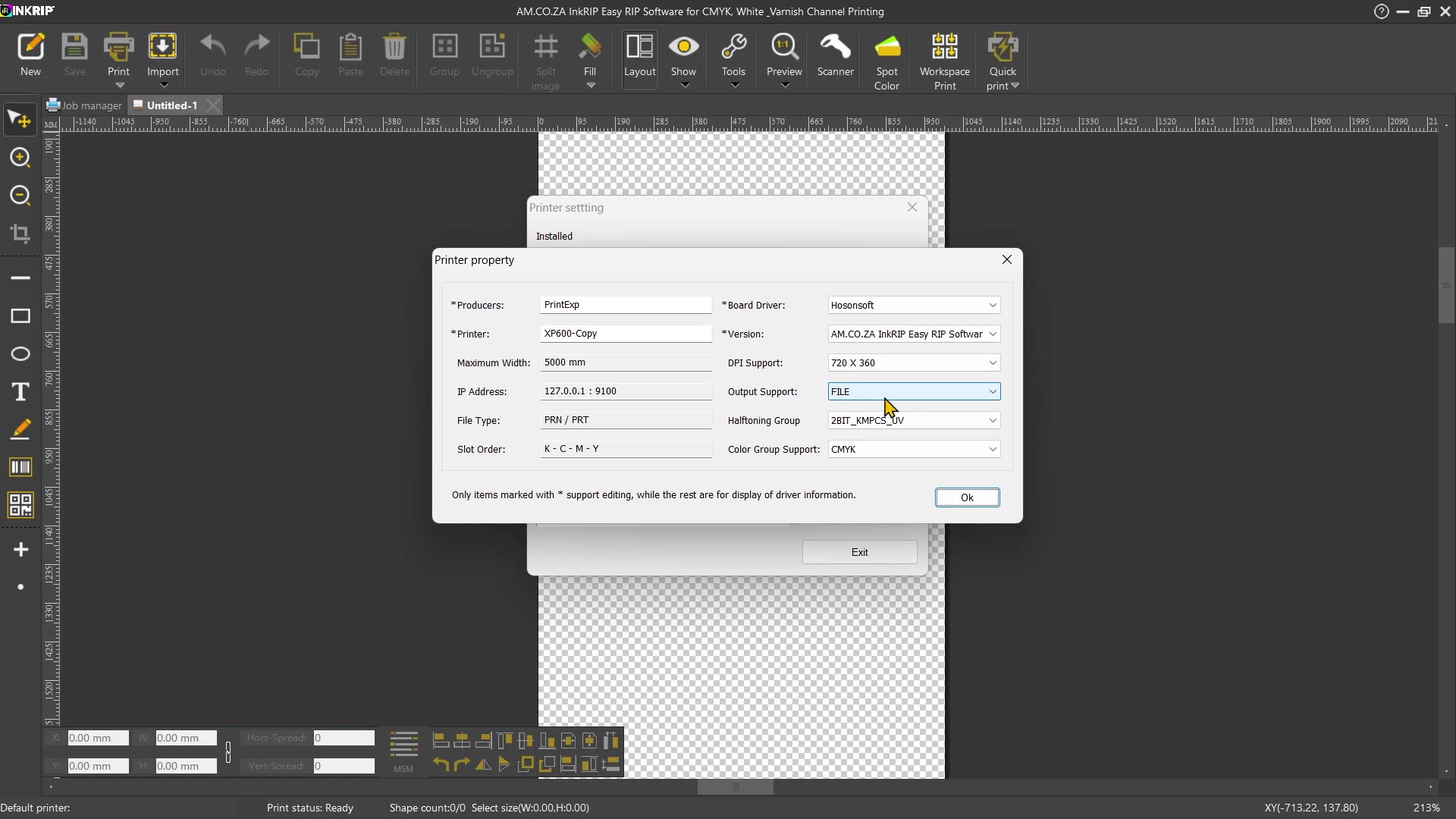
Howdy, guys. In today's video, we're gonna be looking at our CMYK slot order within Encrypt. But before that, let's have a quick intro first. So today's video can be found on softwaretraining.co.za. We make short and easy to watch problem-solving videos. Otherwise, we're into the actual um programme here. So now, previously, we looked at setting resolutions for your drivers. Now, we're gonna be looking at setting the actual CMYK order or slot order. If I had to double click this current setting which we made on the current um driver which we may default. Then you will see we have these two options. Now, this is kind of this gonna display what the current slot order is of the driver, and then, yeah, it's pretty much just gonna um be your group, so CMYK all the rest. Now, when it comes down to the slot order, let's say you've got your printer and in your actual um print canisters, you've got your black, you've got your, uh, in this case, cyan, your magenta, and your yellow. Then, your actual programme needs to know that that is the order of your actual printer's, uh, physical print, um, how can I say, um, slots. Because if we, on the actual printer, if we wanted to, we could make yellow first and then magenta, then sign, then key. And then what's gonna happen is if the programme thinks that the key is still on the first slot, it's gonna print everything that's gonna be black on your image with a yellow instead of a key, and then you're gonna get a very odd-looking print. So if that ends up happening, I've had it before where these orders were wrong and then your prints are all whacky and you can't figure out why, then most likely, it is a slot order. So in order to change that, we're gonna go the same way we did before with the actual resolution. So with your driver status default, I'm gonna go here to encrypt and then go to the colour manager. Then under the colour Manager, we're gonna go to settings, driver settings, and then at the bottom here, you can see we've got our colour or CMYK options. Now, on top here, we can modify this. So if we modify, you can see here we have the order. So currently, the key or the black is first. So we can make this yellow and then make this key. Just keep in mind, you can't have the same colour in all of them, for I remember. Let's just see if I make a yellow and a yellow. Yeah, it gives me an error. So let's make this key. So now, we've swapped these two. So as we can see here, key was first. So if I say, OK, you can see I just changed and now yellow is first. So I'm just gonna change these two back so you can, like this, individually change them if one is wrong. If you do a print test and you realise, OK, maybe one colour is um going a bit wack. Then under that, we've got our colour group. Now, this is where we can add extra colours. So let's say you're working with unique colours that has to be printed like neons or maybe white and um let's say varnish or something like that. Then over here, you can go add Uh, those things. But keep in mind on the one that is selected. So if we have CMYK selected and we click add, it will only give those options for us. Where if we go CMYK + 2 colour, and we say add, now we have two extra ones that we can set up here. So you can either choose from the pre-made ones or you can say custom and you can set up some values and names for that. So that is how you can get extra groups and extra slots within it. And at the bottom here, obviously, we have the current order which you can delete, but I would say just leave all of that as is and then you can say, OK, and then if you've made any changes, it will change it to your actual colour manager, I mean, to your actual driver, which you can see obviously under your print settings. So, if you go here, then you will see the updated changes over here. But yeah, otherwise, that is it on the CMYK slot orders and groups. In the meanwhile, though, if we head here to softwaretraining.co.za. You guys will notice we've got a variety of different softwares we do cover and you can also isolate your search on the top right. If you do not, however, find the training videos you're looking for, just simply go here, request the training video, fill in the mini form, then we'll do our best to try and make that for you. But otherwise, thanks guys for watching and cheers.

 jim-flores-dE6c9RZoyL8-unsplash.jpg
 pexels-zhanna-tikhonova-tt-9836055-index
 meritt-thomas-MQ9U2GFnnDc-unsplash-index

 valerie-elash-RfoISVdKM4U-unsplash