How to Use Images as Your Fill Type Within the AM.CO.ZA InkRIP Software (Part 5)

inkrip images fill type
If you have custom shapes and you would like to match an image to that shape, the Fill Type Image option is for you.
The Fill Type Image feature has a few great options to choose from or adjust to your preference.
This video is part of a Mini-Series.
The next video covers Color Tables.
The previous video covered Fill Type Gradient.
Video Transcript
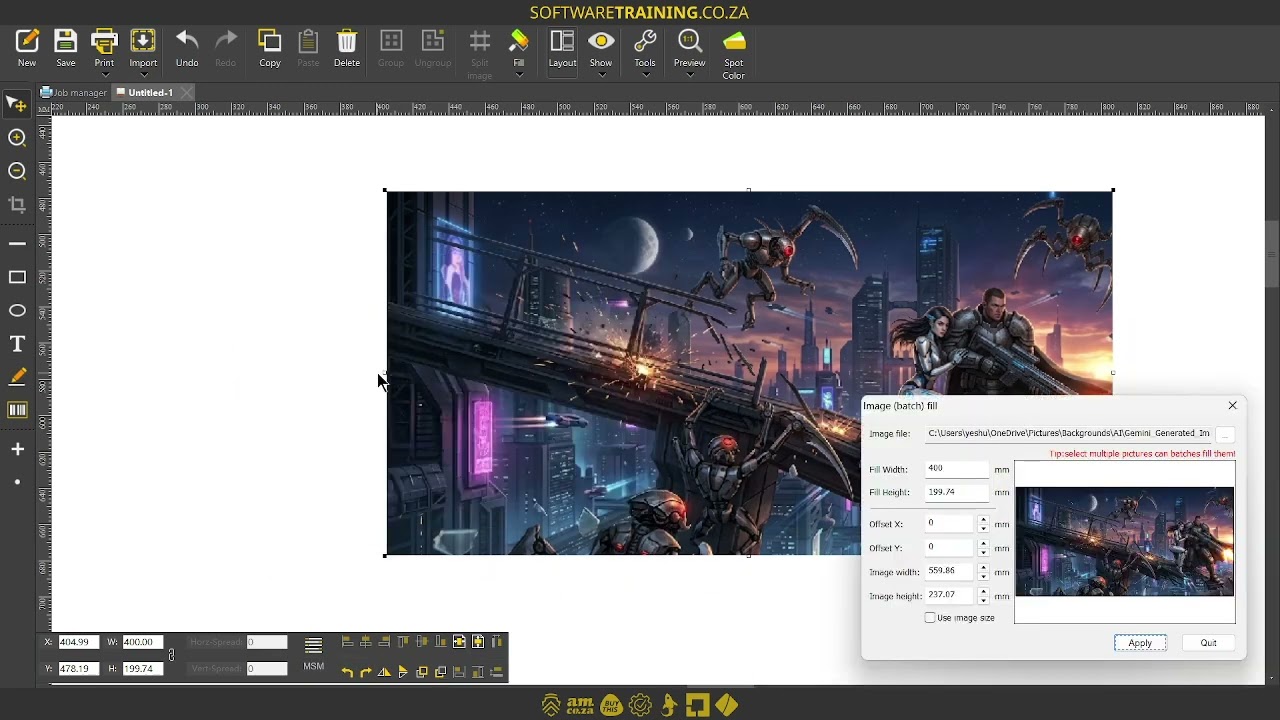
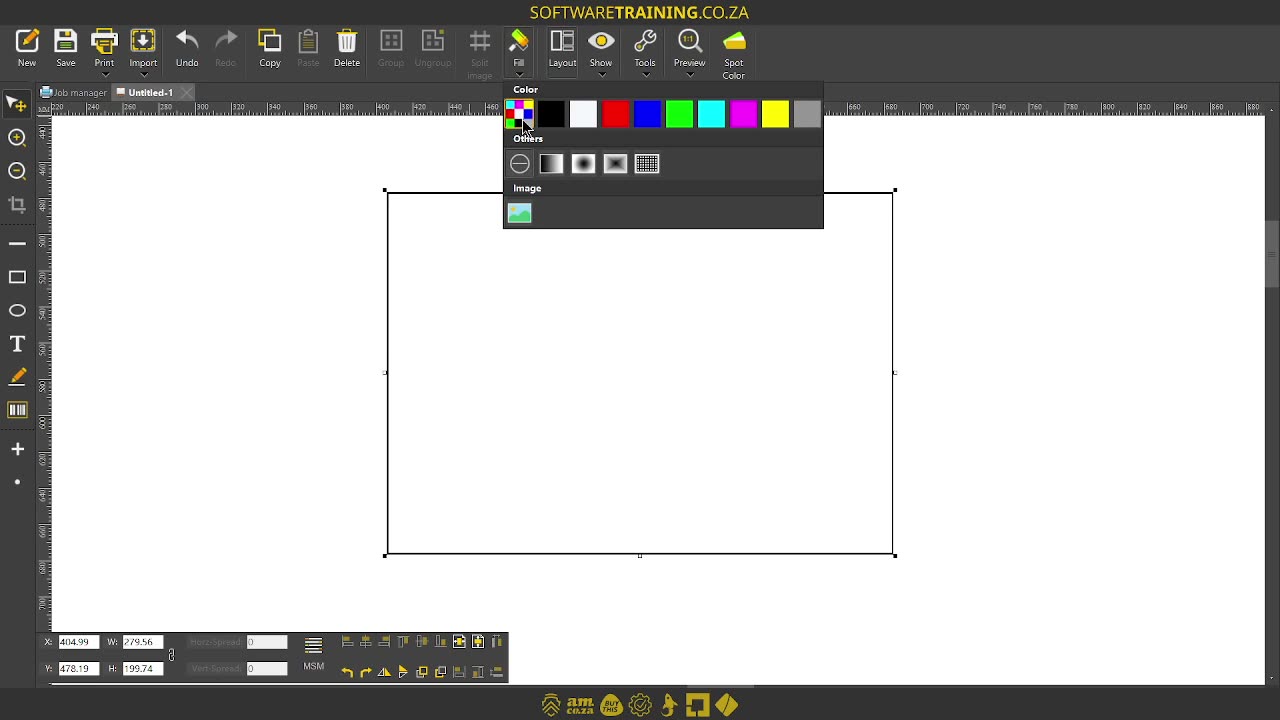
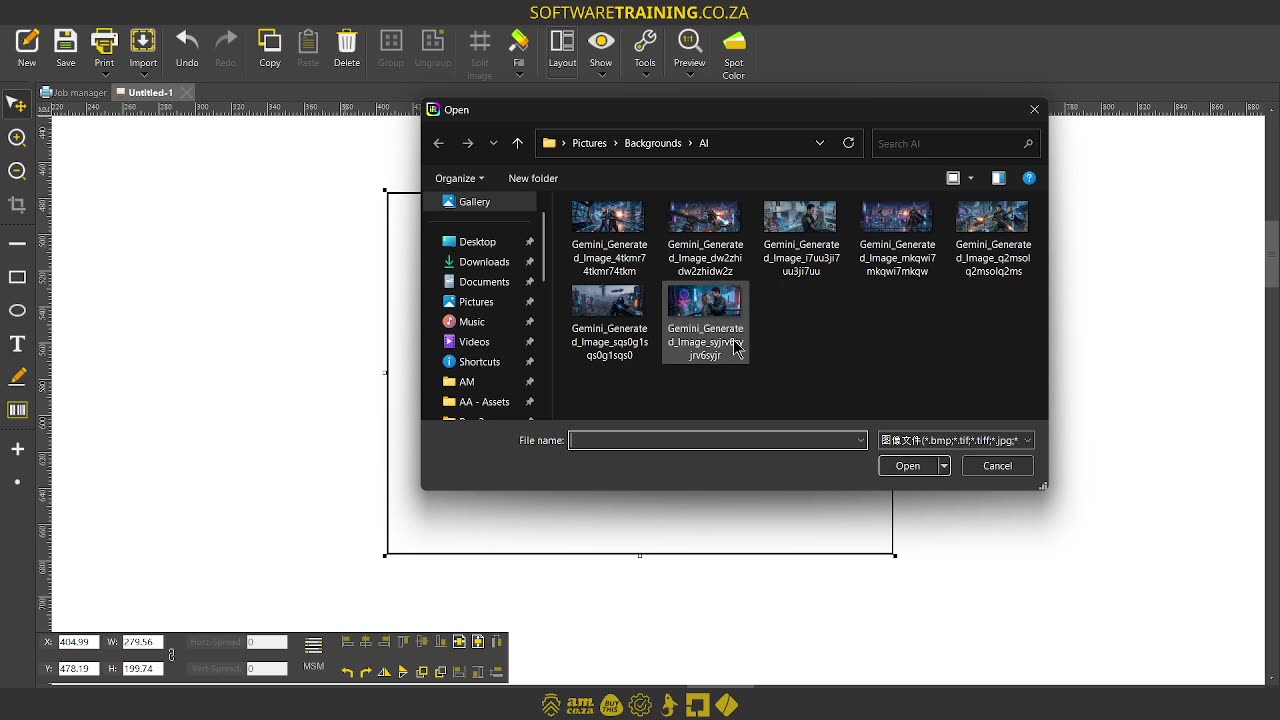
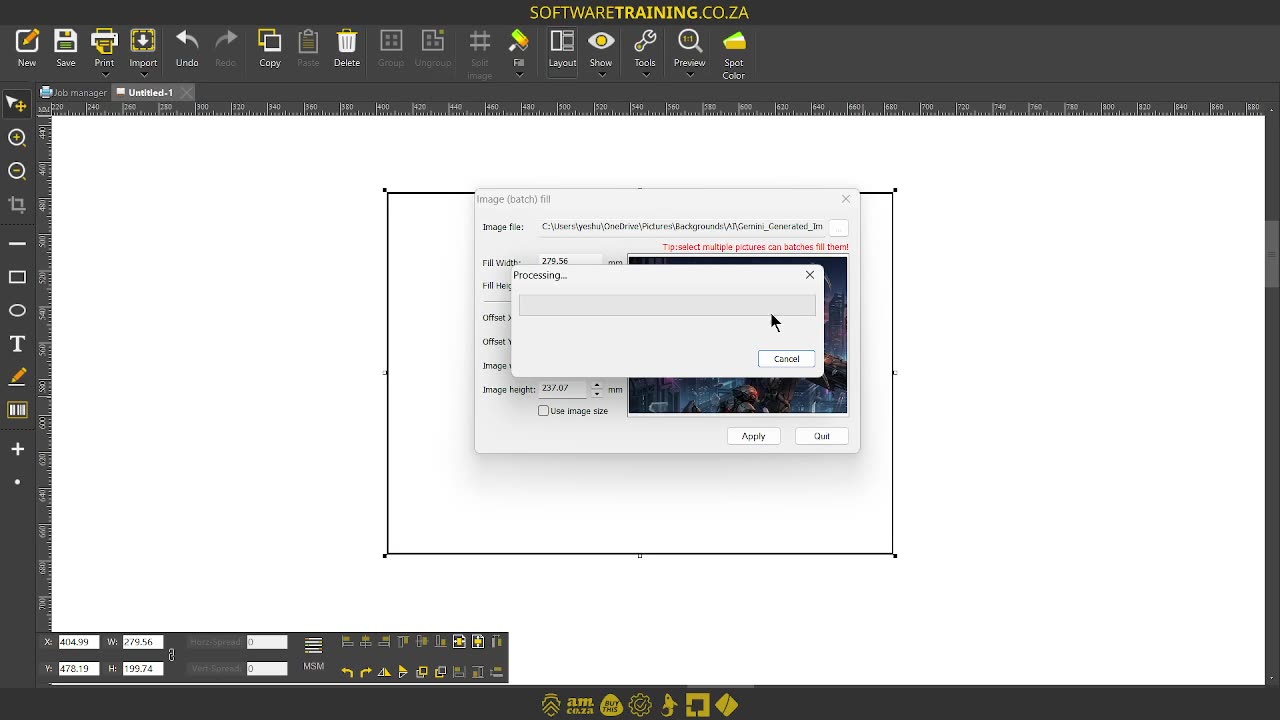
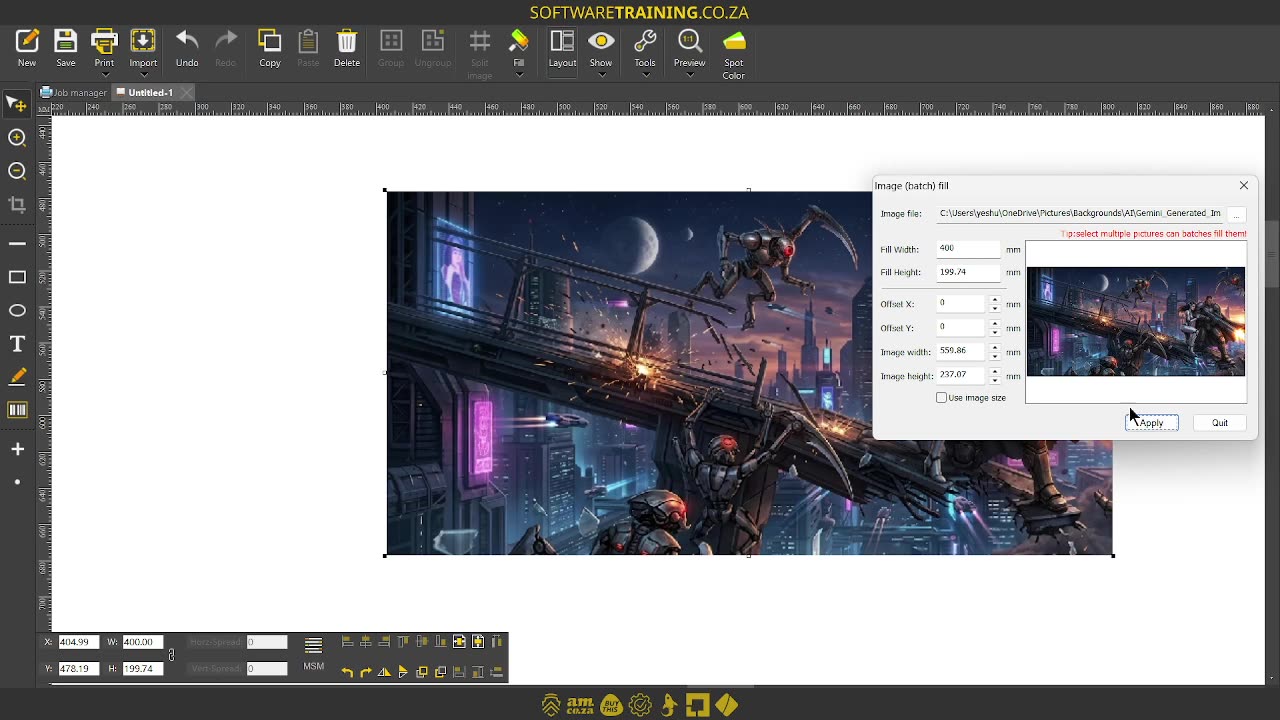
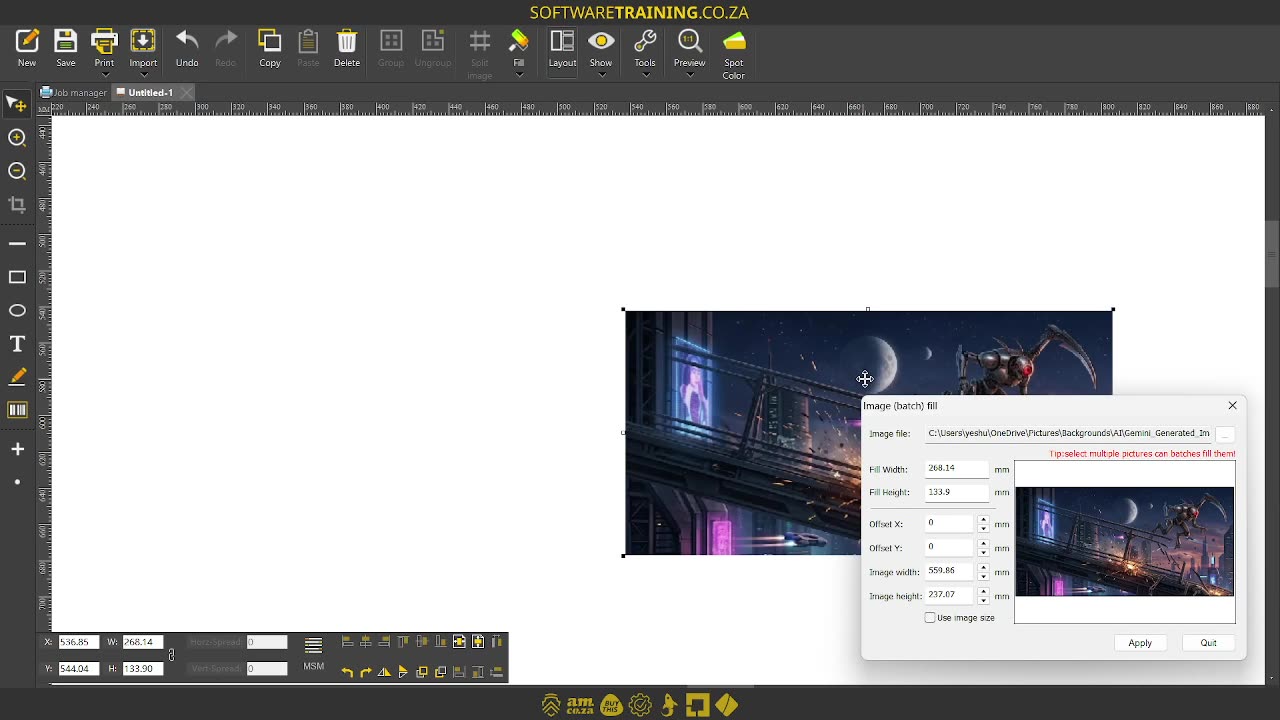
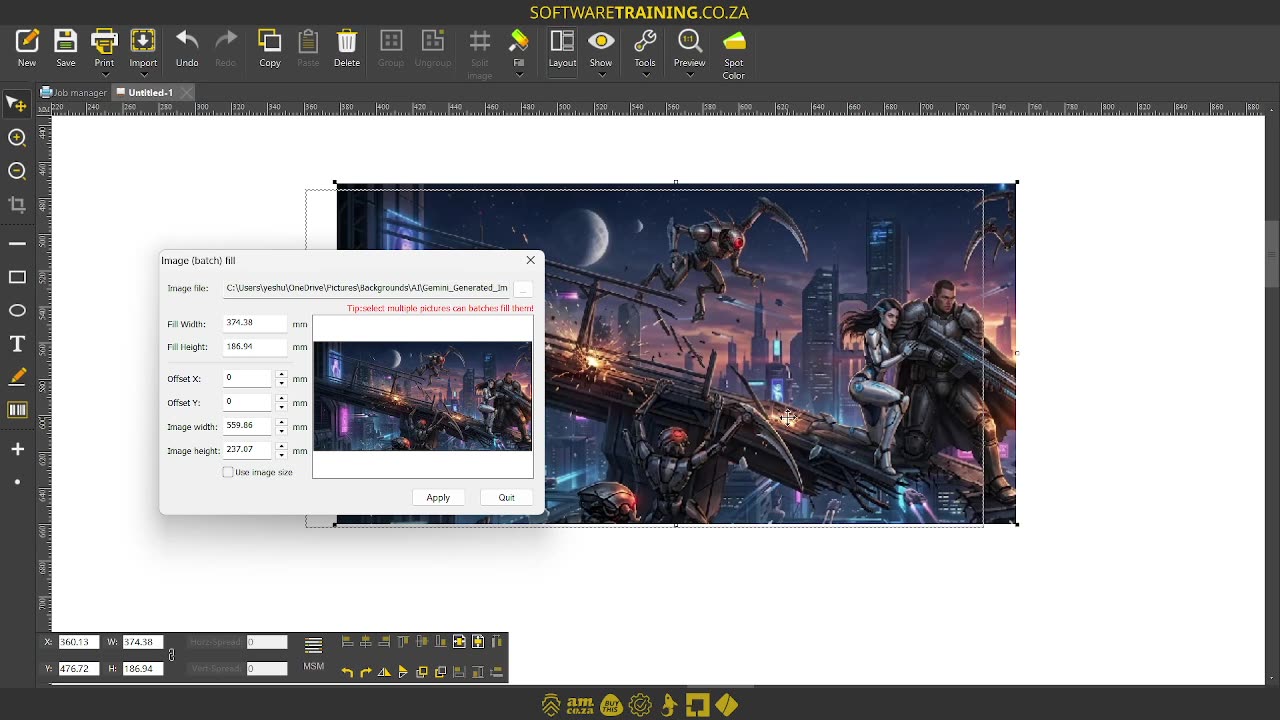
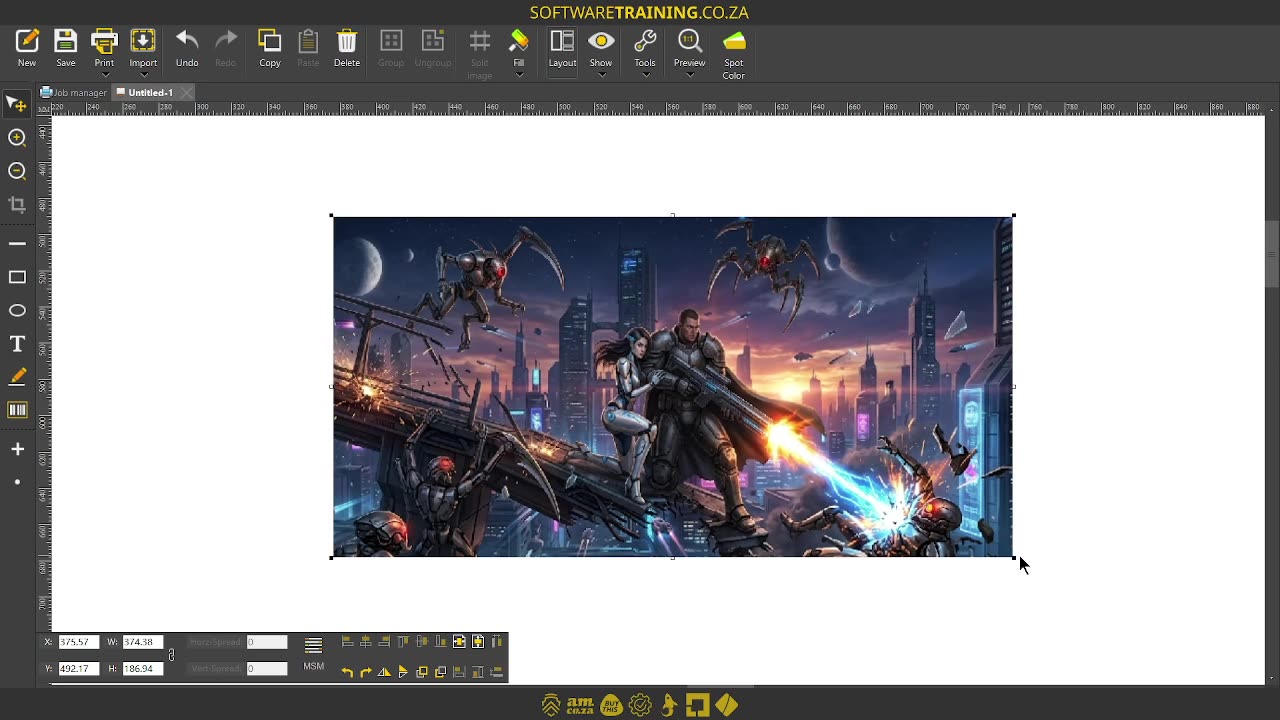
Howdy, guys. In today's video, we're gonna be looking at image fault types within in Group. But before that, let's have a quick intro first. So, today's video can be found on softwaretraining.co.za. We make short and easy to watch problem-solving videos, and we also have daily updates. Now, if we're heading into the programme here. So, previously, we looked at solid folds and gradient folds. Now, we're gonna be looking at image files. Now, it's important to understand that this is separate or different to importing an image. So, you're actually gonna be filling a shape with that image, which means it gives you a different type of control over it. And so forth. So, now, in order to do that, we also wanna make sure our shape is selected using the select tool. Go to the full dropdown menu and we select image at the bottom. Now, yours is gonna be blank, so you're gonna wanna go here to image type or image file and then go navigate to the image you actually want. So, I'm just gonna select an image here, maybe something. Mm. Let's grab something on this line. Say open image. Now it's gonna load it for us. So, if I click apply now, you will see it will throw an image in for us. Now, there's some things to keep in mind with this. For instance, the width here and width and height. This will be of your actual shape. So, let's change this, make this 400, say apply. You will see the actual canvas scales. Now, you can also manually scale this, and like I said, keep in mind, this is not an image. So, if I scale this, You will see, it doesn't actually scale the entire image. It keeps the image the same size, and it just scales the size of the block. So, that is something to keep in mind. Then under that, we've got offset. So, let's say you want to put your focal point more to the centre, and then I can maybe go to a -100. Say apply and they'll move to the left. Obviously, a positive will go the opposite way. Same with the height on the Y. You can also on the sample, just simply left click and move this around. You'll see the values adjust, click apply, and then reposition it like that, which is very convenient. Then under there, we have the image height and image width, and then we have this option, use image size. So, if we have that on, then it's gonna be the size of the image that it was imported in. So, basically the base size of it, where if we uncheck that, you can adjust these settings. But something to keep in mind, it does not constrain the sizes, so, the ratio has to be relative. So, if I set the width, The height has to adjust accordingly, so you kind of have to do the math yourself, but what I, I'm just gonna copy this and show you. So, let's say I set this to 600, say apply. OK, it's maybe not enough. Let's try to set this even lower. I'm gonna say 20. Now, you can see that. It kind of warps it. So, that is not ideal. So, now, I've got a warped image and to remember what that setting was, it's gonna be tricky. Even if I use this image size, it doesn't take it back. So, I'm just gonna paste this. OK, I didn't copy to the clipboard, or did I? No, I didn't. So, in any case, so that is something to keep in mind is you wanna actually Um, Uh, I have to adjust it accordingly if you do that. But yeah, overall, this is a nice little feature if you wanna make an isolated image onto a shape and yeah, pretty nice. Just keep in mind, like I said, it's not gonna scale it. It's just gonna scale the actual base shape of this image. Otherwise, in the meanwhile though, if we head here to softwaretraining.co.za. You guys will notice, we've got a variety of different softwares we do cover, and you can also isolate your search here on the top right. If you do not, however, find the training videos you're looking for, just simply go here on the left, request the training video, fill in the mini form, and then we'll do our best to try and make that for you. But otherwise, thanks guys for watching and cheers.


 allef-vinicius-xkqIq9BoJt8-unsplash-Index