How to Use and Understand Gradient Fill Types Within the AM.CO.ZA InkRIP Software (Part 4)


inkrip gradient fill types
After we have covered the standard solid fill type, we want to look at the gradient fill type.
If your designs are a bit static and you would like them to look and feel more dynamic, then the gradient fill type will help you a lot.
This video is part of a Mini-Series.
The next video covers Fill Type Image.
The previous video covered Fill Type Solid.
Video Transcript
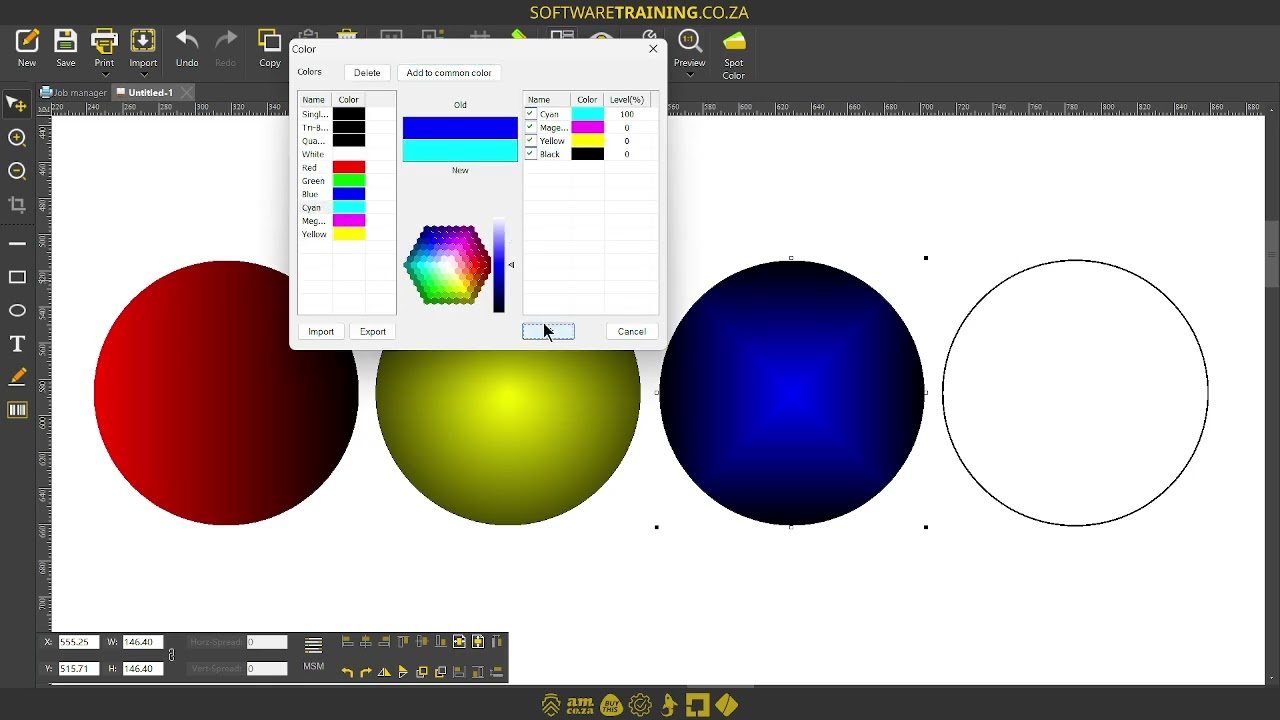
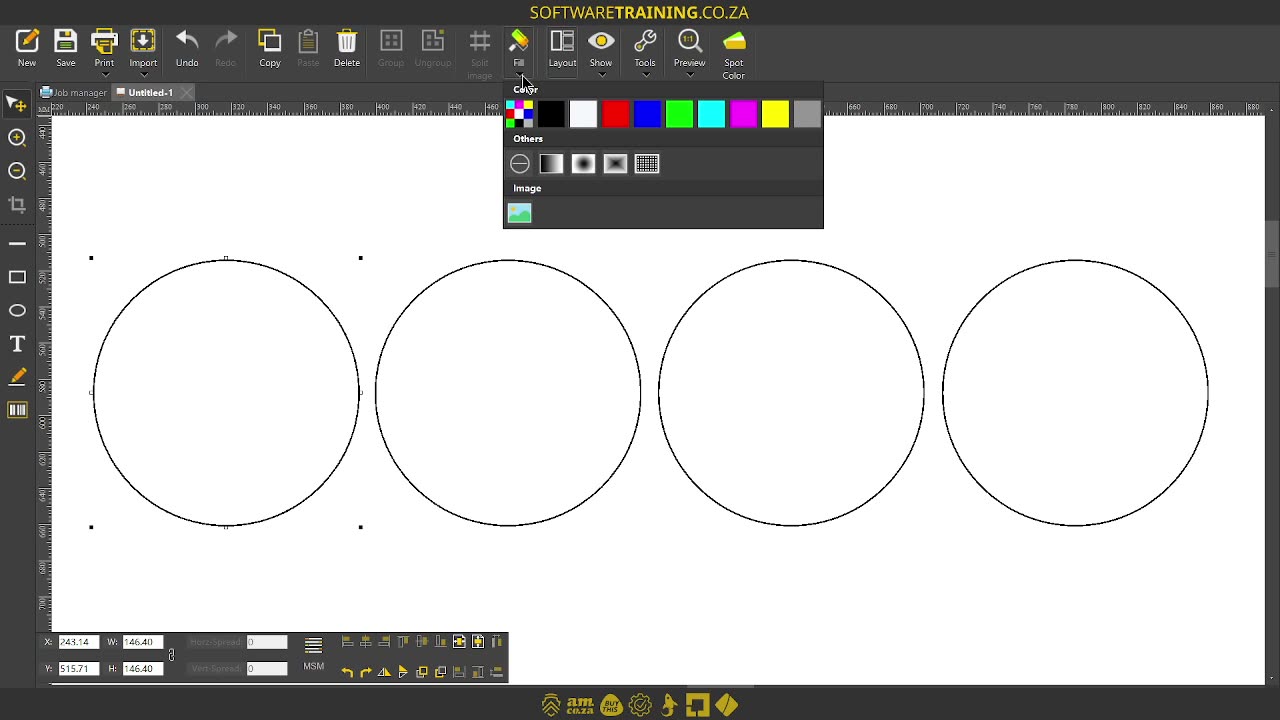
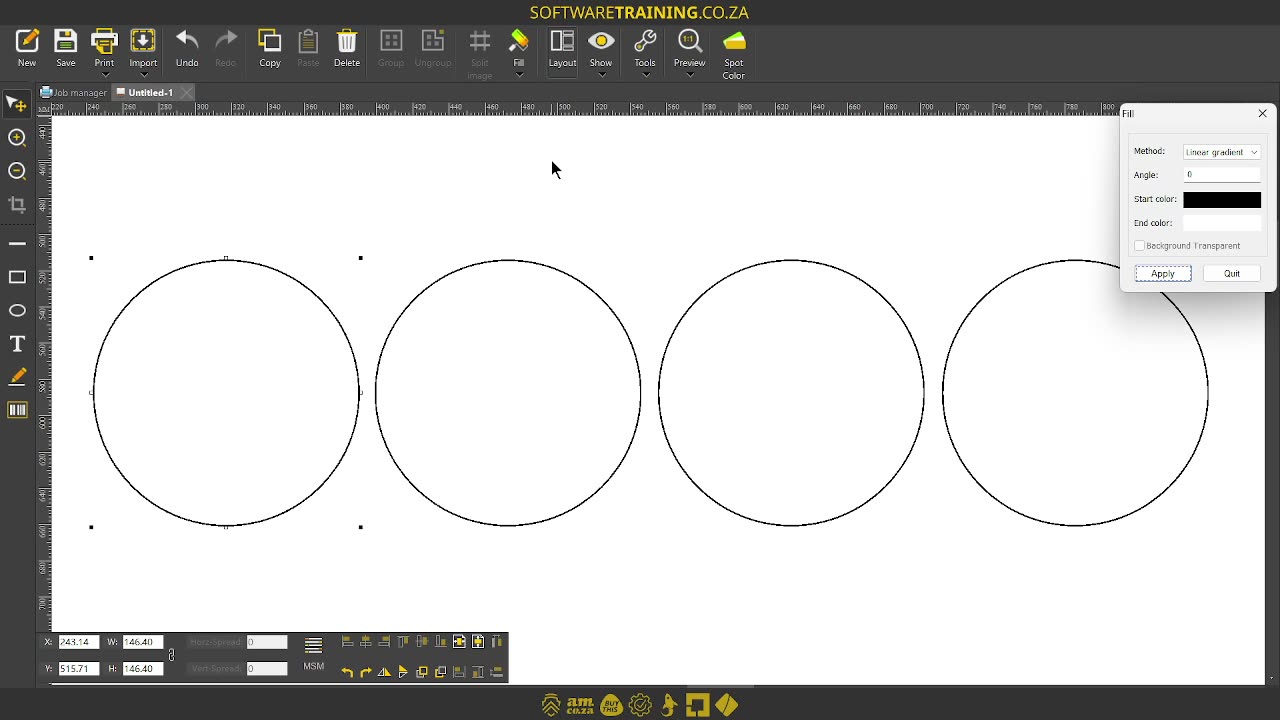
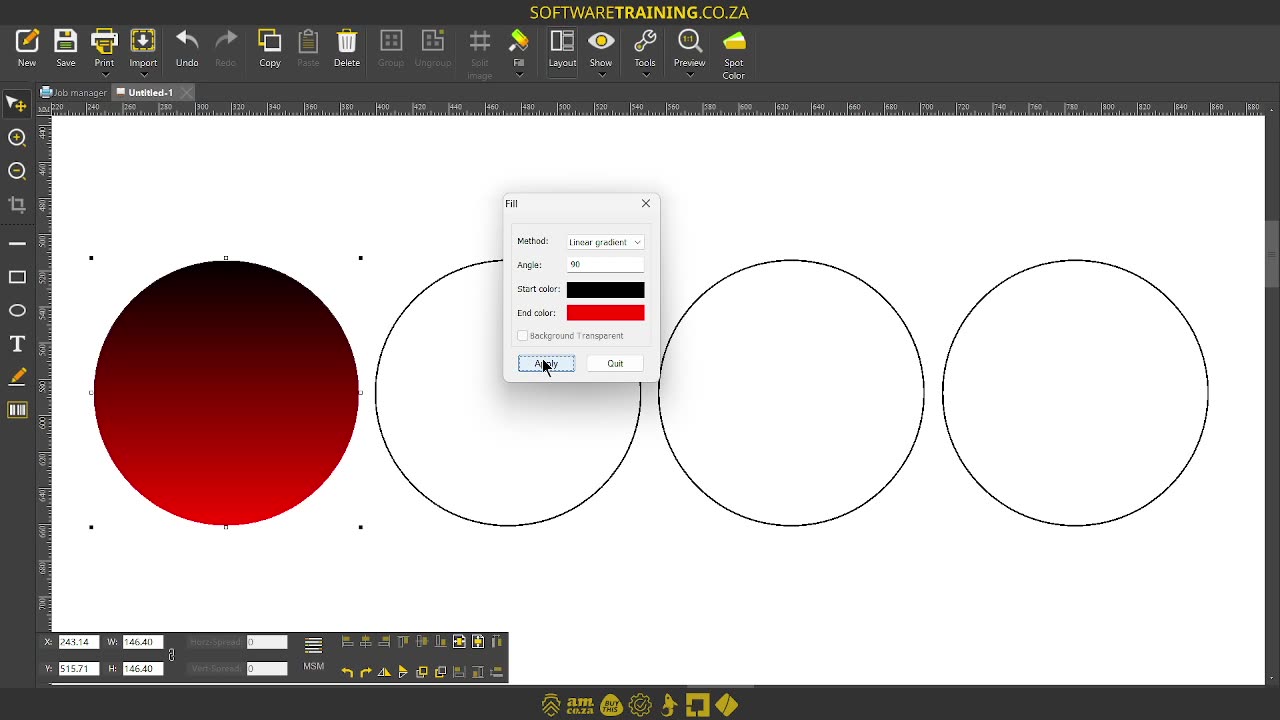
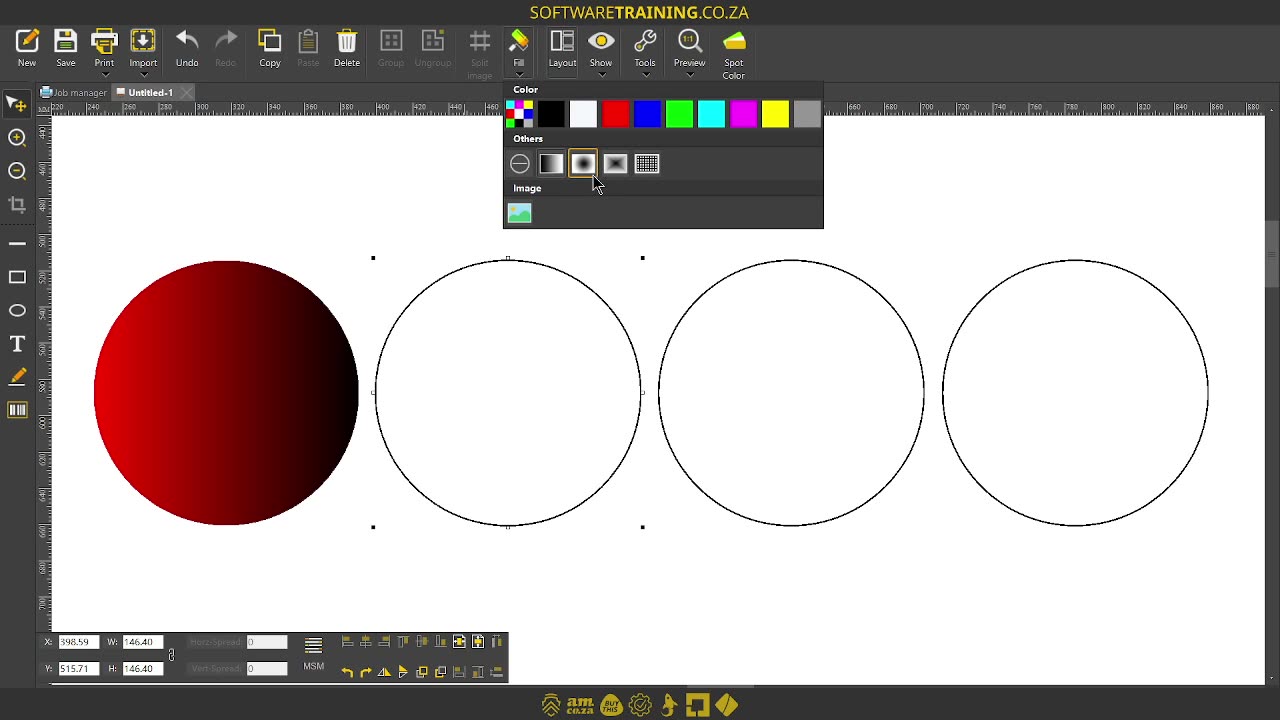
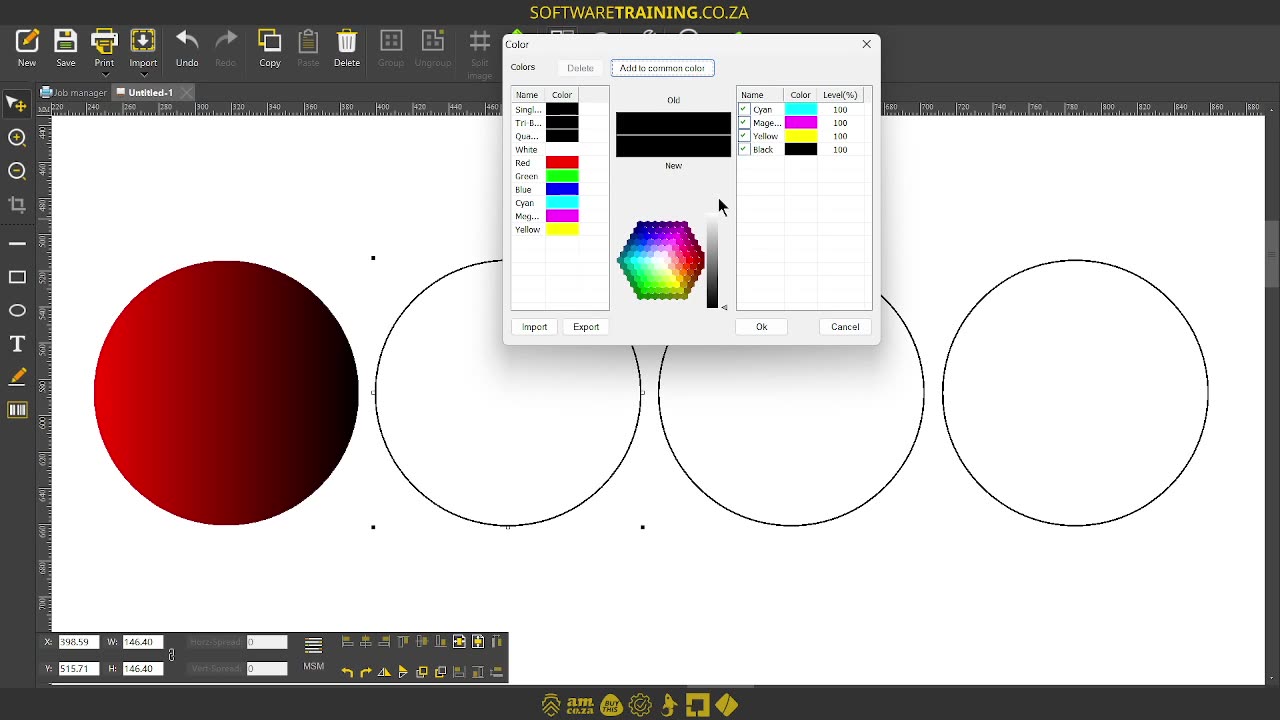
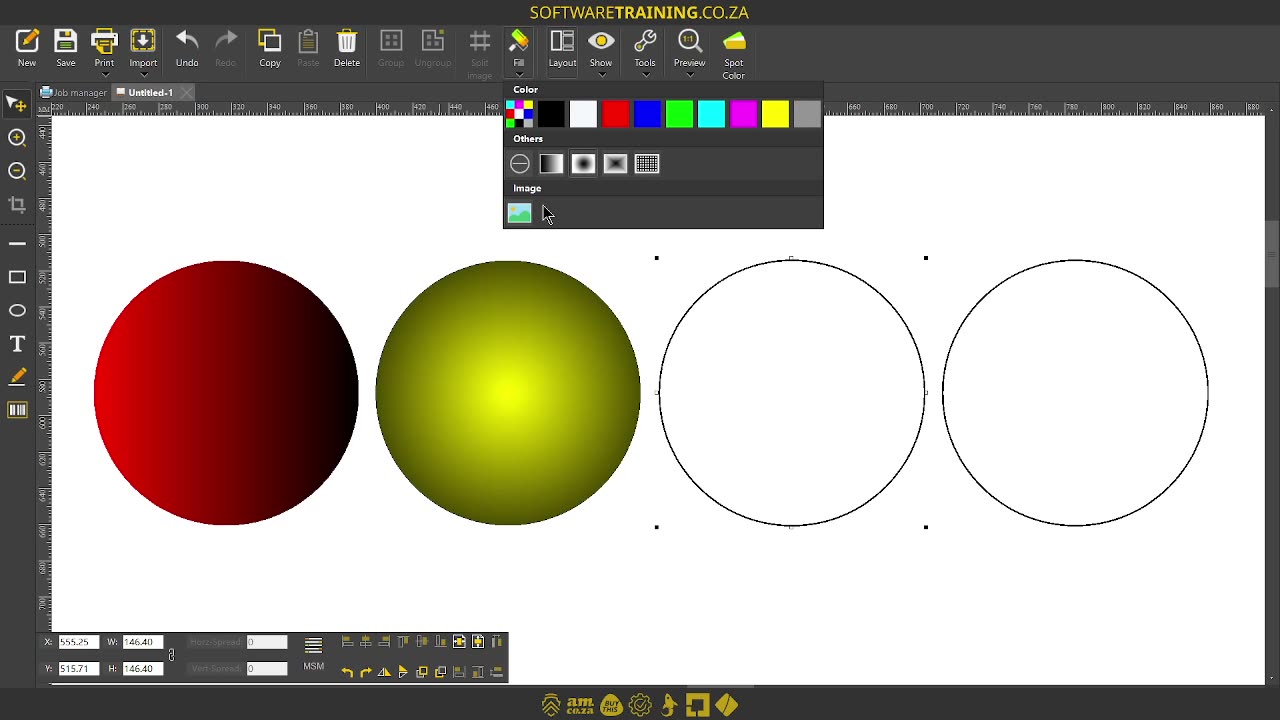
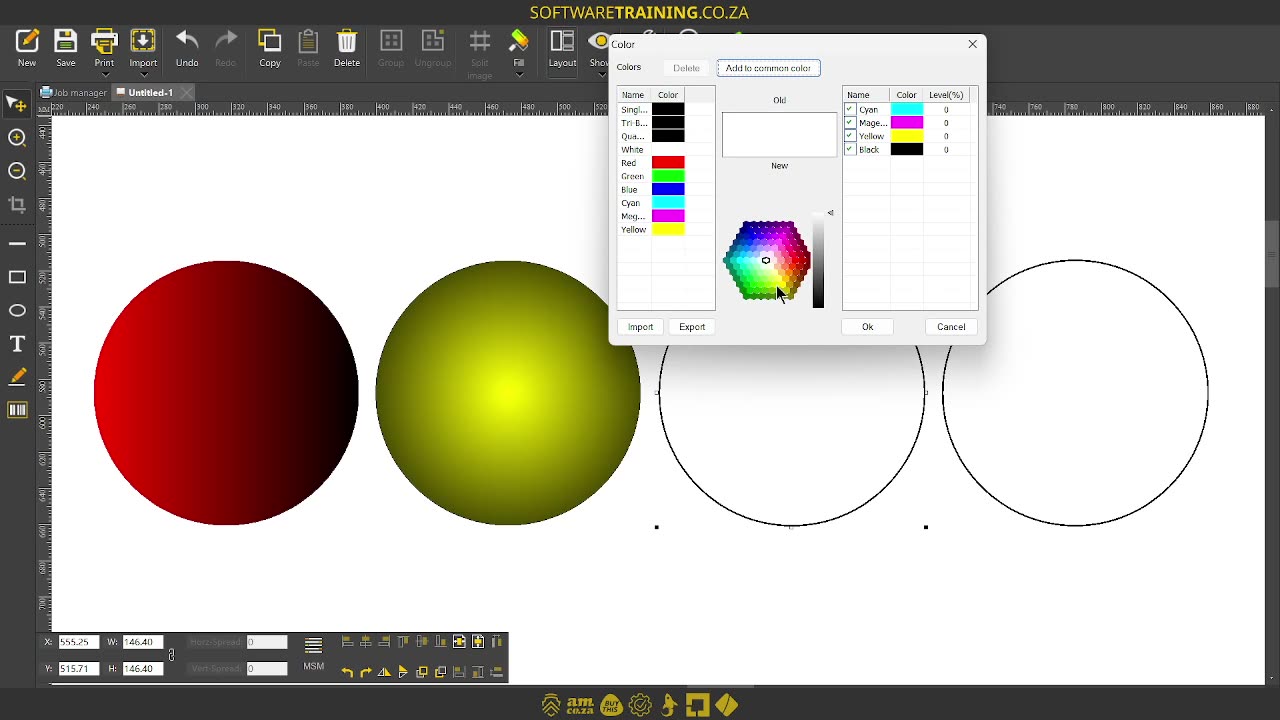
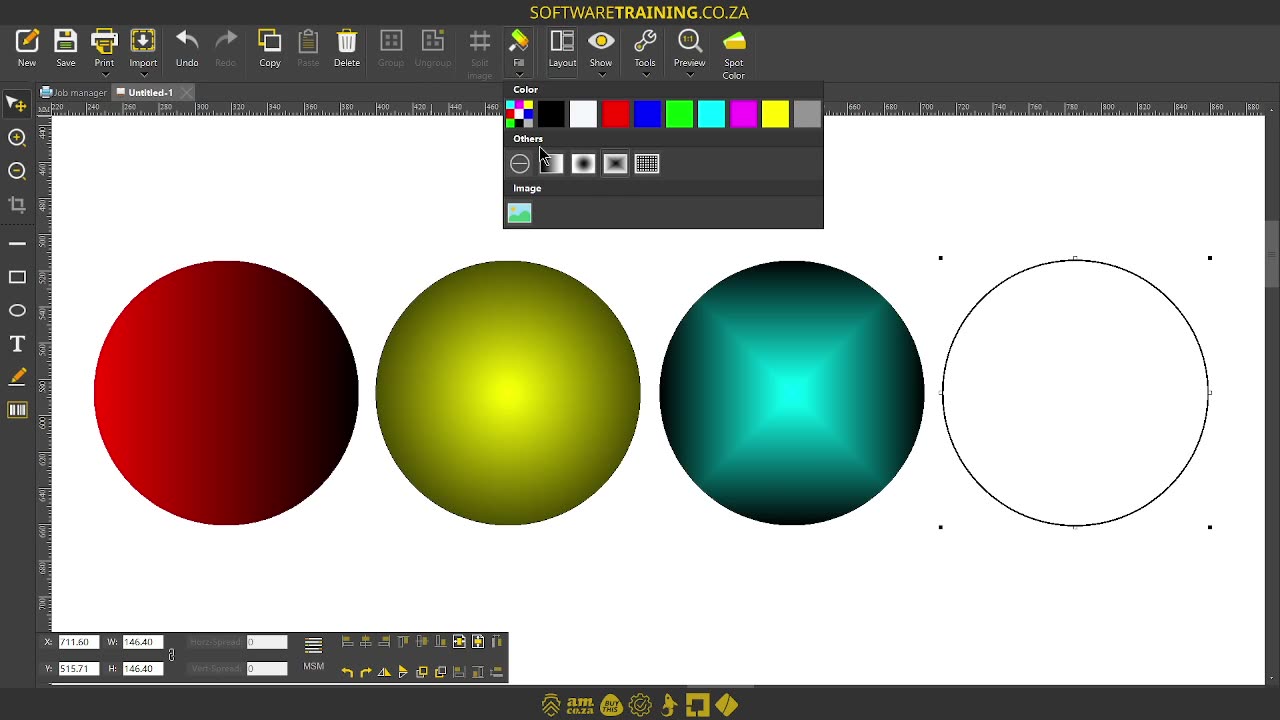
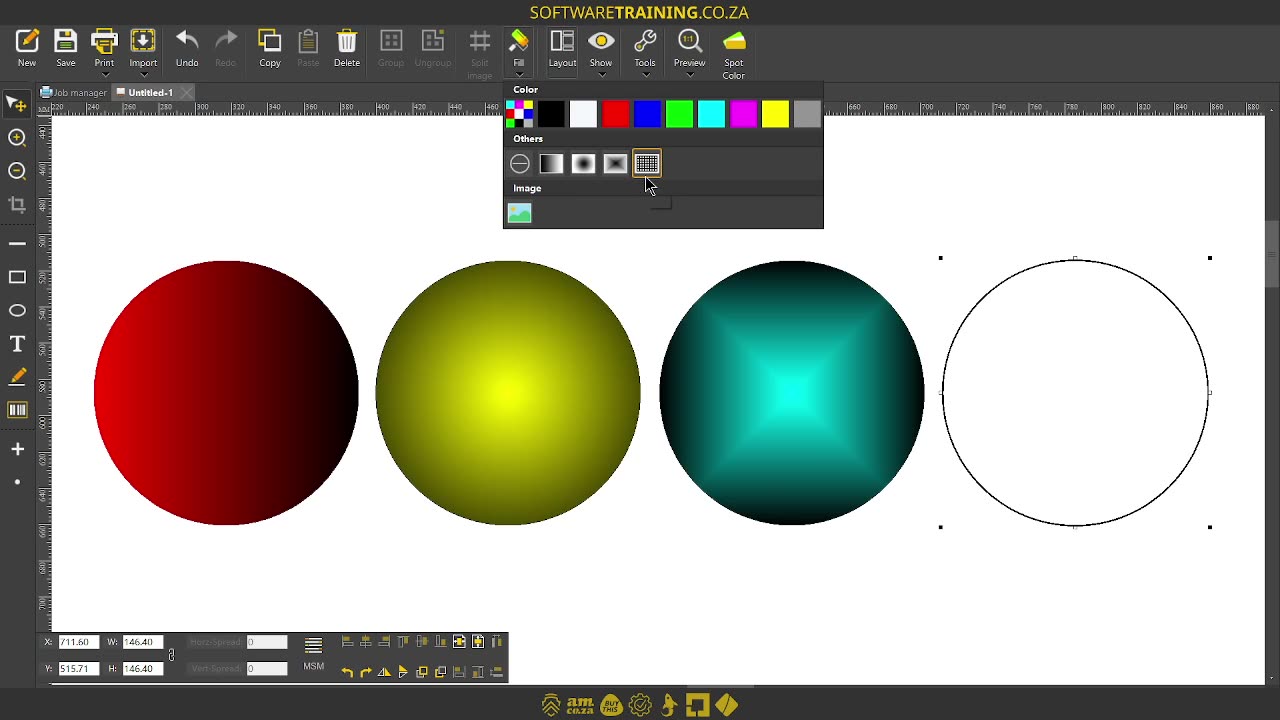
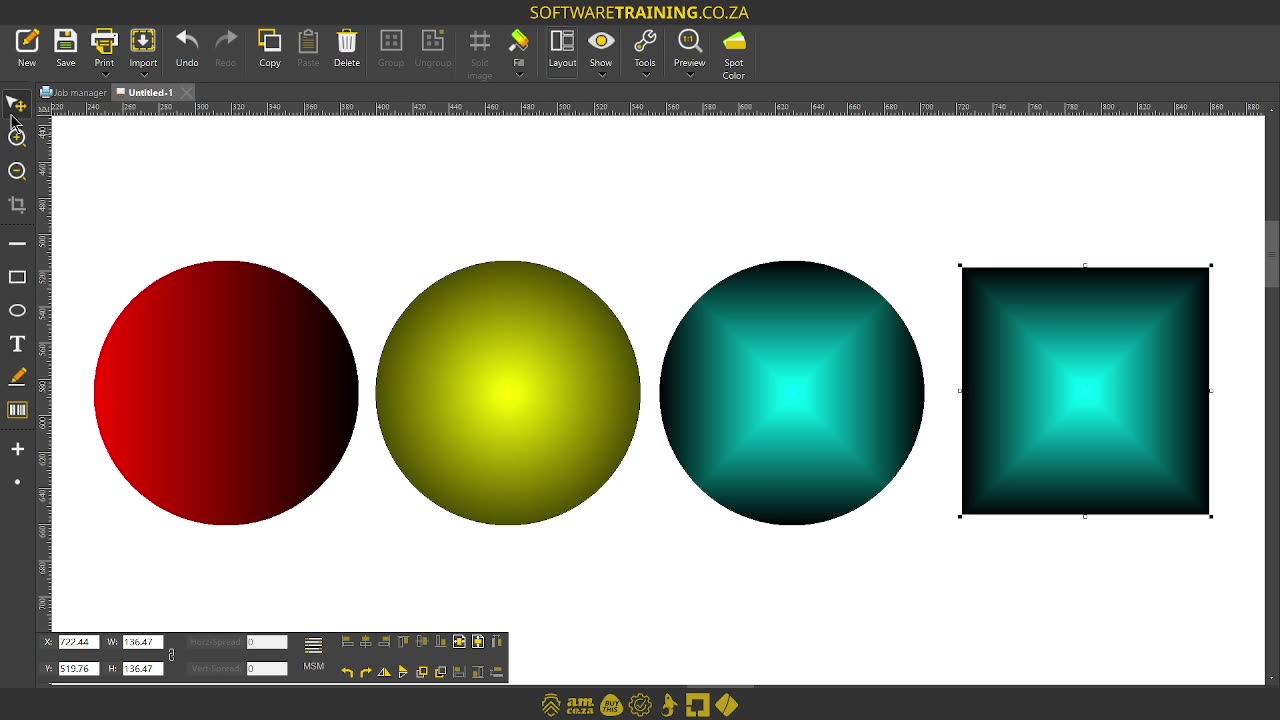
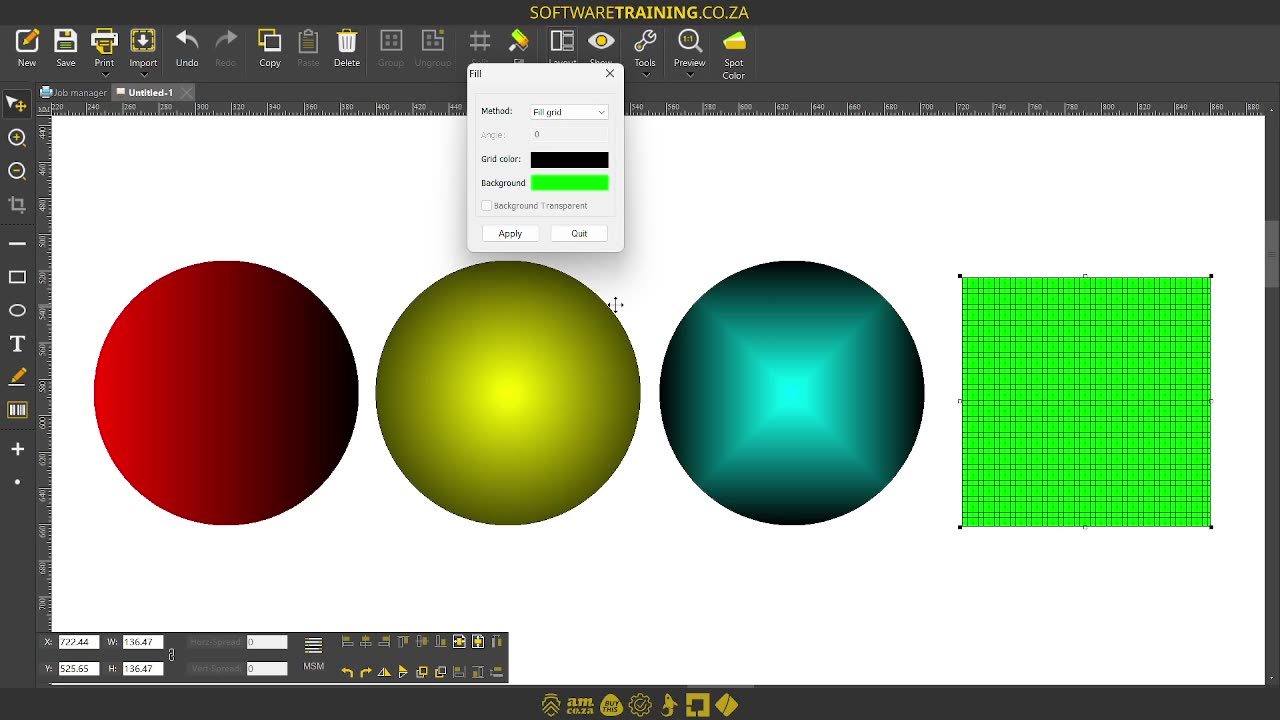
Howdy, guys. In today's video, we're gonna be looking at some gradient-fi types in crypt. But before that, let's have a quick intro first. So, today's video can be found on softwaretraining.co.za. We make short and easy to watch problem-solving videos, and we also have daily updates. Now, if we're into crypt. So, previously, we looked at some solid files and um edge files or edge types. Now, we're gonna be looking at actual gradients. So, we'll start with this first shape. I'm just gonna select it with my selection 2, and then under the full option, we're gonna click that and we'll see we have a few different gradient types here. The first one is obviously no fill, so it's currently what we have. Then we can go to a linear gradient. Now, this is gonna pop us up some settings here that we can choose from. Now, we can change the method here as well, same as under that menu, but we're just gonna leave it on that for now. Then, we've got the angle. We'll play with that now, and we have the colour. So, this will be our start colour, and if we click this one, this will be our stop colour. So, I'm just gonna select maybe red, so it's not just a simple black to white gradient. Then, let's make this 90%. And then say apply. Now, you can see currently the gradient is going from the top down, from black to red. Now, if you wanna flip that right around, we just go 180, say apply. OK, sorry. 270, say apply, and then it will flip it around. Now, we can also go to 0. And then we've got it from left to right, and then obviously 180. Then we'll have it from right to left. So, instead of changing the colour here, you can simply just, yeah, flip them around and then work them from there. Then, I'm just gonna keep this one, let's select the next shape, and then we go to full type, and then we're gonna choose this circle gradient. If I click that, you'll see we get similar options, because obviously, it is the same thing. You can just choose what type. Now, let us change this, maybe, we'll leave the first colour also black. Let's make this one yellow for the secondary and say apply. Now, you can see, it's nicely taking our shape and starting from a yellow, fading to a black. Then, let's go to the next one, select the shape. Once again, go to the full little drop-down menu, and then we've got the rectangle gradient. Now, obviously, we've got it in a circle, but it will still work. I pretty much just Makes a form of gradient like this, but it has hard edges to show that it's a rectangle. Now, let's change this one maybe to blue, say apply, and there you see. OK, it's not too obvious, so I'm gonna make this maybe a lighter blue. Say apply. Now you can nicely see the rectangle gradient. Now, obviously, we can change this, so let's go about 45, say apply. OK, it actually doesn't do. I would imagine it will start rotating it, but it doesn't. So, never mind that. The last one, we're gonna go down to the fold, and then we're gonna choose this last one, which is a grid. And um Yeah, let me, let me quickly register and then I'll show you guys that one. OK, now, that it is activated. So, once again, I have the shape selected. Go to full, and then we go to grid. Only regis oh I read wrong. My apologies, only rectangles, not registered users. So I just activated my, my programme for nothing, but it's fine. So, there we've got rectangle. We go to full, Go grid. Now, you see, we've got the grid full option here. So I'm gonna, let's change this colour, so we can see it's something different. And there you go. We've got a nice little grid now based off our actual shape. So, if you wanted to, you can do that as well. But yeah, otherwise, that is it on the gradient types. So as you can see, we've got the 4 ones here, and then we've got none. So, we've got the normal linears, basically circles, cube, and a form of grid. But yeah, otherwise, if we head here to uh softwaretraining.co.za. za, you guys will notice we've got a variety of different softwares we do cover, and you can also isolate your search on the top right. If you do not, however, find the training videos you're looking for, just simply go here, request a training video, fill in the mini form, and then we'll do our best to try and make that for you. But otherwise, thanks guys for watching and cheers.




 ayo-ogunseinde-1L5QpkSs5IU-unsplash