About the Color Manager for ICC Profiles Within the AM.CO.ZA InkRIP Software (Part 4)

inkrip color manager icc profiles
When it comes to creating an ICC Profile, we need to use the correct tool that is found within InkRIP.
When it comes to the Color Manager for creating these ICC Profiles, it is important to note that you will need a licensed version of InkRIP.
This video is part of a Mini-Series.
The next video covers Parameters.
The previous video covered A Clean Nozzle.
Video Transcript
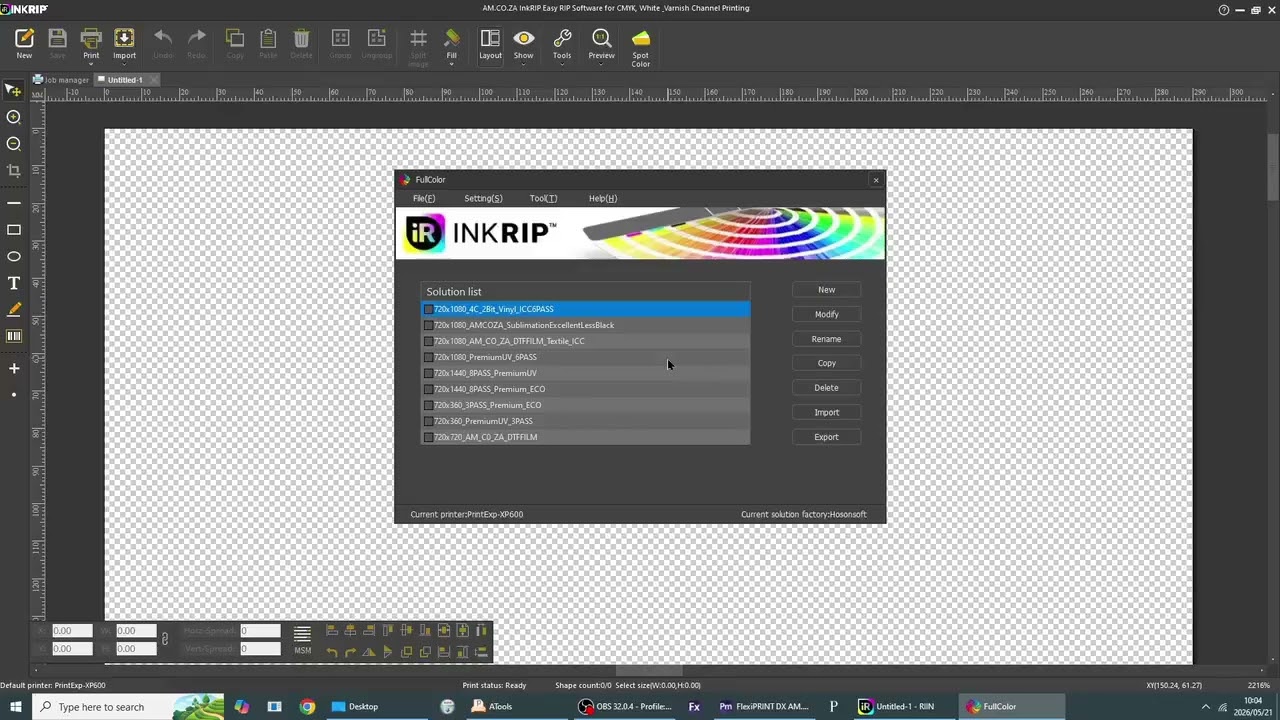
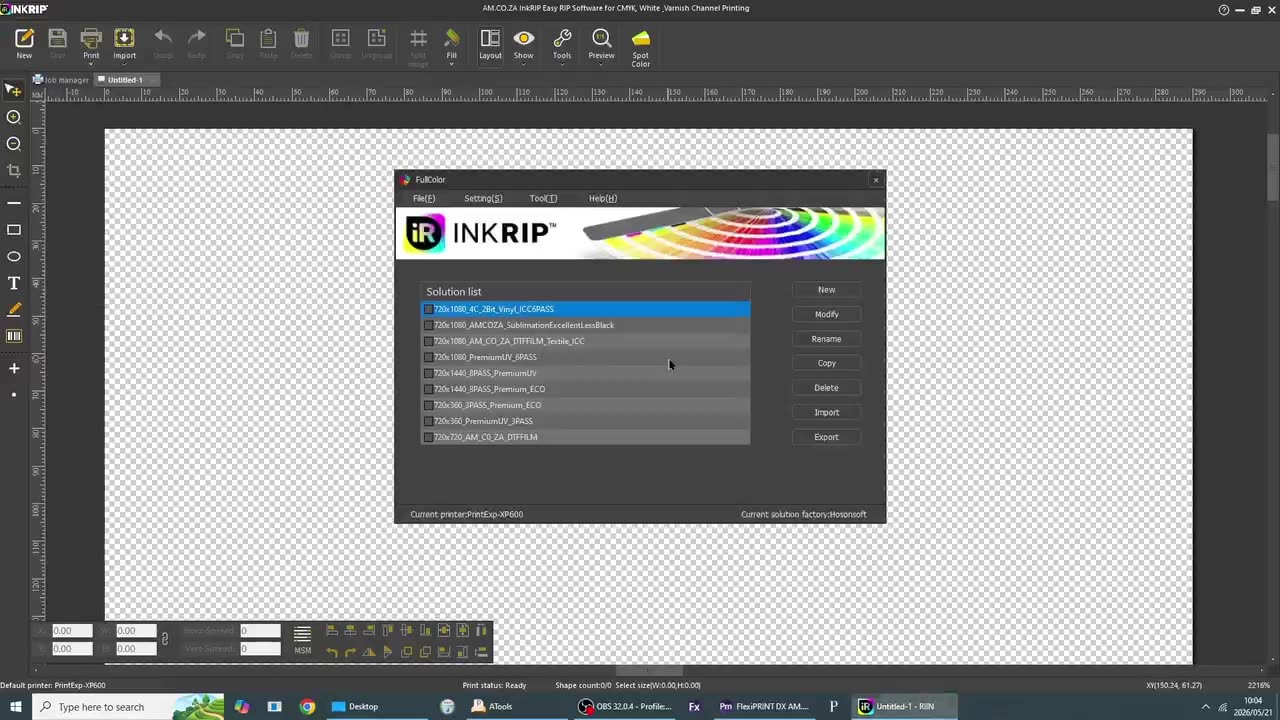
So, today's video can be found on softwaretraining.co.za. We make short and easy to watch problem-solving videos, and we also have daily updates. Otherwise, we're back into the video here. Now, when it comes to the colour Manager, this is what we're gonna be using or this feature to actually set up an ICC profile. In order to access it, it's pretty easy. We wanna go here into encrypt itself, then click on the top icon area, so it's actually a menu button. Then we'll navigate down so we see the colour manager. We gonna open that. It's gonna prompt us if we wanna run this, I'm gonna say yes, and then this will open up our actual colour manager. You know, as you can see, we've got a few different ICC profiles already created. From the list below. Now, this is also the same place we're gonna be using to manage things or to manage our uh colour profiles after we've created them. Yeah. Otherwise, if we head here to softwaretraining.co.za. za, you guys will notice we've got a variety of different softwares we do cover, and you can also isolate your search on the top right. If you do not, however, find the training videos you're looking for, just simply go here, request a training video, fill in the mini form, and then we'll do our best to try and make that for you. But otherwise, thanks guys for watching and cheers.



 allef-vinicius-Wyv-G9aB_YY-unsplash-index