Setting our New ICC Profile Parameters Within the AM.CO.ZA InkRIP Software (Part 5)

inkrip new icc profile parameters
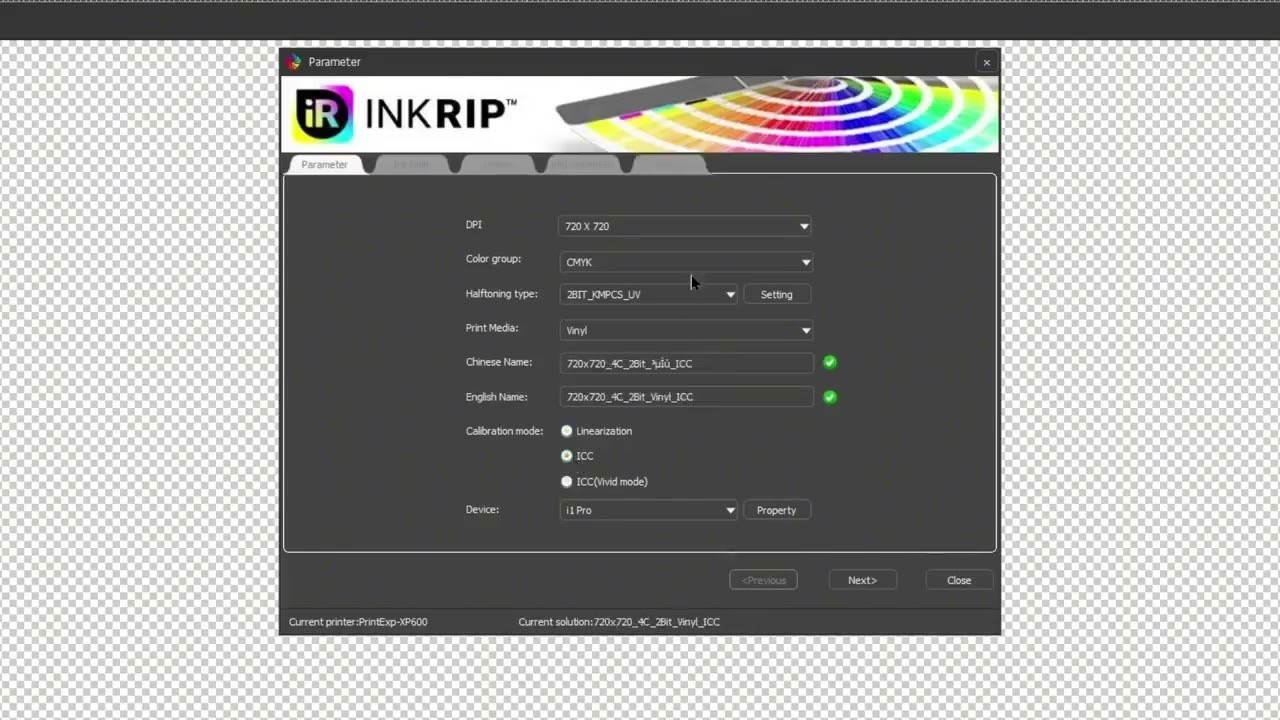
When we create an ICC Profile, the first thing we will be doing is setting the Parameters.
With the Parameters we will be setting we want to ensure that we use the correct value and options available.
This video is part of a Mini-Series.
The next video covers Ink Limit.
The previous video covered Color Manager.
Video Transcript
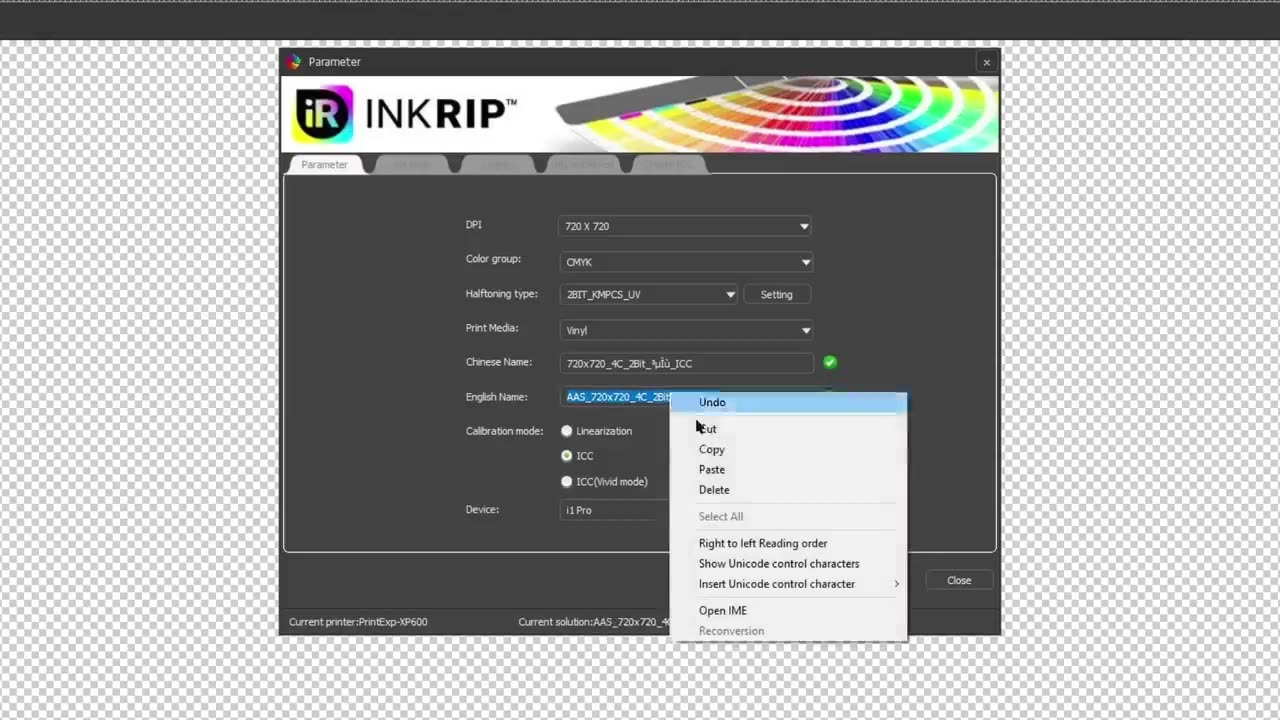
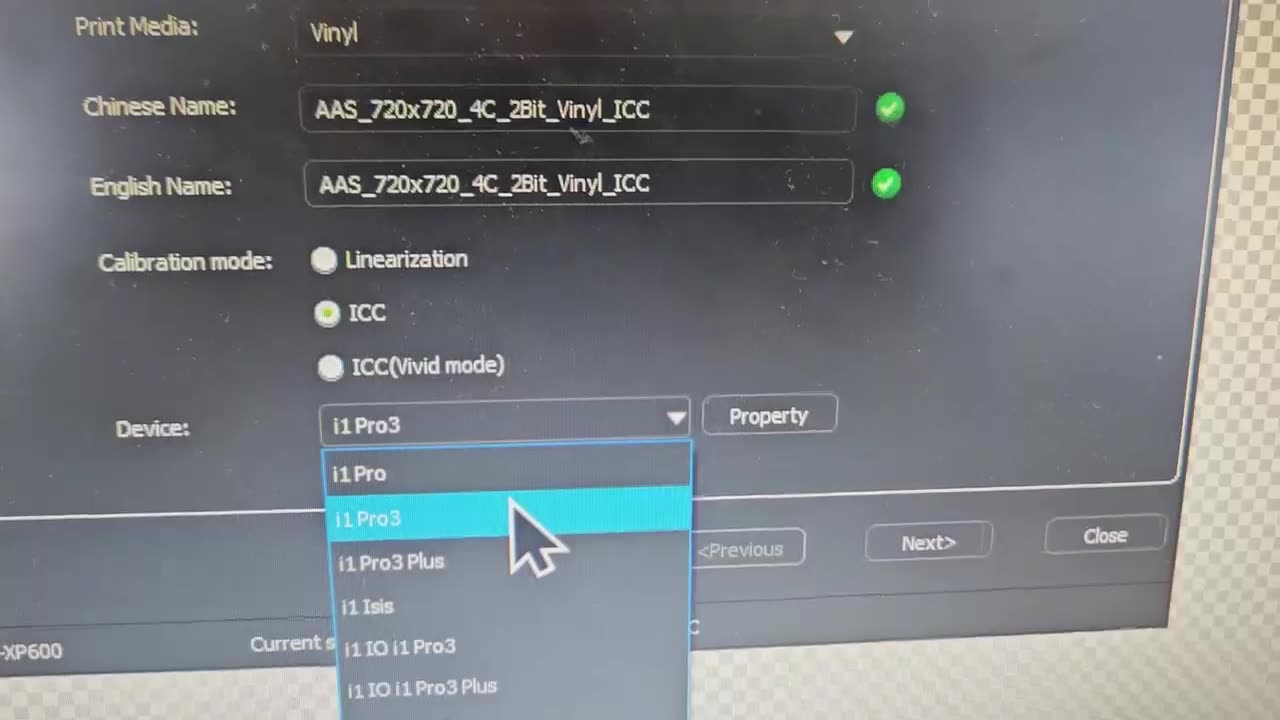
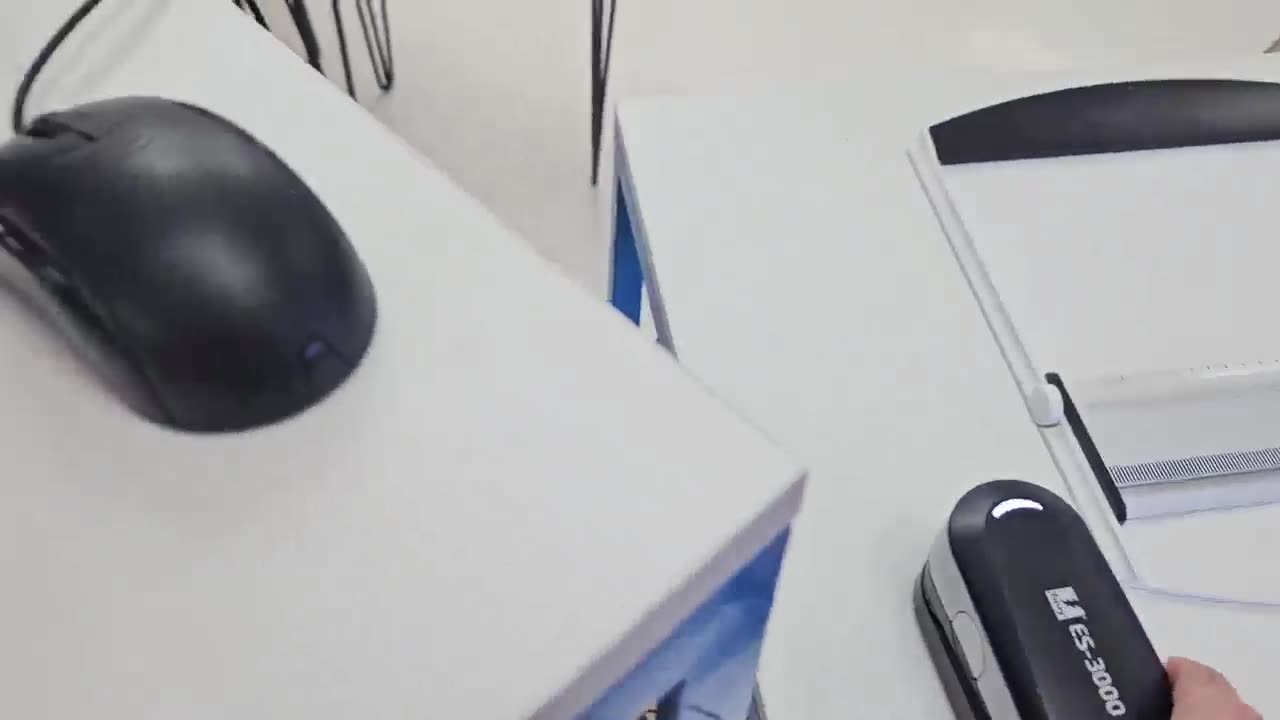
Howdy, guys. In this next video, we're gonna be looking at setting up some parameters for a newly created ICC profile. But before that, let's have a quick intro first. So, today's video can be found on softwaretraining.co.za. We make short and easy to watch problem-solving videos, and we also have daily updates. OK, now, from the colour manager, we wanna set up some parameters, and in order to do that, we're gonna start a new one. So we're gonna click new and this is gonna open up our actual colour manager from our four tabs. Now, under this, there's a few things that's important. So first of all, we have DPI. So this is gonna allow us to set in many ways the resolution or how many dots it's gonna be spraying. So, in general, if you're gonna be doing a large format printing, that's gonna be seen from far, you just probably wanna keep this at a low resolution, and then for more finer details, you wanna start upping this. But keep in mind This is also limited or relevant to your material you're using. So, if you're gonna be using a very glossy type material, And you're gonna up the resolution, which is gonna do more passes, then you're more likely to get bleeds or ink running, unless you're using something like a UV lamp. Um, on your actual printer head. So for the sake of the tutorial, I'm just gonna go for something simple, maybe like a 720 by 720, just to keep things easy. And next up, we have the halftoning type. For the sake of this tutorial, we're just gonna keep it on the first one, the two-word KMPCS. Then, after that, we're gonna head over to print media. So once again, this is where you can select a preset of what you're gonna be using. So let's say it's vinyl or maybe uh for flex, transfer paper. You can also do a custom one. But um yeah, I'm gonna be using the final, but also keep in mind with the three elements which is very important is obviously your machine, your ink, and your material. So, if you change any of those, you have to, unfortunately, create another ICC profile to match the new paper or material. And then, next up, what we wanna do is under the calibration mode, I wanna switch this to ICC cause we're not doing just the linearization. And you'll see that it creates this extra tab on top and that allows us to create the actual ICC file. Then, another important thing is the naming. So, in general, the naming is or structure is quite descriptive. So as you guys can see here on this current one, we have 720 by 720, so that's our resolution. Then we have a 4C which stands for the amount of channels we have. We've got 2-bit, we've got the material type, vinyl, and ICC so we know this IC profile. Now, you can obviously add anything extra in there that's relevant to you. So in our case, I'm just gonna change this name here to something for the tutorial. So for Ambitious Academy, and then S underscore, and then we're gonna copy this name, very important, and then under the Chinese, we wanna paste it, so they have the same names. And then, under the device, we wanna select our spectrophotometer we're using. And um it's important. If this is not selected correctly, then when you actually wanna try metre or scan the things, it will give you an error that can't find the device. So in my case, it's simple. I'm gonna go here to ours and then I'll just look at the model, but in the actual dropdown, I'm gonna be selecting the iPro 3 and then I know that one works. So you might have to test if you don't have a popular brand or something to see which one works. And after that, I'm gonna click next. Yeah, otherwise, if we head here to softwaretraining.co.za. za, you guys will notice we've got a variety of different softwares we do cover, and you can also isolate your search on the top right. If you do not, however, find the training videos you're looking for, just simply go here, request a training video, fill in the mini form, and then we'll do our best to try and make that for you. But otherwise, thanks guys for watching and cheers.