Using the Text Tool and Its Options Within the AM.CO.ZA InkRIP Software (Part 7)


inkrip text tool options
One of the most important design elements of informational designs / art, is the adding of names, slogans, quotes or information.
In order to add those types of informational designs, we will be using the Text Tool from the Toolbox panel.
This video is part of a Mini-Series.
The next video covers Add Footnote.
The previous video covered Color Tables.
Video Transcript
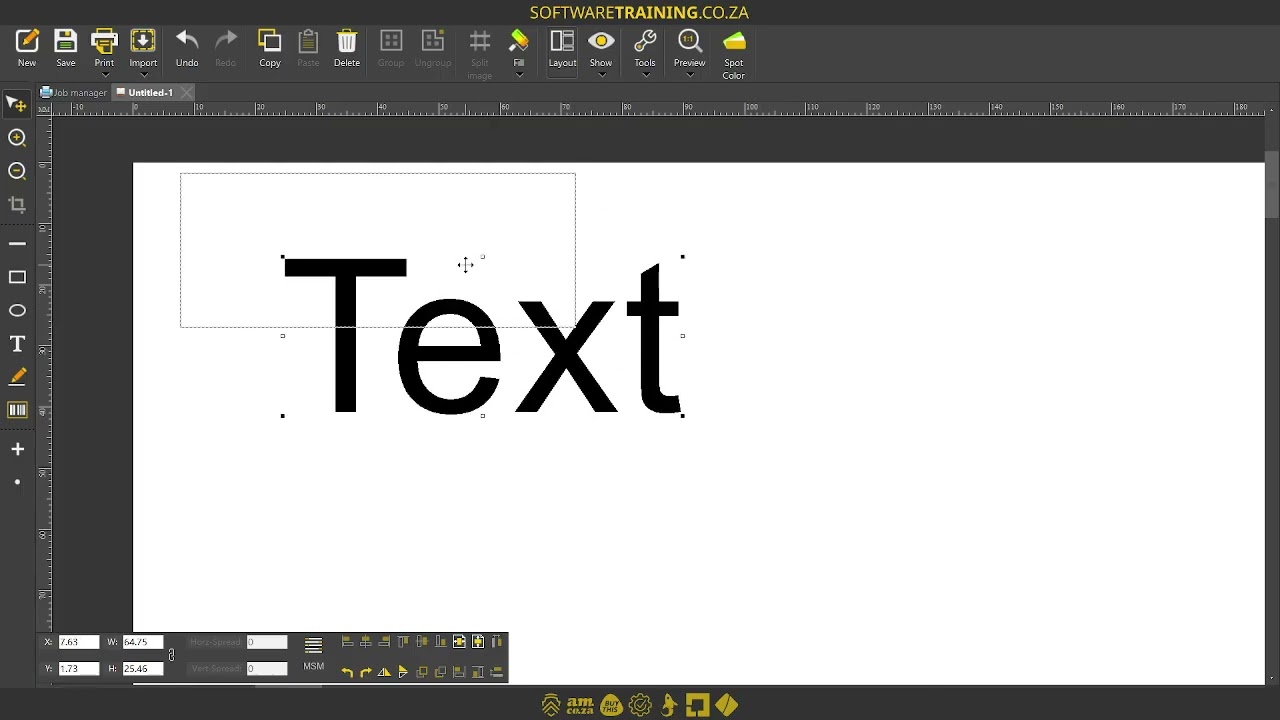
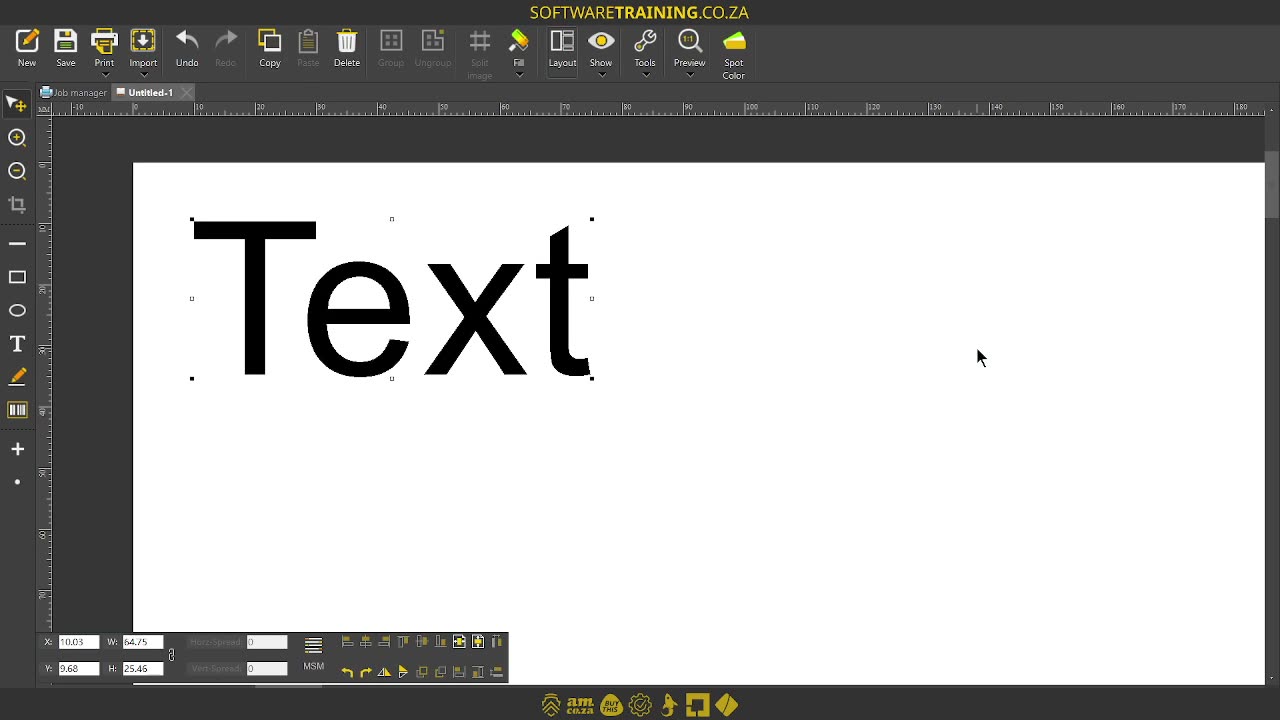
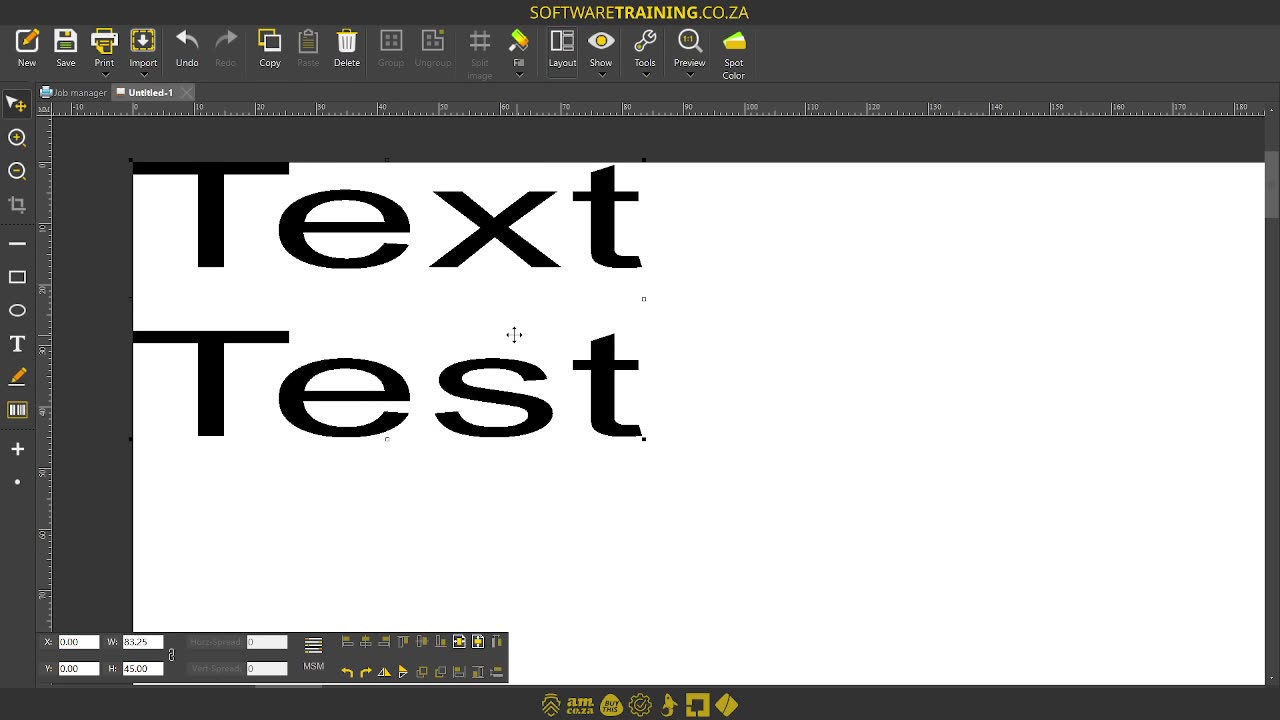
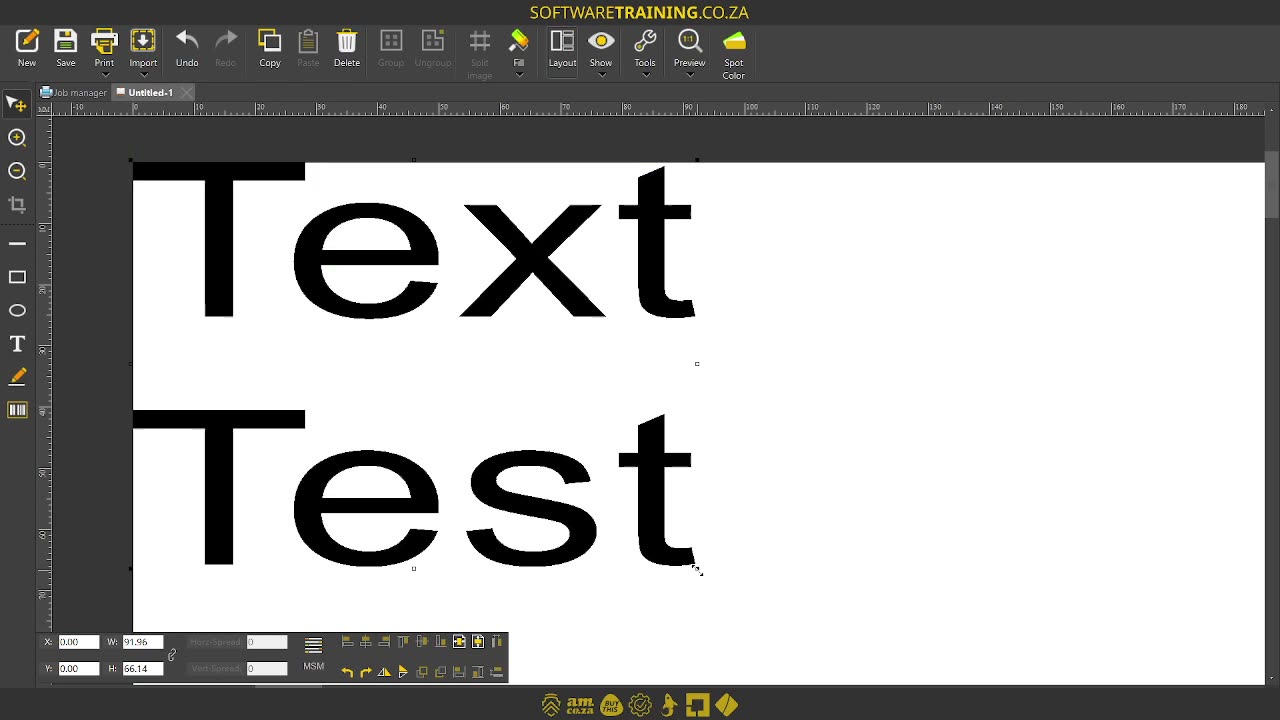
Howdy, guys. In today's video, we're gonna be looking at using the text tool within Encrypt. But before that, let's have a quick intro first. So, today's video can be found on softwaretraining.co.za. We make short and easy to watch problem-solving videos, and we have daily updates. Now, if we're into the programme here, like I mentioned, we're gonna be looking at the text tool. Now, this is pretty standard in many ways. So if you've used uh used text tools before in different softwares, you should understand what's happening. OK. So now, in order to do that, we wanna go on our toolbar here on the left and locate the icon with a big T on it for text. Now, to the users, we're gonna simply select that and then we're gonna left click somewhere on the screen and drag a text box. So left click holding and drag. Then, it will open up our actual text options. So, it is pretty straightforward. So I'm just gonna say text here. You can choose the font up here, and then the scale of your actual um design or your text, and then we also have this one in the millimetres. I will show you briefly what that does. Then we've got bold, italic underscore. We can increase and decrease the text here and we can change the colour. So I'm just gonna say OK for now, so we can see we have our text here. Let me move to the corners, so we can see the measurements. Now, in order to edit this, all you have to do with your, even normal select selected or select tool, just double click the text and it will prompt you to edit the text again. Now, a few things to keep in mind, like I mentioned over here, this is gonna be the actual height of the text. So you can see currently, it says 35 mil and if we're looking at our measuring, we can see here 30. 00 yeah. 3035. OK. Currently, it is not. Courage. Here we go. So now, if I've adjust that to 35, you'll see it's gonna go to 35. Now. It's something to keep in mind, so I would say, if you use a text tool for now, just use single line. So as soon as we go to another line here, go test, oops. It's the phone back to what it was. And then say, OK. Now, you can see it's kind of warping out text to try to fit it in within that. Uh, how can I say the height of that. Which um is obviously not ideal. So then, if we change this to like 45, so, OK, the text will stay warped. As soon as we take this line away, say, OK, now you'll see it'll take the text back to the way it should be. So, that is something to keep in mind. Obviously, you can, for instance, let's say we go make another line, we say, OK, you can obviously use these um editors or these type of controls to try to change it, but you're gonna have to remove this aspect ratio. Otherwise, it is going to keep the constraints. So now, if you want to, you can kind of scale it in a downwards angle. And um uh readjust. But yeah, the text tool is pretty straightforward. Like I said, if you've used this in other programmes, you kind of get the hang of it pretty quick. But yeah, otherwise, in the meanwhile, If we head here to softwaretraining.co.za. You guys will notice, we've got a variety of different softwares we do cover, and you can also isolate your search on the top right. If you do not, however, find the training videos you're looking for, just simply go here, request a training video, fill in the mini-form, and then we'll do our best to try and make that for you. But otherwise, thanks guys for watching and cheers.


 jim-flores-dE6c9RZoyL8-unsplash.jpg